Sharp VL-WD450U Spezifikationen
Stöbern Sie online oder laden Sie Spezifikationen nach Kamerarekorder Sharp VL-WD450U herunter. Sharp VL-WD450U Specifications Benutzerhandbuch
- Seite / 120
- Inhaltsverzeichnis
- LESEZEICHEN

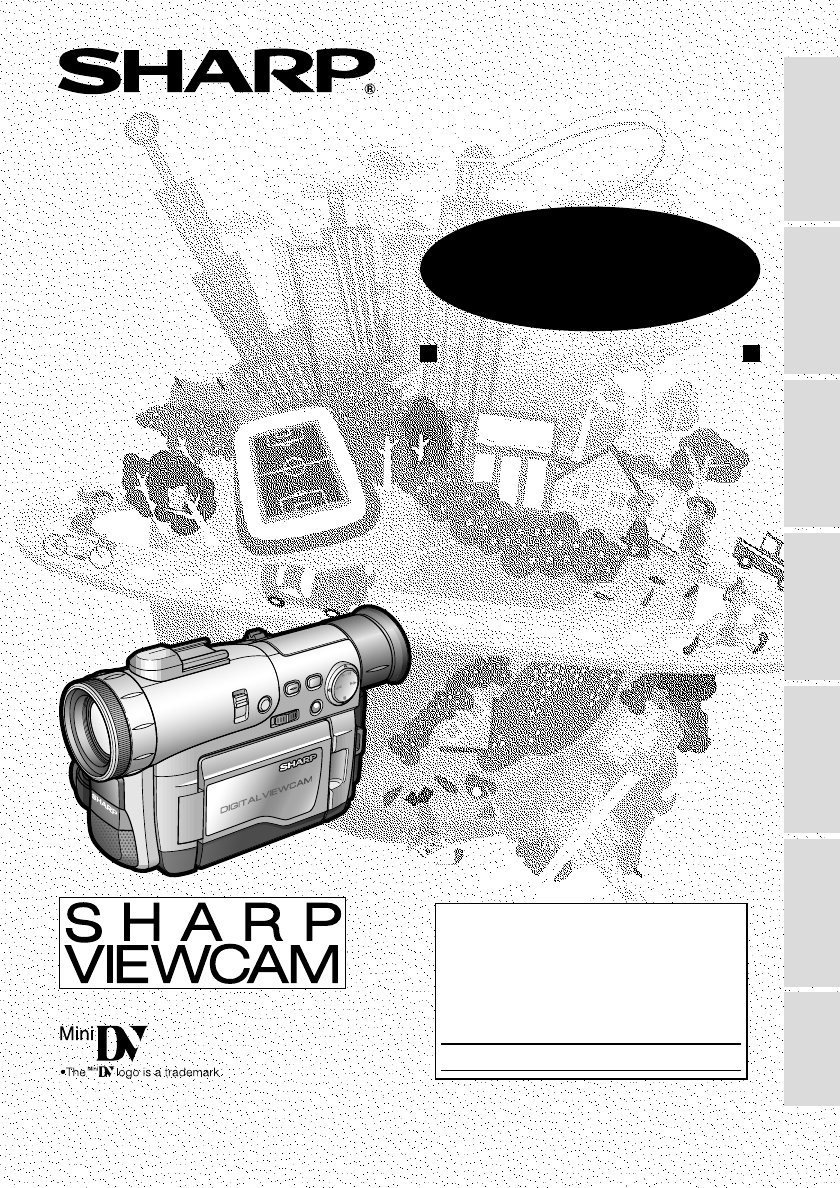
- OPERATION MANUAL 1
- CAUTION: 2
- IMPORTANT SAFEGUARDS 4
- Quick Operation Guide 6
- Card slot cover 7
- Contact area 7
- Chipped corner 7
- To stop playback 8
- Lock button 9
- LCD monitor OPEN 9
- Selection Frame 9
- Supplied Accessories 10
- Optional Accessories 11
- Precautions 12
- Contents 13
- SmartMedia Card 15
- Features 15
- Operation References 16
- Left view 17
- Bottom view 17
- Right view 18
- Quick Reference List 19
- On-screen Display Index 20
- CARD-CAMERA mode 21
- CARD-VCR mode 21
- Easy mode (p. 28) 21
- PROTECT. TAB 22
- TAPE END 22
- MEMORY CARD 23
- READ ERROR 23
- Preparation 24
- Attaching the Battery Pack 25
- Removing the Battery Pack 25
- (10:30 AM) in New York 30
- SETT ING 31
- Adjusting the Diopter 33
- Using the LCD Monitor 34
- 3 Hold down the Lock button 34
- Basic Operations 35
- Tips on Recording Positions 36
- Remaining Recording Time 37
- Remaining Battery Power 37
- TV/VCR SET UP 39
- Video Search 40
- Useful Features 41
- Using the Controls 42
- Selecting the User Mode 43
- 1 Set the Media Selection 43
- To turn off the menu screen 44
- AUDIO MODE 46
- DGTL ZOOM 47
- Gamma Brightness 48
- Compensation 48
- To obtain a brighter picture 49
- Night Recording (Super Cat’s 50
- QK. RETURN 51
- Fade out 52
- FADE indicator 52
- To cancel Fade mode 53
- To use Fade Out only 53
- To return to normal screen 53
- OFFEFF.SNAP 54
- PHOTO SNAP STILL 54
- PHOTO SHOT 55
- EFF.SNAP 55
- 4 Press y to freeze the inset 56
- 5 Press the REC START/ 56
- Letting the Subject Monitor 57
- Operating the Remote Control 59
- 0 00 10 20TC 61
- Advanced Features 62
- Camera Recording 62
- 8 Press e 63
- Recommended Shutter Speeds 65
- WH I T E BAL 67
- SET MENU DISPLAY 67
- PIC. EFFECT 68
- SCENE MENU 69
- ZOOM MIC 70
- To cancel Windbreak 71
- Time Zone Chart 72
- Area Table 73
- DYLT SAVE 74
- ULTI FRAME 76
- PB EFFECT 77
- Picture Effect Playback 78
- BACKL IGHT 79
- Playback 80
- Cutting Unwanted Sequences 80
- To stop recording 81
- To Record to Video Equipment 82
- Audio Dubbing Feature 83
- Audio Dubbing 84
- Using the Software 87
- Opening the PDF Manual 87
- Printing the PDF Manual 87
- SmartMedia Card Features 88
- REC MODE 90
- Recording with the Self-timer 91
- SL I DE SHOWSLIDE SHOW 94
- Delete-protection indicator 95
- Deleting All Stored Images 97
- About DPOF 98
- Print order indicator 99
- Transferring the Data on a 100
- SmartMedia Card to a 100
- Computer 100
- Appendix 101
- DV Technology 102
- Mini DV Cassette 103
- Copyright Protection 103
- SmartMedia™ Card 104
- Battery Pack 105
- AC Adapter/Battery Charger 106
- Dew Formation 106
- 4 Remove the cleaning tape 107
- DEMO MODE 108
- Before Requesting Service 109
- Specifications 111
- Conmutador selector de madio 112
- Interruptor de alimentación 112
- Botón de bloqueo 112
- Para detener la reproducción 114
- Botón de abertura del 115
- Cuadro de selección 115
- Modo fácil (FÁCIL) 116
- Modo TAPE-CAMERA 116
- Modo TAPE-VCR 116
- Modo CARD-CAMERA 117
- Modo CARD-VCR 117
- Mode TAPE-CAMERA 118
- Mode facile (FACILE) 118
- Mode TAPE-VCR 118
- Mode CARD-CAMERA 119
- Mode CARD-VCR 119
Inhaltsverzeichnis
VL-WD450U/hyou; 00/12/15/18:00LIQUID CRYSTAL DISPLAY CAMCORDEROPERATION MANUALMODELVL-WD450UVL-WD650UImportantModel No.: Serial No.:Please read this o
ixSupplied AccessoriesBattery packBT-L221n*1AC adapter/battery chargerUADP-0321TAZZ*1Power cordQACCD0031TAPZDC cableQCNW-1957TAZZRemote controlRRMCG01
85SmartMedia Card FeaturesPlaybackSmartMedia CardFeaturesFolder of still imagesTransferring the Data on aSmartMedia Card to aComputerIn addition to us
86AppendixPosition the subject inthe center.Focus manually when youneed to position thesubject off center (seepages 47 and 48).Light from behind Backl
87AppendixAppendixDV TechnologyDigital video, DV, is a revolutionary technologythat enables recording and playback of highquality images with the use
88AppendixMini DV CassettePrecautions when using a Mini DVcassette• Be sure to use only Mini DV cassettes withthe i mark.• This camcorder can record a
89AppendixAppendixSmartMedia™ CardContact area• The contact area shows hardware connec-tions.• Be careful not to scratch the contact area.• Do not tou
90AppendixBattery PackThis camcorder uses a lithium-ion typebattery pack.Charging• Charge the battery pack immediately (or aday) before use. The batte
91AppendixAppendixAC Adapter/Battery Charger• The AC adapter/battery charger may interferewith reception if used near a radio.• Prevent flammables, li
92AppendixDirty Video HeadsUsing the camcorder when the video tape isdirty may cause the heads to clog, producingnoise on the recorded image or preven
93AppendixAppendixDemonstration ModeYou can watch a brief demonstration of thespecial camcorder features in Demo mode.If the demonstration appears on
94AppendixBefore Requesting ServiceBefore calling for service, please check the following troubleshooting table.PowerRecording modePlayback modeSympto
xOptional AccessoriesStandard-lifebattery packBT-L221nExtended-lifebattery packBT-L441nZoom microphoneVR-5MCNNote: The listed model names are for U.S.
95AppendixAppendixPlayback modeCard modeGeneralSymptomCannot play back, rewindor fast forward tape.Video noise in image.Cannot delete imageon SmartMed
96AppendixSpecificationsCamcorderSignal System: NTSC standardRecording System: 2 rotary heads, helical scanning systemCassette: Digital VCR Mini DV vi
97Guía de operación rápida en españolCarga de la batería1 Conecte el cable de alimentaciónsuministrado al zócalo de alimentaciónde CA del adaptador de
98SAVERECSAVERECInserción de unminivideocasete DV1 Coloque la fuente de alimentación en lavideocámara, y luego deslice el controlde abertura de la pue
99Guía de operación rápida en españolBotón de abertura delmonitor LCD (OPEN) 90AUDIO12+AUDIO12+Grabación fácil con lavideocámara en una cinta1 Asegúr
100Grabación con tarjeta1 Asegúrese de que se encuentreinsertado una tarjeta SmartMedia.Botón de bloqueoReproducción de tarjeta1 Pulse el botón de abe
101On-screen Displays in Other LanguageCuando se selecciona “ESPAÑOL” como idioma de la visualización en pantalla aparecen lassiguientes visualizacion
102TARJMENÚAUTODISPA.ESCE.DISENFO.MANU.EXPOSICIÓNVEL. OBTURAEF. IMAGENAJUSTE MAN.MODO GRABAEF. INSTAN.ZOOM DIGI.AJUSTE CÁMAFORMATOREMOTOSONIDOMODO DEM
103On-screen Displays in Other LanguageLes affichages sur écran suivants apparaissent lorsque “FRANÇAIS” est sélectionné pour lalangue de l’affichage.
104AUTOCARTE CARTEAUTOCARTE362514PRES. DIAPOIMAGEMENUEFFACERPROTGERORD. IMPRESEFFACER TTREGLE. LECTRETARDAT.SONAFFICHAGEMODE ENREGMENU90090011NORMAL10
xi•When the camcorder is not in use, remem-ber to remove the cassette tape, turn offthe power, and disconnect the camcorderfrom the power source.•Do n
VL-WD450U/hyou; 00/12/15/18:00LIQUID CRYSTAL DISPLAY CAMCORDEROPERATION MANUALMODELVL-WD450UVL-WD650UImportantModel No.: Serial No.:Please read this o
xiiPart Names ... 1Quick Reference List ...
xiiiUseful FeaturesQuick Return ... 36Edit Search ...
xivSmartMedia CardFeaturesAppendixCamera RecordingInserting and Removing a SmartMedia Card ... 73Card Recording ...
1Operation ReferencesOperation ReferencesPart NamesFor details on the use of each part, refer to the page number indicated in brackets.Left viewW/B (W
2Operation ReferencesLeft viewZoom microphonemounting hole [p. 55]LCD monitor [p. 19]LCD monitorOPEN releasebutton [p. 19]Lithium batterycompartment d
3Operation ReferencesOperation ReferencesRight viewS-VIDEO socket[pp. 24, 65, 66]VIDEO jack[pp. 24, 65, 66]AUDIO L jack[pp. 24, 65, 66]AUDIO R jack[pp
4Operation ReferencesQuick Reference ListBelow are some examples of camcorder’s features.•To record the subject with higher-quality audio.— See page 3
iThank you for purchasing this camcorder from SHARP.The camcorder will enhance your home video enjoyment and allow you to capture thosespecial moments
5Operation ReferencesOperation ReferencesOn-screen Display IndexFor details on the use of each function, refer to the page number indicated.AUTOAUTOLI
6Operation ReferencesDISPLAYSCENESELF TIMERMENUDISMAN. FOCUSEXPOSURESHUT. SPEEDPIC. EFFECTMANUAL SETREC MODESNAP EFF.DGTL ZOOMCAMERA SETREMOTESOUNDFOR
7Operation ReferencesOperation ReferencesWarning IndicatorsIf a warning indicator appears on the screen, follow the specified instructions.Displayed f
8Operation ReferencesNote:•N indicates a flashing display.Displayed for5 secondsDescription of warningThe SmartMedia card is not inserted or is insert
9PreparationPreparationPreparationCharging the Battery PackCharge the battery pack with the supplied ACadapter/battery charger before use.POWER indica
10PreparationAttaching and Removing theBattery PackAttaching the Battery Pack1 Make sure that the Power switch is setto OFF.Power switch2 Lift up the
11PreparationPreparationPowering the Camcorderfrom an AC OutletYou can also power the camcorder from apower outlet by using the supplied AC adapter/ba
12PreparationSAVERECSAVERECInserting and Removing aMini DV CassetteInserting a Cassette1 Attach the power source to thecamcorder, then slide the casse
13PreparationPreparationInstalling the Lithium MemoryBatteryInstalling the Lithium BatteryThe supplied lithium battery is used to store thememory of t
14PreparationENGL ISHLANGUAGEFRANÇAISESPAÑOLREMOTESOUNDTIME CODETC OUTDEMO MODELANGUAGEENGL ISHOTHERSSET [ BUTTON]Selecting the Language forthe On-
iiWARNING—FCC Regulations state that any unauthorized changes or modifica-tions to this equipment not expressly approved by the manufacturer could voi
15PreparationPreparationMENU/DISPLAY buttonPower switchOperation buttonLCD monitor OPENrelease buttonDISPLAYDYLT SAVEAREASETTING12H 24HLONDON1CLOCK SE
16PreparationJUN.12 00AM:2 2002.SETT INGJUN.10 00AM:2 2002.SETT INGJUN.10 30AM:2 2002.SETT ING12H24HDISPLAYDYLT SAVEAREASETTING12H 24HCLOCK SET24H21H2
17PreparationPreparationAdjusting the Hand Strap1 Open the hand strap flap (1) and thegrip strap (2).2 Loosen the grip strap, pass your righthand thro
18PreparationUsing the ViewfinderYou can record the subject using the electronicLCD viewfinder. You can also watch playbackthrough the viewfinder.View
19PreparationPreparationUsing the LCD MonitorYou can use the LCD monitor to play backrecordings that you have made. You can alsowatch the subject on t
20Basic OperationsEasy Camera Recording onTape in Full Auto Mode• Before you start recording, perform theoperations described on pages 9 through 19to
21Basic OperationsCamera RecordingBasic OperationsZoomingZooming allows you to move visually closer toor farther from a subject without physicallychan
22Basic OperationsRemaining Recording TimeDisplayWhen the camcorder is recording in TAPE-CAMERA mode, an on-screen indicatordisplays the approximate r
23Basic OperationsPlaybackBasic OperationsTape PlaybackThe LCD monitor screen functions as a handyplayback monitor. Nothing needs to beconnected, allo
24Basic OperationsWatching the Playback on aTVYou can connect the camcorder to a TV toallow a larger audience to enjoy playback.Jack cover2 Connect th
iiiproduct on a bed, sofa, rug, or othersimilar surface. This product should notbe placed in a built-in installation suchas abookcase orrack unlesspro
25Basic OperationsPlaybackBasic OperationsVideo SearchThe video search function makes it easy tosearch for a desired scene on the tape.Operation butto
26Useful FeaturesSelecting the Camcorder ModeThis camcorder includes functions for use as botha video camera for recording and playing backimages on t
27Useful FeaturesUseful FeaturesUsing the ControlsThe following controls on the camcorder canbe used to select and operate the variousfunctions, setti
28Useful FeaturesSelecting the User ModeThis camcorder features three user modes forthe camera recording functions. The selectableitems on the menu sc
29Useful FeaturesUseful FeaturesUsing the Menu ScreensThe menu screens can be used to adjust thevarious settings of camcorder.Lock button1 Set the Med
30Useful FeaturesRecording in LP (Long PlayRecording) ModeThis camcorder allows you to record in LP(Long Play Recording) mode for approximately50% mor
31Useful FeaturesCamera RecordingUseful FeaturesSelecting the 16-bit AudioRecording ModeThis camcorder allows you to select betweenthe 12-bit and 16-b
32Useful FeaturesSetting the Digital ZoomYou can select from among four different zoomranges: 1–26K (optical zoom), 26–50K (digitalzoom), 26–100K (dig
33Useful FeaturesCamera RecordingUseful FeaturesGamma BrightnessCompensationWhen the subject is backlit, the image willappear dark if it is recorded n
34Useful FeaturesGain-upWhen you are recording in a dark or poorly-illuminated location, “LIGHT” is displayed onthe screen. Use the gain-up function t
iv15. Power Lines—An outside antennasystem should not be located in thevicinity of overhead power lines or otherelectric light or power circuits, or w
35Useful FeaturesCamera RecordingUseful FeaturesNight Recording (Super Cat’sEye)The night recording function allows you torecord the subject in absolu
36Useful FeaturesQuick ReturnWhen you have been playing back what youhave recorded on the tape, and wish to quicklyreturn to recording from the end of
37Useful FeaturesCamera RecordingUseful FeaturesFade In and Fade OutThe fade function allows you to gradually bringthe image and sound in or out at th
38Useful FeaturesNormal screenTo cancel Fade modeSelect “OFF” in step 4 in “Setting Fade Mode”.To use Fade Out only1 During camera recording in TAPE-C
39Useful FeaturesCamera RecordingUseful FeaturesStill Recording on TapeYou can record still images of subjects withnormal sound on a tape by selecting
40Useful FeaturesStill Recording EffectsYou can select one of these still recordingeffects to record the still images with an effect.Type of Still Rec
41Useful FeaturesCamera RecordingUseful FeaturesUsing P-IN-P mode1 Perform the steps in “Selecting a stillrecording effect” to select “P-IN-P” (seepag
42Useful FeaturesLetting the Subject Monitorthe ShotOpen the LCD monitor and rotate it 180°vertically so that the screen faces the other wayand the su
43Useful FeaturesCamera RecordingUseful FeaturesAuto FocusThe camcorder is preset to Auto Focus mode,which is designed to focus on most types ofsubjec
44Useful Features3 Press d or y to select “ON”, thenpress e.REMOTEON4 Press the MENU/DISPLAY button toturn off the menu screen.Operating the Remote Co
vQuick Operation GuidePlease consult this operation manualfurther for details on these and otherfunctions of your camcorder.Charging the Battery Pack1
45Useful FeaturesPlaybackUseful FeaturesPlayback Functions with theRemote ControlThese playback functions can be operatedusing the supplied remote con
46Useful FeaturesUsing the Time CodeThe time code shows the hour, minute andsecond of recording, and the frame number(1 frame = approx. 1/30 sec.). Th
47Advanced FeaturesCamera RecordingAdvanced FeaturesSubject is too dark.Advanced FeaturesCamera RecordingManual FocusAuto Focus may not be able to foc
48Advanced Features7 Press d or y (1) to focus on thesubject, then press e (2).8 Press e.9 Press the MENU/DISPLAY button toturn off the menu screen.•
49Advanced FeaturesCamera RecordingAdvanced Features1/10,000 sec.1/4,000 sec.1/2,000 sec.1/1,000 sec.1/500 sec.1/250 sec.1/100 sec.1/60 sec.VariableSe
50Advanced FeaturesRecommended Shutter SpeedsThe faster the shutter speed, the darker thepicture becomes. Select the most appropriateshutter speed for
51Advanced FeaturesCamera RecordingAdvanced FeaturesManual ExposureThe camcorder is preset to Auto Exposuremode, which automatically chooses the optim
52Advanced FeaturesW/B buttonWhite Balance LockThe color of the subject on the screen tends tolook different depending on the lightingcondition. The c
53Advanced FeaturesCamera RecordingAdvanced FeaturesDigital Picture EffectsThese digital picture effects let you record thesubject with a more dramati
54Advanced FeaturesScene setting indicatorScene Menu (Program AE)You can set the camcorder to the shootingmode that will create the best results for a
viSAVERECSAVERECInserting a Mini DV Cassette1 Attach the power source to thecamcorder, then slide the cassettecompartment door release and open thecas
55Advanced FeaturesCamera RecordingAdvanced FeaturesMounting holeUsing the Zoom MicrophoneWith the zoom microphone, you can recordaudio according to t
56Advanced FeaturesWindbreakThe windbreak function allows you to reduceannoying noise from strong winds whenrecording.1 Set the camcorder to TAPE-CAME
57Advanced FeaturesCamera RecordingAdvanced FeaturesTime Zone ChartWorld ClockThe world clock function allows you to easilyadjust the clock to the loc
58Advanced FeaturesArea TableArea nameLONDONPARISCAIROMOSCOWDUBAIKARACHIDACCABANGKOKHNGKNGTOKYOSYDNEYSOLOMONWLLNGTNSAMOAHAWAIIANCHRGEL.A.DENVERCHICAGO
59Advanced FeaturesCamera RecordingAdvanced FeaturesDaylight saving time indicatorSelecting Daylight SavingTimePerform the procedure below to advance
60Advanced FeaturesPlayback ZoomThe playback zoom function allows you tomagnify the playback picture up to 10 times itsoriginal size and to shift the
61Advanced FeaturesPlaybackAdvanced FeaturesGAMMA/BRIGHTER buttonGamma PlaybackThe gamma playback function improves theplayback picture in TAPE-VCR mo
62Advanced FeaturesPlayback EffectsPlayback effects can be used to create aninteresting scene transition between a stillimage and the following image
63Advanced FeaturesPlaybackAdvanced FeaturesPicture Effect PlaybackThese picture effects let you play back imageswith a more dramatic effect.Type of P
64Advanced FeaturesDarker BrighterPicture/BacklightAdjustmentsIf the picture is difficult to see due to ambientlighting or other factors, adjust the m
viiTape Playback1 Press the LCD monitor OPEN releasebutton (1), and open the LCD monitorto a 90° angle to the camcorder body(2).2 Adjust the LCD monit
65Advanced FeaturesPlaybackAdvanced FeaturesRecordingEditingVideo editing lets you refine your videos byremoving unwanted sequences from your tape,or
66Advanced FeaturesRecording from an ExternalSourceYou can use this camcorder to record or editvideos from another source, such as a VCR, TV,or video
67Advanced FeaturesPlaybackAdvanced FeaturesVideo equipmentwith DV terminal(e.g. DV camcorder)Editing with the DV Terminal(IEEE1394)This camcorder ena
68Advanced FeaturesAudio Dubbing FeatureYou can add narration to recordings made withthis camcorder, while preserving the originalaudio and video reco
69Advanced FeaturesPlaybackAdvanced FeaturesAudio Dubbing1 Play back the recorded Mini DV cassetteand locate the tape position where youwish to start
70Advanced FeaturesSelecting the Audio PlaybackModeYou can select any of the following audioplayback modes.Audio 1+2•12-bit recording in stereo (Audio
71Advanced FeaturesPlaybackAdvanced FeaturesConfiguring Software forPC ConnectionThis camcorder can transfer still playbackimages in TAPE-VCR mode or
72Advanced FeaturesUsing the SoftwareFor tips on how to use the Video CaptureSoftware, refer to the operation manual locatedon the CD-ROM in PDF forma
73SmartMedia Card FeaturesCamera RecordingSmartMedia CardFeaturesInserting and Removing aSmartMedia CardInserting a SmartMedia Card1 Make sure that th
74SmartMedia CardFeaturesCard RecordingIt is possible to take a still picture in the sameway as you do with a standard camera andrecord that image on
viiiCard Recording1 Make sure that a SmartMedia card isinserted.Lock buttonCard Playback1 Press the LCD monitor OPEN releasebutton (1), and open the L
75SmartMedia Card FeaturesCamera RecordingSmartMedia CardFeaturesSelecting the PictureResolutionThe picture quality of still images recorded onthe Sma
76SmartMedia CardFeaturesSelf-timer operating indicatorRecording with the Self-timerThe self-timer function allows you to recordimages after a time-la
77SmartMedia Card FeaturesCamera RecordingSmartMedia CardFeaturesFormatting a SmartMediaCardIn order to use a commercially availableSmartMedia card wi
78SmartMedia CardFeaturesCard PlaybackIt is possible to play back and view still imagesrecorded on a SmartMedia card on the LCDmonitor.Media Selection
79SmartMedia Card FeaturesPlaybackSmartMedia CardFeaturesSlide Show PlaybackIt is possible to automatically play backconsecutive still images recorded
80SmartMedia CardFeaturesDelete-protection indicatorDelete-protectionIt is possible to prevent your important imagesrecorded on the SmartMedia card fr
81SmartMedia Card FeaturesPlaybackSmartMedia CardFeaturesDeleting One Stored ImageYou can delete unwanted images to free upmemory of a SmartMedia card
82SmartMedia CardFeaturesDeleting All Stored ImagesYou can delete all images stored on aSmartMedia card in one operation.Notes:• Deleted images cannot
83SmartMedia Card FeaturesPlaybackSmartMedia CardFeaturesPrint OrderThe print order function allows you to add printinformation called DPOF to still i
84SmartMedia CardFeatures6 Press y to set the print order, thenpress d.• The M indicator appears.• If you want to assign another print order,repeat st
Verwandte Produkte und Handbücher für Kamerarekorder Sharp VL-WD450U
 (63 Seiten)
 (112 Seiten)
 (49 Seiten)
(129 Seiten)
(49 Seiten)
(129 Seiten)
 (67 Seiten) (172 Seiten)
(140 Seiten)
(123 Seiten)
(76 Seiten)
(103 Seiten)
(67 Seiten) (172 Seiten)
(140 Seiten)
(123 Seiten)
(76 Seiten)
(103 Seiten)
© 2020, manymanuals.de. Alle Rechte vorbehalten. | 0.081 s |
 Manymanuals.com
 Manymanuals.de
 Manymanuals.fr
 Manymanuals.it
 Manymanuals.pl
 Manymanuals.cz
 Manymanuals.es
 Manymanuals-pt.com
Kommentare zu diesen Handbüchern