Sharp AR-M162 Spezifikationen
Stöbern Sie online oder laden Sie Spezifikationen nach Kopierer Sharp AR-M162 herunter. Sharp AR-M162 Specifications Benutzerhandbuch
- Seite / 108
- Inhaltsverzeichnis
- FEHLERBEHEBUNG
- LESEZEICHEN

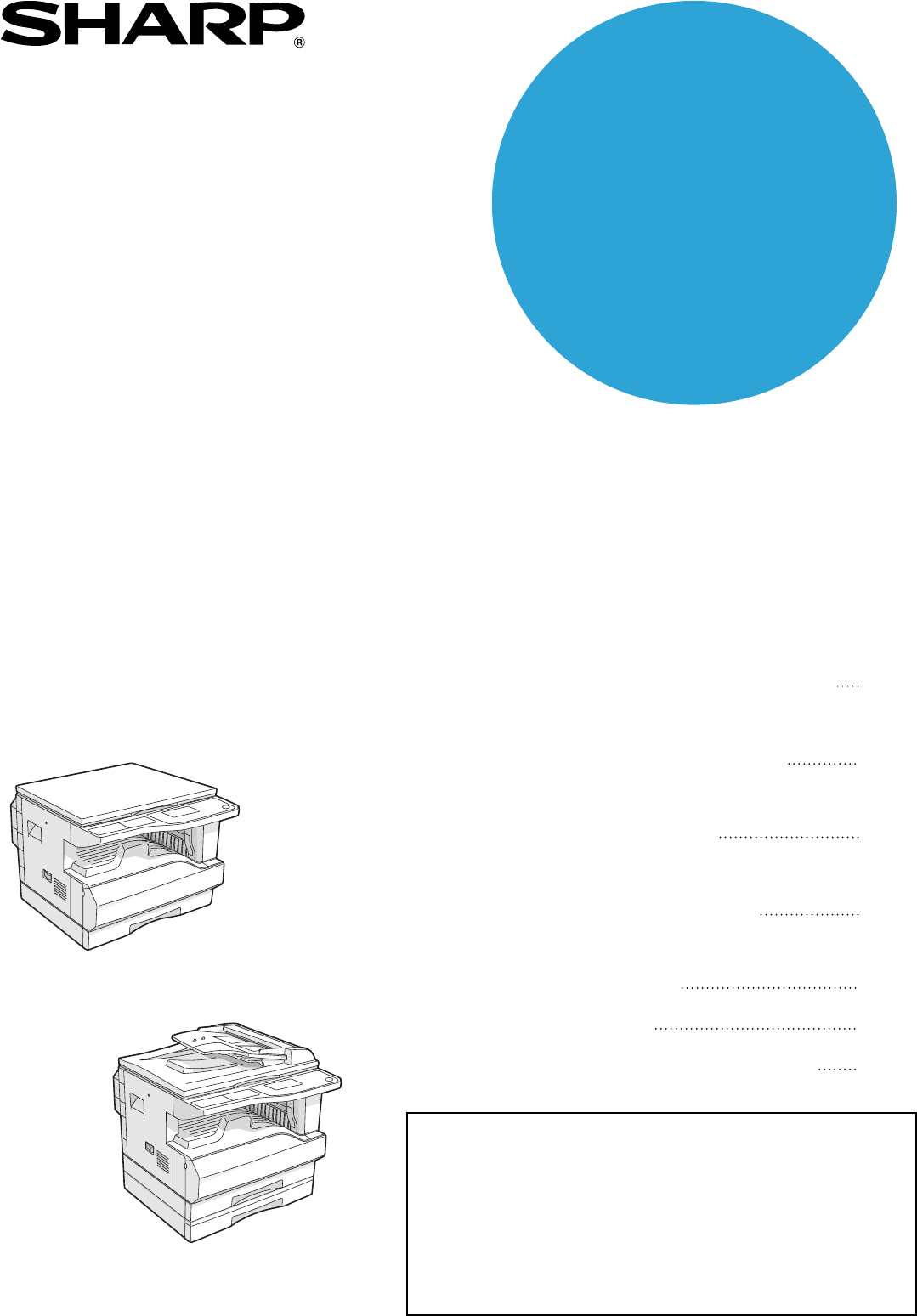
- PART 1: GENERAL INFORMATION 1
- PART 2: COPIER OPERATION 1
- Warranty 2
- Part 1: General Information 3
- PRODUCT CONFIGURATIONS 5
- CONTENTS 6
- CAUTIONS 8
- LASER INFORMATION 9
- INSTALLATION REQUIREMENTS 10
- MANUALS PROVIDED WITH THE 11
- MAIN FEATURES 12
- Fax function (option) 13
- Network connection (option) 13
- BEFORE USING THE PRODUCT 14
- OPERATION PANEL 16
- FAX STATUS 17
- Display (base screen) 18
- TURNING THE POWER ON AND OFF 19
- LOADING PAPER 20
- Special paper 21
- Loading paper in a tray 21
- Open the bypass tray 22
- AUDITING MODE 25
- TROUBLESHOOTING AND 26
- MAINTENANCE 26
- TROUBLESHOOTING 27
- < >: Tray number 30
- REMOVING MISFEEDS 31
- MISFEED IN THE BYPASS TRAY 32
- Misfeed in A 33
- Misfeed in B 34
- Misfeed in C 35
- REPLACING THE TONER CARTRIDGE 37
- CLEANING THE MACHINE 39
- SPECIAL FUNCTION 41
- PERIPHERAL DEVICES AND 42
- SUPPLIES 42
- PAPER FEED UNIT 43
- STORAGE OF SUPPLIES 44
- Part 2: Copier Operation 45
- COPY FUNCTIONS 47
- Copying from the SPF 48
- A3 paper 49
- 50
- 100% 50
- SELECTING THE TRAY 51
- SETTING THE NUMBER OF COPIES 51
- READ-END 53
- REDUCING OR ENLARGING A COPY 54
- SELECTING THE VERTICAL AND 56
- ACC. #-C 57
- TWO-SIDED COPYING 58
- TWO-SIDED COPIES USING THE 63
- BYPASS TRAY 63
- DUAL PAGE COPY 64
- INTERRUPTING A COPY RUN 65
- CONVENIENT COPY 66
- FUNCTIONS 66
- NO SORT 67
- SINGLE SHEET OF PAPER 68
- CREATING MARGINS WHEN COPYING 70
- ERASING SHADOWS AROUND THE 71
- EDGES OF A COPY 71
- CARD SHOT 73
- APPENDIX 75
- Output tray specifications 76
- KEY OPERATOR'S GUIDE 77
- PROGRAMMING A KEY OPERATOR 78
- KEY OPERATOR PROGRAM LIST 79
- ACCOUNT CONTROL 81
- ACC. # CONTROL 82
- DELETE 82
- CHANGE 82
- DEVICE CONTROL 83
- OFFSET FUNCTION 84
- MEM. FOR PRINTER 84
- USB2.0 MODE 84
- OPERATION SETTING 85
- ENERGY SAVE 87
- COPY SETTINGS 88
- DEFAULT EXPOSURE 89
- STREAM FEEDING 89
- ROTATION COPY 89
- SORT AUTO SELECT 89
- RESOLUTION IN AUTO/TEXT MODE 90
- PHOTO MODE DEFAULT 90
- LIMIT OF COPIES 90
- DISABLE AUTO PAPER SELECTION 90
- DISABLE 2-SIDED COPY 90
- Metal Complex dye* 91
- 10.STABILITY AND REACTIVITY 93
- 11.TOXICOLOGICAL INFORMATION 93
- 12.ECOLOGICAL INFORMATION 94
- 13.DISPOSAL CONSIDERATIONS 94
- 14.TRANSPORT INFORMATION 94
- 15.REGULATORY INFORMATION 94
- 16.OTHER INFORMATION 94
- Convenient copy functions 101
- Copying, starting 101
- Troubleshooting 101
- INDEX BY PURPOSE 101
- KEY OPERATOR CODE NUMBER: 105
- FACTORY SETTING 105
- SHARP CORPORATION 108
Inhaltsverzeichnis
Be sure to become thoroughly familiar with this manual to gain the maximum benefit from the product.Before installing this product, be sure to read th
8INSTALLATION REQUIREMENTSImproper installation may damage this product. Please note the following during initial installation and whenever the machin
98LLINE indicator...15LINE STATUS indicator ...15Loa
99Convenient copy functions2 in 1 / 4 in 1 copy ...66Card shot...
100Pegasus-E_Copy_Ex.book 100 ページ 2004年9月23日 木曜日 午前11時41分
101Pegasus-E_Copy_Ex.book 101 ページ 2004年9月23日 木曜日 午前11時41分
102Pegasus-E_Copy_Ex.book 102 ページ 2004年9月23日 木曜日 午前11時41分
103✂KEY OPERATOR CODE NUMBER: FACTORY SETTINGThe following is the factory setting of the Key Operator Code Number, which must be used to access the Ke
Pegasus-E_Copy_Ex.book 104 ページ 2004年9月23日 木曜日 午前11時41分
The CE mark logo label is affixed on an equipment in case that the directives described in the above sentence are applicable to the product. (This sen
AR-M16 PRINTED IN CHINA2004M KS1TINSE1334QSZZAR-M161/AR-M162/AR-M165/AR-M206/AR-M207SHARP CORPORATIONThis manual has been printed using a vegetable-ba
9MANUALS PROVIDED WITH THE PRODUCTMultiple manuals are provided for use of the machine. Please read each manual as appropriate for the functions that
10MAIN FEATURESHigh-speed laser copying• First-copy time*1 at 300 dpi*2 is only 7.2 seconds.• Copying speed is 20 (AR-M206/AR-M207) or 16 (AR-M161/AR-
11MAIN FEATURESFax function (option)Installation of the optional facsimile expansion kit enables the plain-paper, Super G3 laser fax function to be us
121BEFORE USING THE PRODUCTThis chapter contains basic information required for use of the machine. Please read this chapter before using the machine.
13BEFORE USING THE PRODUCT1(15) Document cover (when installed)Open to make a copy from the document glass.(16) Side coverOpen to remove misfed paper.
14BEFORE USING THE PRODUCTOPERATION PANEL(1) Keys for fax function (when the fax option is installed)These are used in fax mode. For more information,
15BEFORE USING THE PRODUCT1(13) LINE STATUS indicator (when the fax option is installed)This key is used in fax mode. For more information, see the &q
16BEFORE USING THE PRODUCTDisplay (base screen)Example: Copy mode* The display shown is the AR-M206/AR-M207 (when the optional RSPF is installed) disp
171TURNING THE POWER ON AND OFFThe power switch is located on the left side of the machine.POWER ONTurn the power switch to the "ON" positio
WarrantyWhile every effort has been made to make this document as accurate and helpful as possible, SHARP Corporation makes no warranty of any kind wi
18BEFORE USING THE PRODUCTDefault settingsThe machine is set at the factory to return all settings to the default settings one minute after a copy job
19BEFORE USING THE PRODUCT1Special paperFollow these guidelines when using special paper.• Use SHARP recommended transparency film and label sheets. U
20BEFORE USING THE PRODUCTLoading paper in the bypass tray1Open the bypass tray.Pull out the bypass tray extension to load B4 and A3 (8-1/2" x 14
21BEFORE USING THE PRODUCT1CHANGING THE PAPER SIZE SETTING OF A TRAYIf the size of the loaded paper is different from the size shown in the display, f
22BEFORE USING THE PRODUCTDISABLING (ENABLING) AUTO TRAY SWITCHINGWhen auto tray switching is enabled and paper runs out during copying or printing, t
231AUDITING MODEWhen auditing mode is enabled, a count is kept of the pages printed by each account. The page counts can be viewed in the display.This
242TROUBLESHOOTING AND MAINTENANCEThis chapter explains general troubleshooting and maintenance procedures such as removing misfeeds, replacing the to
252TROUBLESHOOTINGMACHINE/COPYING PROBLEMSCheck the following troubleshooting list before requesting service as many problems can be fixed by the user
26TROUBLESHOOTING AND MAINTENANCEThe paper size used for the copy is different from the selected paper size (part of the image is cut off or too much
27TROUBLESHOOTING AND MAINTENANCE2The original size is not automatically selected or the copy is not made on paper that matches the size of the origin
1Part 1: General InformationPegasus-E_Copy_Ex.book 1 ページ 2004年9月23日 木曜日 午前11時41分
28INDICATORS AND DISPLAY MESSAGESIf one of the following messages appears in the display, take prompt action as instructed by the message.< >: T
292REMOVING MISFEEDSWhen a misfeed occurs during copying, the message " Clear paper path." and the location of the misfeed will appear.Check
30TROUBLESHOOTING AND MAINTENANCE2Open and close the SPF.Opening and closing the cover clears the misfeed display. Copying cannot be resumed until thi
31TROUBLESHOOTING AND MAINTENANCE2MISFEED IN THE MACHINETo remove a paper misfeed from the machine, the bypass tray and then the side cover must be op
32TROUBLESHOOTING AND MAINTENANCEMisfeed in B1Open the front cover.Push gently on both ends of the front cover.2Turn the roller rotating knob in the d
33TROUBLESHOOTING AND MAINTENANCE2Misfeed in C1Lower (1) in the illustration, open the fusing unit paper guide, and remove the misfed paper.Be careful
34TROUBLESHOOTING AND MAINTENANCEMISFEED IN TRAY 21Open the side cover.Grasp the handle to open the side cover.2Remove the misfed paper.Be careful not
352REPLACING THE TONER CARTRIDGEWhen the toner replacement icon ( ) appears, little toner remains. Obtain a replacement cartridge as soon as possible.
36CHECKING THE TOTAL OUTPUT COUNTTo check the total number of pages output in copy, print, and fax modes and the total scan count in scanner mode, hol
372CLEANING THE MACHINECLEANING THE DOCUMENT GLASS AND SPF/DOCUMENT COVERIf the document glass, SPF, underside of the document cover, or the scanner f
2Pegasus-E_Copy_Ex.book 2 ページ 2004年9月23日 木曜日 午前11時41分
38TROUBLESHOOTING AND MAINTENANCECLEANING THE TRANSFER CHARGERIf white or black lines appear in copies or the image is blotchy, the transfer charger m
392ADJUSTING THE DISPLAY CONTRASTThe contrast of the display can be adjusted as explained below.1Press the [SPECIAL FUNCTION] key.The special function
403PERIPHERAL DEVICES AND SUPPLIESOptional equipment and supplies are explained in this chapter. To purchase optional equipment and supplies, contact
41PERIPHERAL DEVICES AND SUPPLIES3REVERSING SINGLE PASS FEEDER / SINGLE PASS FEEDERFor the names of the parts of the RSPF / SPF, see "PART NAMES
42PERIPHERAL DEVICES AND SUPPLIESDUAL FUNCTION BOARDA dual function board can be installed to add a variety of copy functions and enable use of the pr
43Part 2: Copier OperationPegasus-E_Copy_Ex.book 43 ページ 2004年9月23日 木曜日 午前11時41分
44Pegasus-E_Copy_Ex.book 44 ページ 2004年9月23日 木曜日 午前11時41分
454COPY FUNCTIONSThis chapter explains the basic procedures for making copies, including selection of the copy ratio and other copy settings.NORMAL CO
46COPY FUNCTIONS5Press the [START] key ( ) to begin copying.The copy will be delivered to the centre tray.Copying from the SPF1Open the SPF and make s
47COPY FUNCTIONS4Auto paper select modeWhen auto paper select mode is enabled, "AUTO" appears in the paper size display. This function autom
3Notes• Considerable care has been taken in preparing this manual. If you have any comments or concerns about the manual, please contact your nearest
48COPY FUNCTIONSMAKING A COPY DARKER OR LIGHTERThe copy exposure can be adjusted as needed to the original. Three exposure modes are available: "
49COPY FUNCTIONS4SELECTING THE TRAYBy default the auto paper select function (page 47) operates, and thus the appropriate tray is automatically select
50COPY FUNCTIONSSELECTING THE ORIGINAL SIZEIf you loaded a non-standard size* original or the original size was not correctly detected, set the origin
51COPY FUNCTIONS4USING THE BYPASS TRAY TO COPY A SPECIAL SIZE ORIGINALWhen the bypass tray is being used for copying and an original that is placed on
52REDUCING OR ENLARGING A COPYThere are three ways to enlarge and reduce copies:• Automatic selection of a ratio according to the paper size: Auto rat
53COPY FUNCTIONS43Select a preset ratio with the [ ] or [ ] key, or set the ratio (zoom) with the [ ] or [ ] key.[ ] key: Select a larger preset ratio
54SELECTING THE VERTICAL AND HORIZONTAL COPY RATIOS SEPARATELY(XY zoom copying)Separate ratio settings can be selected for the length and width of a c
55COPY FUNCTIONS47Press the key.The vertical ratio can now be selected.8Set the vertical ratio with the [ ], [ ], [ ], or [ ] keys.A preset ratio ca
56TWO-SIDED COPYINGTWO-SIDED COPYINGThe machine is capable of the following types of automatic two-sided copying. The copy paper is turned over automa
57COPY FUNCTIONS4TWO-SIDED COPYING OF ONE-SIDED ORIGINALS• Paper sizes that can be used are A3, B4, A4, A4R, B5, B5R, A5, 11" x 17", 8-1/2&q
4CONTENTSPart 1: General InformationPRODUCT CONFIGURATIONS ...
58COPY FUNCTIONSCopying from the document glass1Place the original for the front side of the copy on the document glass, and close the SPF.2Press the
59COPY FUNCTIONS4TWO-SIDED COPIES OF TWO-SIDED ORIGINALS (ONLY WHEN USING THE RSPF)• Paper sizes that can be used are A3, B4, A4, A4R, B5, B5R, A5, 11
60COPY FUNCTIONSONE-SIDED COPIES OF TWO-SIDED ORIGINALS (ONLY WHEN USING THE RSPF)• Paper sizes that can be used are A3, B4, A4, A4R, B5, B5R, A5, 11&
614TWO-SIDED COPIES USING THE BYPASS TRAYFollow the steps below to perform two-sided copying manually.Example: Copying original A and original B onto
62DUAL PAGE COPY(Dual page copy)The dual page copy function produces separate copies of open bound original pages. This function is convenient when yo
634INTERRUPTING A COPY RUN(Interrupt copying)A copy run can be temporarily interrupted to allow another copy job to be performed. (Interrupt copying)W
645CONVENIENT COPY FUNCTIONSThis chapter explains convenient copy functions that can be used when the dual function board (AR-EB9) is installed.Select
65CONVENIENT COPY FUNCTIONS51Place the originals in the document feeder tray or the first original on the document glass.If the originals are placed i
66COPYING MULTIPLE ORIGINALS ONTO A SINGLE SHEET OF PAPER(2 in 1 / 4 in 1 copy)Multiple originals can be copied onto a single sheet of paper in a sele
67CONVENIENT COPY FUNCTIONS55Select "2in1/4in1" with the [ ] or [ ] key.6Press the [OK] key.The 2 in 1 / 4 in 1 selection screen will appear
5CONTENTSPart 2: Copier Operation4COPY FUNCTIONSNORMAL COPYING ... 45●MAKING A COPY DARKER OR LIGHTER ...48●SELE
68CREATING MARGINS WHEN COPYING(Margin shift)The margin shift function shifts the image to create a margin at the edge of the paper. By default the fu
695ERASING SHADOWS AROUND THE EDGES OF A COPY(Erase copy)This feature is used to erase shadows that appear around the edges of copies of books and oth
70CONVENIENT COPY FUNCTIONS7Select the erasure width with the [ ] or [ ] key.If you select 0 mm (0"), the printed result is the same as when &quo
715CARD SHOTWhen copying a card, this function allows you to print the front and back sides of the card next to each other on a single sheet of paper.
72CONVENIENT COPY FUNCTIONS8Press the [START] key ( ).The front side of the card is scanned.9Turn the original over on the document glass.10Press the
736APPENDIXSPECIFICATIONSName Digital Multifunctional SystemAR-M161/AR-M162/AR-M165 AR-M206/AR-M207Type DesktopPhotoconductive type OPC drumDocument g
74APPENDIXOutput tray specifications* When the job separator tray kit is installed, 150 sheets in centre tray, 100 sheets in top tray.The maximum numb
757KEY OPERATOR'S GUIDEPURPOSE OF THE KEY OPERATOR PROGRAMSThe key operator programs are used by the administrator of the machine to enable or di
76PROGRAMMING A KEY OPERATOR CODE1Press the [SPECIAL FUNCTION] key.The special function screen will appear.2Select "KEY OPERATOR PRG." with
777KEY OPERATOR PROGRAM LISTA list of basic programs used for the machine and a list of programs used for the copy function are shown below.Programs f
6CAUTIONSFollow the cautions below when using this machine.CAUTIONS ON USINGWarning:• The fusing area is hot. Exercise care in this area when removing
78USING THE KEY OPERATOR PROGRAMS1Press the [SPECIAL FUNCTION] key.The special function screen will appear.2Select "KEY OPERATOR PRG." with
79KEY OPERATOR'S GUIDE7ACCOUNT CONTROLThese programs are used to control use of the machine by account. To access one of these programs, select &
80KEY OPERATOR'S GUIDEResetting a single account1Select "RESET 1 ACC." with the [ ] or [ ] key and then press the [OK] key.2Select the
81KEY OPERATOR'S GUIDE7ACCOUNT LIMITThis program is used to set limits for the number of pages that can be printed by each account in print mode
82KEY OPERATOR'S GUIDESelect "WAITING COPY LAMP SETTING" and press the [OK] key. The following screen will appear.1Select "ON"
83KEY OPERATOR'S GUIDE7RETURN FROM COPY MODE TIMINGWhen there are print jobs or fax print jobs waiting to be printed after copy job is finished,
84KEY OPERATOR'S GUIDESelect "MESSAGE TIME" and press the [OK] key. The following screen will appear.1Select the desired display time w
85KEY OPERATOR'S GUIDE7To enable the setting, select "DISABLE PAPER SIZE SET" and press the [OK] key so that a checkmark appears in the
86KEY OPERATOR'S GUIDECOPY SETTINGSThese programs are used to enable various copy functions. To access one of these programs, select "COPIER
87KEY OPERATOR'S GUIDE7Select "DEFAULT TRAY SET" and press the [OK] key. The following screen will appear.1Select the tray with the [ ]
7CAUTIONSLASER INFORMATIONWave length 785 nm + 10 nm/- 15 nmPulse times (8.141 µs ± 0.1 µs)/7 mmOutput power 0.14 mW - 0.22 mWAt the production line,
88KEY OPERATOR'S GUIDERESOLUTION IN AUTO/TEXT MODEThis program is used to set the resolution used when the exposure mode is set to "AUTO&quo
89MATERIAL SAFETY DATA SHEET Page : 1/4Date Revised : Aug.18, 2003 Date Issued : Jun. 1, 2003 MSDS No. F-01211 1.PRODU
90MATERIAL SAFETY DATA SHEET Page : 2/4Date Revised : Aug.18, 2003 Date Issued : Jun. 1, 2003 MSDS No. F-01211 3.HAZAR
91MATERIAL SAFETY DATA SHEET Page : 3/4Date Revised : Aug.18, 2003 Date Issued : Jun. 1, 2003 MSDS No. F-01211 Exposure
92MATERIAL SAFETY DATA SHEET Page : 4/4Date Revised : Aug.18, 2003 Date Issued : Jun. 1, 2003 MSDS No. F-01211 Chronic E
93MATERIAL SAFETY DATA SHEET Page : 1/4Date Issued :Jun. 1, 2003 MSDS No. F-31211 1.PRODUCT AND COMPANY IDENTIFICATION
94MATERIAL SAFETY DATA SHEET Page : 2/4Date Issued :Jun. 1, 2003 MSDS No. F-31211 3.HAZARDS IDENTIFICATIONMost Importa
95MATERIAL SAFETY DATA SHEET Page : 3/4Date Issued :Jun. 1, 2003 MSDS No. F-31211 Exposure Limit ValuesOSHA-PEL(USA) : 1
96MATERIAL SAFETY DATA SHEET Page : 4/4Date Issued :Jun. 1, 2003 MSDS No. F-31211 Chronic Effect : In a study in rats o
97INDEXSymbols / Numbers[ ] key ..................152 in 1 / 4 in 1 copy .......
Weitere Dokumente für Kopierer Sharp AR-M162

Verwandte Produkte und Handbücher für Kopierer Sharp AR-M162

 (66 Seiten)
(84 Seiten)
(12 Seiten)
(12 Seiten)
(12 Seiten)
(272 Seiten)
(19 Seiten)
(132 Seiten)
(45 Seiten)
(12 Seiten)
(48 Seiten)
(66 Seiten)
(84 Seiten)
(12 Seiten)
(12 Seiten)
(12 Seiten)
(272 Seiten)
(19 Seiten)
(132 Seiten)
(45 Seiten)
(12 Seiten)
(48 Seiten)
 (80 Seiten)
(8 Seiten)
(92 Seiten)
(188 Seiten)
(12 Seiten)
(116 Seiten)
(12 Seiten)
(80 Seiten)
(8 Seiten)
(92 Seiten)
(188 Seiten)
(12 Seiten)
(116 Seiten)
(12 Seiten)
© 2020, manymanuals.de. Alle Rechte vorbehalten. | 0.031 s |
 Manymanuals.com
 Manymanuals.de
 Manymanuals.fr
 Manymanuals.it
 Manymanuals.pl
 Manymanuals.cz
 Manymanuals.es
 Manymanuals-pt.com
Kommentare zu diesen Handbüchern