Sharp FO-135 Spezifikationen
Stöbern Sie online oder laden Sie Spezifikationen nach Faxgeräte Sharp FO-135 herunter. Sharp FO-135 Specifications [en] Benutzerhandbuch
- Seite / 131
- Inhaltsverzeichnis
- FEHLERBEHEBUNG
- LESEZEICHEN

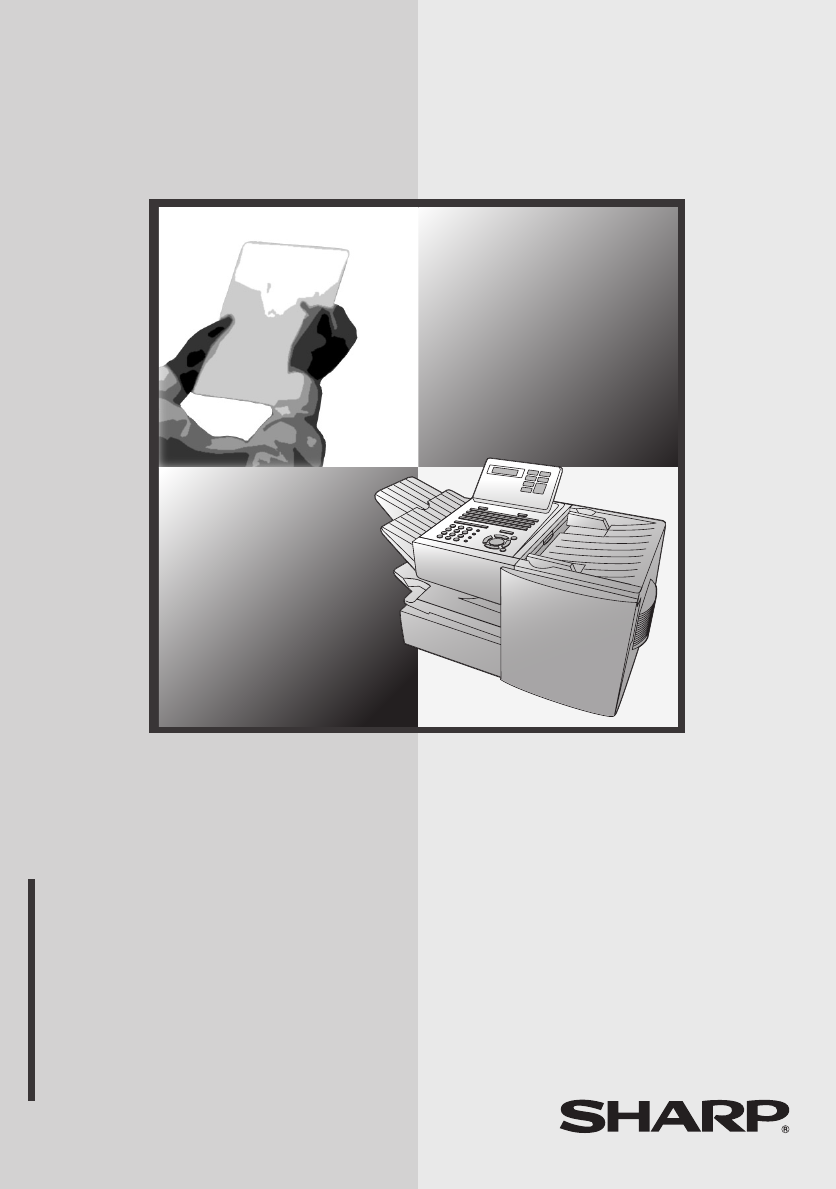
- FACSIMILE 1
- WARRANTY 2
- Introduction 3
- Important safety information 5
- Table of Contents 8
- A Look at the Operation Panel 10
- Middle panel (Rapid Key pad) 11
- Lower panel 13
- 1. Installation 15
- Attaching the ADF exit tray 18
- Verification Stamp option 18
- 1. Installation 21
- Loading Printing Paper 23
- Caps Lock 26
- Setting the Date and Time 28
- Press to start the clock 29
- Volume Adjustment 30
- 2. Sending Documents 32
- Maximum scanning area 33
- Other restrictions 33
- Loading the Document 34
- Resolution 35
- CONTRAST 36
- • Press and/or to 37
- SPEED DIAL 38
- Programming Auto-Dial Numbers 40
- Editing auto-dial numbers 41
- Clearing auto-dial numbers 41
- PRIORITY 43
- Chain Dialling 48
- If the memory becomes full 48
- JOB STATUS 49
- 4: MESSAGE CLEAR 50
- ENTER MESSAGE # 50
- Display: 50
- PERSONAL 52
- 2. Sending 53
- Documents 53
- Using a personal book 54
- Closing a book 55
- Clearing a book 56
- Cover Sheet 58
- 3. Receiving Documents 60
- Using MANUAL Reception Mode 61
- PRESS OR 62
- The number of received 62
- • Copying will begin 64
- BROADCAST 65
- Storing numbers in Group Keys 67
- Confidential Operations 71
- Clearing a passcode 72
- Being polled (Memory polling) 74
- Polling Security 76
- 5. Special 77
- Functions 77
- 06:ID # MODE 78
- 1=SET, 2=CLEAR 78
- 1:ID CODE # SET 78
- ENTER # (1-5) 78
- Timer Operations 79
- Batch Transmission 85
- Entering and Using Programs 87
- Using a Program Key 95
- DUPLEX SCAN 96
- Department Control 97
- Accessing the machine 98
- Service) 100
- 6. Optional Settings 101
- RESOLUTION 102
- ♦ Initial setting: 5 103
- ♦ Initial setting: 1 103
- ♦ Initial setting: 2 104
- ♦ Initial setting: 4 107
- Activity Report (List 01) 109
- Line Error 110
- Problems and Solutions 110
- Printing Lists and Reports 111
- Personal Book List (List 11) 112
- Transaction Report 113
- 8. Maintenance 114
- 8. Maintenance 115
- 9. Troubleshooting 116
- Transmittable Documents 119
- Messages and Signals 121
- Connections 122
- Clearing Paper Jams 122
- Confidential 122
- Operations 122
- Audible signals 123
- • Caution! 125
- QUICK REFERENCE GUIDE 127
- PRINTED IN THAILAND 131
- (TINSE4339XHTZ) 131
Inhaltsverzeichnis
FO-5900 FACSIMILEMODELFO-5900OPERATION MANUALFACSIMILE 1. Installation 2. Sending Documents 3. Receiving Documents 4. Making Copies
8DisplayThis displays messages and prompts to help you operate the machine.ALARM indicatorThis blinks when one of the paper sources is empty or the dr
Distinctive Ring (Requires Subscription to Service)98Distinctive Ring (Requires Subscription to Service)If you subscribe to a distinctive ring service
996. Optional Settings6. Optional SettingsThe optional settings allow you to customize the fax machine to better suit your needs. An initial setting
Optional Settings100Optional SettingsSetting 01: DEFAULT FAX RESOLUTIONThis option sets the default resolution (the resolution used if a setting is no
Optional Settings1016. Optional SettingsSetting 05: TRANSACTION REPORT PRINT SELECTIONThis sets the condition for printing out a Transaction Report. E
Optional Settings102Setting 10: AUTO COVER SHEETPress (YES) to have the fax automatically generate a cover sheet and send it as the last page of eac
Optional Settings1036. Optional SettingsSetting 16: CASSETTE SELECTIONPress (AUTO SELECTION) if you want the fax machine to automatically select the
Optional Settings104Setting 20: ANTI-JUNK FAXPress to block reception from fax numbers entered in the Anti Junk Fax List. Press to allow reception
Optional Settings1056. Optional SettingsSetting 25: BEEP LENGTHThis sets the duration of the beep that signals the end of transmission, reception, or
Optional Settings106Setting 30: COPY RESOLUTIONUse this setting to select the default copying resolution (the resolution used for copying if a setting
1077. PrintingLists7. Printing Lists and ReportsYou can print lists showing settings and information entered in the fax machine. You can also print o
9Rapid Dial KeysPress one of these keys to dial a fax number automatically. (Note that you must attach the Rapid Key labels.) When navigating through
Printing Lists and Reports108Explanation of headingsSENDER/RECEIVERThe name or fax number of the other machine involved in the transaction.START The t
Printing Lists and Reports1097. PrintingListsTimer List (List 02)This list shows the timer operations that are currently set.Destination List (List 03
Printing Lists and Reports110Department Usage List (List 08)This list shows total transmission time and pages transmitted (including polling time and
Printing Lists and Reports1117. PrintingListsTransaction ReportThis report is printed out automatically after an operation is completed to allow you t
1128. MaintenanceCleaning the Scanning Glass and RollersClean the reading glass and rollers frequently to ensure the quality of your transmitted imag
Replacing the Verification Stamp1138. MaintenanceReplacing the Verification StampIf you are using the Verification Stamp function, you will need to re
1149. TroubleshootingProblems and SolutionsLine errorProblem SolutionLINE ERROR appears in the display, and/or a transaction report is printed out wi
Problems and Solutions1159. Trouble-shootingDialling and transmission problemsProblem SolutionDialling is not possible. • Make sure the power cord is
Problems and Solutions116Reception and copying problemsProblem SolutionThe fax machine doesn’t receive documents automatically.• Make sure that the re
Problems and Solutions1179. Trouble-shootingThe quality of copies is poor and/or black lines appear.• Any dirt or material on the scanning glass will
10TIMER keyPress this key to set an operation to be performed automatically at a later time.COVER SHEET keyPress this key to include a cover sheet whe
Problems and Solutions118Bell tinkle(New Zealand)• The operation of this equipment on the same line as the telephone or other equipment with audible w
Messages and Signals1199. Trouble-shootingMessages and SignalsDisplay messagesCHECK CASSETTE This indicates that the cassette is not installed properl
Messages and Signals120NO CONF. FUNCTION Confidential transmission was cancelled because the receiving machine does not have a confidential function,
Messages and Signals1219. Trouble-shootingAudible signalsContinuous tone 3 seconds Indicates the end of transmission, reception, or copying.Intermitte
Clearing Paper Jams122Clearing Paper JamsClearing a jammed documentIf the original document doesn’t feed properly during transmission or copying, or R
Clearing Paper Jams1239. Trouble-shooting1Press the green release and open the print compartment cover.• Caution!The fusing unit inside the print comp
Clearing Paper Jams1245Replace the drum cartridge.• Make sure the drum cartridge is inserted in as far as it will go.6Replace the toner cartridge and
125QUICK REFERENCE GUIDESENDING FAXESPlace the document (up to 50 A4-size pages) face down in the document feeder. (Note: For Normal Dialling and Dire
126AActivity Report, 107Auto Listing, 100Alarm volume, 104Anti Junk Fax, 97, 104Anti Junk Number List, 110Audible signals, 121Auto Cover Sheet, 102Aut
Index127LLetters, entering, 24Line error, 114Loading the document, 32MManual reception mode, 58, 59MemoryChecking documents in, 47, 60Sending faxes fr
11JOB STATUS keyTwo types of information appear in the display: prompts related to operations you are performing, and information about how the fax ma
all.bookPage128Wednesday,February19,20031:34PM
PRINTED IN THAILAND(TINSE4339XHTZ)SHARP CORPORATION OF AUSTRALIA PTY.LTD.A.C.N. 003 039 405 1 Huntingwood Drive, Huntingwood, Blacktown, N.S.W., 2148
12PERSONAL BOOKPress this key to use or store an auto-dial number in a personal book. If the book has a passcode, enter the passcode; otherwise, selec
131. Installation1. InstallationUnpacking ChecklistBefore setting up, make sure you have all of the following items. If any are missing, contact your
Connections14ConnectionsConnecting the power cordConnect the female end of the power cord to the fax machine as shown. Insert the male end into a 230-
Connections151. InstallationConnecting the telephone line cordInsert one end of the telephone line cord into the adaptor. Insert the other end of the
Connections16Attaching the ADF exit trayInsert the protrusion on the right side of the machine into the hole in the right side of the ADF exit tray ➊,
Installing the Print Cartridges171. InstallationInstalling the Print CartridgesFollow the steps below to install or replace the toner and drum cartrid
1WARRANTYFacsimile ProductsCongratulations on Your Purchase!FOR THE SERVICING OF PRODUCTS PURCHASED INNEW ZEALANDCONTACT YOUR SELLING DEALER/RE
Installing the Print Cartridges183If you are replacing the drum cartridge, remove the old cartridge and dispose of it according to local regulations.4
Installing the Print Cartridges191. Installation7Hold the toner cartridge by the handle and insert it into the print compartment. • Make sure the tone
Installing the Print Cartridges20When to replace the toner cartridgeWhen the toner cartridge nears empty (about 100 pages can still be printed), the t
Loading Printing Paper211. Installation1Remove the received document tray.2Insert a stack of paper into the tray, print side up.• Important! The stack
Loading Printing Paper224Replace the received document tray.• The received document tray must be attached for the fax machine to operate properly.Load
Loading Printing Paper231. Installation3Squeeze the paper guide and pull up to move it to the appropriate holes for the length of the paper. Push the
Entering Your Name and Fax Number24Entering Your Name and Fax NumberTo have your name and fax number automatically appear at the top of each fax page
Entering Your Name and Fax Number251. Installation • To enter a space, press . • To change case, press .• To clea
Setting the Date and Time26Setting the Date and TimeThe date and time appear in the display, in reports, and at the top of each page you transmit. Set
Setting the Date and Time271. Installation7Press to start the clock.8Press twice to return to the date and time display.START/ENTERSTOPall.bookP
1IntroductionWelcome, and thank you for choosing a Sharp facsimile machine. The features and specifications of your new Sharp fax machine are shown be
Volume Adjustment28Volume AdjustmentYou can adjust the volume of the speaker and ringer using and .Speaker1Press .2Press or to select the desir
Volume Adjustment291. InstallationRinger1Press the or to select the desired volume level. (Make sure has not been pressed.)• The ringer will ring
30364 mm256 mm 52 g/m² 157 g/m²80 g/m²128 mm148 mm279 mm483 mm2. Sending DocumentsTransmittable DocumentsSize and weightThe size and weight of docume
Transmittable Documents312. SendingDocumentsMaximum scanning areaThe area of the document that the fax machine can scan is slightly smaller than the a
Loading the Document32Loading the DocumentUp to 50 A4-size pages can be placed in the feeder at one time. The pages will automatically feed into the m
Adjusting the Resolution and Contrast332. SendingDocumentsAdjusting the Resolution and ContrastIf desired, you can adjust the resolution and contrast
Adjusting the Resolution and Contrast34ContrastThe fax machine has three contrast settings:The default setting is AUTO.To adjust the contrast, press
Sending a Fax by Normal Dialling352. SendingDocumentsSending a Fax by Normal DiallingWith Normal Dialling, you press and then dial by pressing the n
Programming Auto-Dial Numbers364Wait for the connection. When you hear a fax tone, press on the fax machine.• If a person answers and you are using
Programming Auto-Dial Numbers372. SendingDocuments1Press and .2Press and .3Press to select SET.4To program a Rapid Key number, press the Rapid
2Compression scheme MMR, MR, MH, Sharp (H2), JBIG Halftone (grayscale) 64 levelsApplicable telephone line Public switched telephone networkCompatibili
Programming Auto-Dial Numbers38• To enter a space, press . • To change case, press .• To clear a mistake, press .• To enter a number as part of a
Programming Auto-Dial Numbers392. SendingDocumentsChain Dialling for area and access codes You can also program an area code or access code in a Rapid
Programming Auto-Dial Numbers404To clear a Rapid Key, press the Rapid Key.To clear a Speed Dial number, press and then enter the number with the num
Sending a Fax by Automatic Dialling412. SendingDocumentsSending a Fax by Automatic DiallingDual AccessThe fax machine features full dual access, which
Sending a Fax by Automatic Dialling42Rapid Key DiallingIf the number you want to dial has been programmed in a Rapid Key, you can dial it by pressing
Sending a Fax by Automatic Dialling432. SendingDocumentsSpeed DiallingIf the number you want to dial has been programmed in a Speed Dial number, you c
Sending a Fax by Automatic Dialling44Direct Keypad DiallingYou can also enter a full number with the number keys and then press to begin dialling.ST
Sending a Fax by Automatic Dialling452. SendingDocumentsSearching for an auto-dial numberIf you don’t remember the Rapid Key or Speed Dial number in w
Sending a Fax by Automatic Dialling465Press . The document will be automatically transmitted once the connection is established.START/ENTERChain Dia
Sending a Fax by Automatic Dialling472. SendingDocumentsChecking the status of the current jobThe display normally shows the date and time and prompts
3As a part of our policy of continuous improvement, SHARP reserves the right to make design and specification changes for product improvement without
Sending a Fax by Automatic Dialling48Canceling a memory transmission by numberIf you know the memory number assigned to a memory transmission, you can
Sending a Fax by Automatic Dialling492. SendingDocumentsMemory RetransmissionIf a line error occurs during any type of memory transmission, the fax ma
Creating and Using Personal Books50Creating and Using Personal BooksUp to 10 personal books can be created that allow inviduals to program Rapid Key a
Creating and Using Personal Books512. SendingDocuments5Enter a name for the personal directory book by pressing the letter entry keys. (Make sure the
Creating and Using Personal Books521Press . 2Enter the 4-digit passcode of your book.If the book doesn’t have a passcode, press or until the name
Creating and Using Personal Books532. SendingDocuments♦ Poll one or more fax machines using Rapid Keys and Speed Dial numbers from your book (see page
Creating and Using Personal Books54Clearing a bookNote: Before you can clear a personal book, you must clear all Rapid Keys, Speed Dial numbers, Group
Cover Sheet552. SendingDocumentsCover SheetYou can have the fax machine generate a cover sheet and send it as the last page of your fax transmission.
Cover Sheet562Press . (Flip up the Rapid Key overlay if it is down.)• The display will briefly show COVER SHEET MODE ENTERED and then revert to SEND
Batch Page Numbering572. SendingDocumentsBatch Page NumberingYou can change the page numbering of the transmitted document from simple numbering (&quo
4• Do not allow anything to rest on the power cord, and do not install the machine where people may walk on the power cord.• Never insert objects of a
583. Receiving DocumentsThe fax machine has two modes for receiving calls:AUTO mode:Select this mode when you only want to receive faxes on the line
Using MANUAL Reception Mode593. ReceivingDocuments1When the fax machine rings, answer the call on an extension phone connected to the same line.2If yo
Substitute Reception to Memory601Press (flip up the Rapid Key overlay) and .2Press or to scroll through the list of received faxes. The name (
614. MakingCopies4. Making CopiesYour fax machine can also be used to make copies. Single and multiple copies (up to 99 per original) can be made, en
Making Copies624Press (MULTI) if you do not want the copies sorted, or (SORT) if you want the copies sorted.• Copying will begin.12Checking and ca
635. SpecialFunctions5. Special FunctionsBroadcastingThe Broadcasting function allows you to send the same fax to as many as 154 destinations in a si
Broadcasting64Note: If you need to delete a number, press or until the destination appears in the display and then press .4Press .5If desired, pr
Broadcasting655. SpecialFunctionsStoring numbers in Group KeysGroup Keys allow you to dial a group of fax numbers by simply pressing the appropriate G
Broadcasting66Editing a groupIf necessary, you can add numbers to or delete numbers from a group by repeating the programming procedure for the Group
Confidential Operations675. SpecialFunctionsConfidential OperationsThe Confidential function can be used to transmit and receive confidential document
5WARNING NOTICE:NO calls can be made to or from this fax machine during a mains power failure.WARNING: Australian Communications Authority (ACA) regul
Confidential Operations683If the receiving machine has multiple confidential mailboxes, enter the appropriate mailbox number with the numeric keys (th
Confidential Operations695. SpecialFunctions1Press (flip up the Rapid Key overlay if it is down) and then .2Enter a 2-digit number (from "00&
Confidential Operations70Clearing a passcode1Press (flip up the Rapid Key overlay if it is down) and then .2Enter the 2-digit number that identifie
Polling715. SpecialFunctionsPollingPolling allows you to call another fax machine and have it send a document to your machine without operator assista
Polling72Serial Polling using a Group KeyIf the fax machines you want to poll have all been programmed into one Group Key, you can poll them by simply
Polling735. SpecialFunctions4Press to select SET.• If another document has already been stored, press to select APPEND, and go to Step 6.5Press
Polling74Polling SecurityPolling Security allows you to prevent unauthorized polling of your fax. When this function is activated, polling will only t
Polling755. SpecialFunctions3Storing: Enter a 2-digit number (from 01 to 10).This number identifies the fax number you will enter in the next step.Cle
Polling761Press , , , .2Press to program an ID number. (Press to clear an ID number.)3Storing: Enter a number from 1 to 5. This number identifies
Timer Operations775. SpecialFunctionsTimer OperationsThe Timer function allows you to store a job to be performed automatically at a specified time. U
6Table of ContentsIntroduction 1Important safety information . . . . . . . . . . . . . . . . . . . . . . . . . . . . . . . . 3Table of Contents 6A Loo
Timer Operations785Enter a number as follows to select the day of the operation (skip this step if the operation will be performed within the next 24
Timer Operations795. SpecialFunctions9Press and/or to adjust the resolution and contrast if desired, and then press .10Load the document and then
Timer Operations8011Press and/or to adjust the resolution and contrast if desired, and then press .12Load the document and then press .• The do
Timer Operations815. SpecialFunctions• Enter one or more Speed Dial numbers, pressing before each number. (If you enter less than 2 digits for a Spe
Timer Operations82Note: If you need to delete a number, press or until the destination appears in the display and then press . 8Press .9Press a
Batch Transmission835. SpecialFunctionsBatch TransmissionBatch transmission allows you to store multiple fax jobs in memory for automatic transmission
Batch Transmission842Press the appropriate Batch Key.• After scanning, the message number assigned to your document will appear in the display.3Press
Entering and Using Programs855. SpecialFunctionsEntering and Using ProgramsIf you frequently perform the same operation involving the same party, you
Entering and Using Programs866If you want to include a timer setting, enter a two-digit number for the hour (“00” to “23”) and a two-digit number for
Entering and Using Programs875. SpecialFunctions11Dial the receiving machine using one of the following methods:• Press a Rapid Key.• Press and ente
Table of Contents75. Special Functions 63Broadcasting . . . . . . . . . . . . . . . . . . . . . . . . . . . . . . . . . . . . . . . . . . . 63Confide
Entering and Using Programs8811Enter the mailbox number (2 digits). (Go directly to Step 12 if the receiving machine does not have mailboxes.)12Press
Entering and Using Programs895. SpecialFunctionsSerial Polling(Continued from Initial procedure.)Polling(Continued from Initial procedure.)11Dial the
Entering and Using Programs90Note: If you need to delete a number, press or until the destination appears in the display and then press . 12Press
Entering and Using Programs915. SpecialFunctionsBatch transmission(Continued from Initial procedure.)11Dial the receiving machine using one of the fol
Entering and Using Programs92Being Polled (Memory polling)(Continued from Initial procedure.)11Press to allow polling only once, or to allow polli
Entering and Using Programs935. SpecialFunctions4Press .5Press repeatedly until you return to the date and time display.START/ENTERSTOPUsing a Prog
Duplex Scanning for Two-sided Documents94Duplex Scanning for Two-sided DocumentsTo transmit or copy documents which have printing or graphics on both
Department Control955. SpecialFunctionsDepartment ControlDepartment Control is used to limit use of the fax machine to authorized users. When it is ac
Department Control96Clearing: Enter the 2-digit number that identifies the Department Code you want to clear.Note: It is not possible to clear the Dep
Blocking Reception of Unwanted Fax-975. SpecialFunctionsBlocking Reception of Unwanted FaxesThe Anti Junk Fax function allows you to block reception o
Verwandte Produkte und Handbücher für Faxgeräte Sharp FO-135
 (131 Seiten)
(115 Seiten)
(74 Seiten)
(131 Seiten)
(115 Seiten)
(74 Seiten)
 (166 Seiten)
(118 Seiten)
(103 Seiten)
(123 Seiten)
(76 Seiten)
(99 Seiten)
(20 Seiten)
(4 Seiten)
(156 Seiten)
(101 Seiten)
(80 Seiten)
(12 Seiten)
(136 Seiten)
(156 Seiten)
(128 Seiten)
(150 Seiten)
(166 Seiten)
(118 Seiten)
(103 Seiten)
(123 Seiten)
(76 Seiten)
(99 Seiten)
(20 Seiten)
(4 Seiten)
(156 Seiten)
(101 Seiten)
(80 Seiten)
(12 Seiten)
(136 Seiten)
(156 Seiten)
(128 Seiten)
(150 Seiten)
© 2020, manymanuals.de. Alle Rechte vorbehalten. | 0.029 s |
 Manymanuals.com
 Manymanuals.de
 Manymanuals.fr
 Manymanuals.it
 Manymanuals.pl
 Manymanuals.cz
 Manymanuals.es
 Manymanuals-pt.com
Kommentare zu diesen Handbüchern