Sharp AL-2020 Spezifikationen
Stöbern Sie online oder laden Sie Spezifikationen nach Kopierer Sharp AL-2020 herunter. Sharp AL-2020 Specifications Benutzerhandbuch
- Seite / 90
- Inhaltsverzeichnis
- FEHLERBEHEBUNG
- LESEZEICHEN

- CAUTIONS 3
- SOFTWARE LICENSE 4
- CONTENTS 5
- INTRODUCTION 6
- PART NAMES 7
- OPERATION PANEL 8
- SETTING UP THE UNIT 9
- ACCESSORIES 10
- Lock Unlock 11
- Grasp here and turn in 11
- INSTALLING THE TD CARTRIDGE 12
- CONNECTING THE POWER CORD 14
- Power off methods 15
- LOADING PAPER 16
- LOADING THE PAPER TRAY 17
- The multi-bypass tray 19
- Note for loading envelopes 20
- Note for loading thick paper 20
- INSTALLING THE SOFTWARE 21
- BEFORE INSTALLATION 22
- Connecting a USB cable 27
- Start indicator 35
- ONLINE indicator 35
- Power save indicator 35
- SCAN indicator 35
- USING THE PRINTER MODE 36
- How to print 37
- USING THE SCANNER MODE 38
- SHARP AR-xxxx 39
- SHARP AL-xxxx 41
- Press the start ( ) key 44
- WIA-SHARP AL-xxxx 45
- HOW TO USE THE ONLINE MANUAL 47
- MAKING COPIES 48
- ORIGINAL PLACEMENT 49
- Using the SPF (AL-2040) 50
- SET THE COPY QUANTITY 51
- Automatic exposure adjustment 52
- REDUCTION/ENLARGEMENT/ZOOM 53
- SELECTING THE PAPER TRAY 53
- SPECIAL FUNCTIONS 54
- TONER SAVE MODE 56
- USER PROGRAMS 57
- MAINTENANCE 59
- DRUM CARTRIDGE REPLACEMENT 60
- CLEANING THE UNIT 62
- Transfer charger 63
- TROUBLESHOOTING THE UNIT 64
- STATUS INDICATORS 65
- MISFEED REMOVAL 66
- B: Misfeed in the fusing area 68
- Roller rotating knob 69
- Document feeder cover 70
- SPF jam release leve 70
- WHEN USING THE SPF (AL-2040) 71
- APPENDIX 72
- ABOUT SUPPLIES AND OPTIONS 74
- MOVING AND STORING THE UNIT 75
- 3.HAZARDS IDENTIFICATION 77
- 4.FIRST-AID MEASURES 77
- 5.FIRE-FIGHTING MEASURES 77
- 7.HANDLING AND STORAGE 77
- 10.STABILITY AND REACTIVITY 78
- 11.TOXICOLOGICAL INFORMATION 78
- 12.ECOLOGICAL INFORMATION 79
- 13.DISPOSAL CONSIDERATIONS 79
- 14.TRANSPORT INFORMATION 79
- 15.REGULATORY INFORMATION 79
- 16.OTHER INFORMATION 79
- INDEX BY PURPOSE 86
- LASER PRODUCT 88
- LASER KLASSE 1 88
- AL-2020/AL-2040_v1 90
Inhaltsverzeichnis
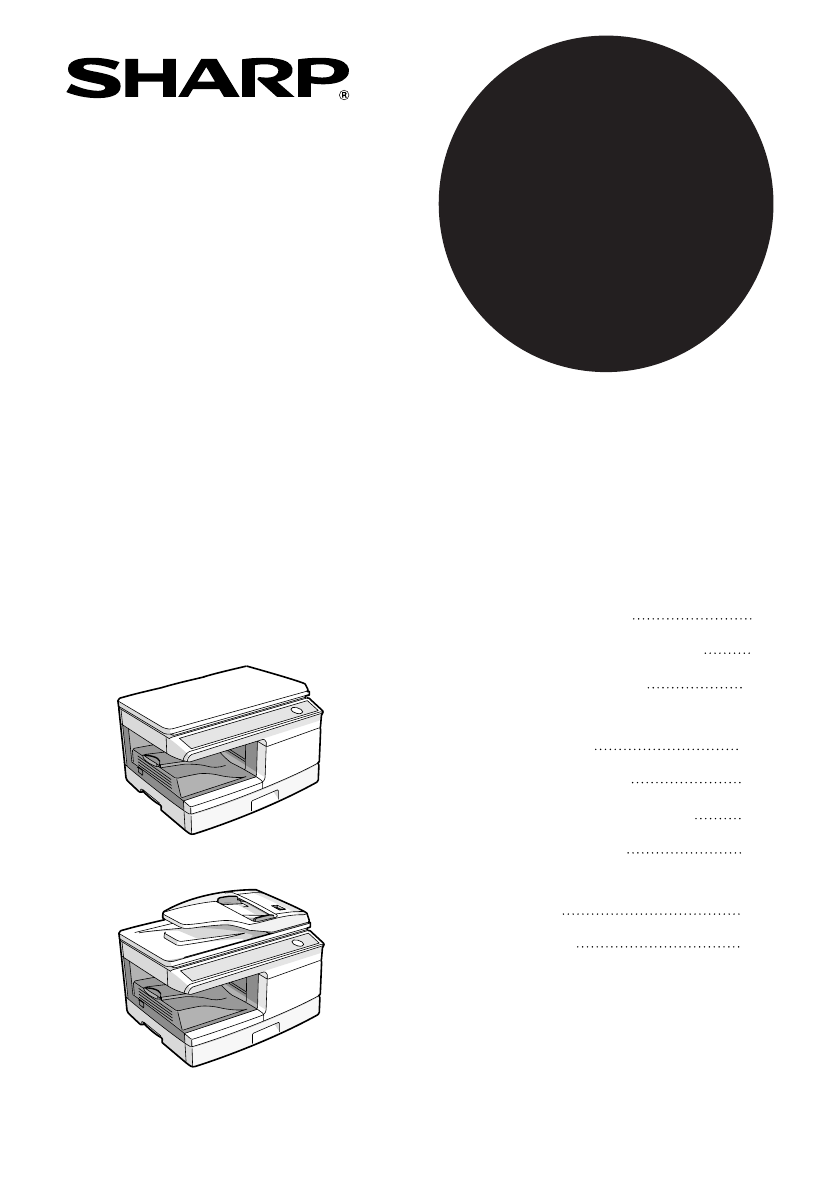
DIGITAL MULTIFUNCTIONALSYSTEMOPERATION MANUALPageINTRODUCTIONSETTING UP THE UNITLOADING PAPERMAKING COPIESSPECIAL FUNCTIONSMAINTENANCETROUBLESHOOTINGT
8CHECKING PACKED COMPONENTS AND ACCESSORIESOpen the carton and check if the following components and accessories are included.If anything is not inclu
922Remove all pieces of tape shown in the illustration below. Then open the document glass/SPF and remove protective materials. After that, take out t
10INSTALLING THE TD CARTRIDGE1Open the multi-bypass tray, and then open the side cover.2Push gently on both sides of the front cover to open the cover
1125Close the front cover and then the side cover by pressing the round projections near the side cover open button.When closing the covers, be sure t
12CONNECTING THE POWER CORD1Ensure that the power switch of the unit is in the OFF position. Insert the attached power cord into the power cord socket
132About the scan headThe scan head lamp remains on constantly when the unit is in the ready condition (when the start ( ) indicator is illuminated).T
14Follow the steps below to load paper into the tray.PAPERFor best results, use only paper recommended by SHARP.*1 Do not use non-standard envelopes,
153LOADING THE PAPER TRAY1Raise the handle of the paper tray and pull the paper tray out until it stops.2Remove the pressure plate lock. Rotate the pr
165Fan the paper and insert it into the tray. Make sure the edges go under the corner hooks.6Gently push the paper tray back into the unit.Do not load
173BYPASS FEED (including special paper)The multi-bypass tray can be used to feed standard paper, transparency film, labels, envelopes, and other spec
In some areas, the "POWER" switch positions are marked "I" and "O" on thecopier instead of "ON" and "OFF&
182Set the paper guides to the paper width. Insert the paper (print face down) all the way into the multi-bypass tray.3Press the tray select ( ) key t
194This chapter explains how to install and configure the software that is required for the printer and scanner functions of the machine. The procedur
20BEFORE INSTALLATIONHardware and software requirementsCheck the following hardware and software requirements in order to install the software.*1 Comp
214INSTALLING THE SOFTWAREUsing the machine with a USB connection1The USB cable must not be connected to the machine. Make sure that the cable is not
227To install all of the software, click the "Standard" button and go to step 12.To install particular packages, click the "Custom"
2349Select "Connected to this computer" and click the "Next" button.Follow the on-screen instructions.When "The installation
2412When installing is finished, click the "Close" button. A message will appear instructing you to connect the machine to your computer. Cl
254Connecting a USB cableFollow the procedure below to connect the machine to your computer.A USB cable for connecting the machine to your computer is
265Double-click the "setup" icon ( ).On Windows Vista, if a message screen appears asking you for confirmation, click "Allow".6The
27410Enter the IP address, subnet mask, and default gateway.The settings in the above window are examples.Be sure to ask your network administrator fo
1CAUTIONSCaution label on the unitThe label ( , ) in the fusing area of the unit indicates the following:: Caution, risk of danger : Caution, hot surf
289Read the message in the "Welcome" window and then click the "Next" button.10Select "LPR Direct Print" and click the &
29414Select the port you want to use with the machine, and click the "Next" button.15Select whether or not you wish the printer to be your d
303Click the "Printer Driver" button.Click the "Display Readme" button to show information on packages that are selected.4Select &
3147In the printer port selection window, verify the network printer that is shared and whether the machine is to be used as the default printer, make
323Select "Shared Printer" and click the "Next" button.4For the port to be used, select the machine set as a shared printer, and c
334INDICATORS ON THE OPERATION PANELThe ONLINE indicator and the start ( ) indicator indicate the state of the printer or scanner.Start indicatorOn: I
34USING THE PRINTER MODEOpening the printer driver from the start menuOpen the printer driver setup screen by the method shown below.1Click the "
354How to print1Make sure that the paper of the desired size and type is loaded in the tray.The procedure for loading paper is the same as for loading
36USING THE SCANNER MODEButton Manager is a software program that works with the scanner driver to enable scanning from the machine. To scan using the
374Windows 98/Me/2000To scan directly into an application using the Button Manager on Windows 98, Windows Me and Windows 2000. Set the Event Manager p
2Trademark acknowledgements•Microsoft®, Windows®, Windows® 98, Windows® Me, Windows® 2000,Windows® XP, Windows® Vista and Internet Explorer® are regis
38Scan Button Destination Setting Dialog BoxAfter you have completed the Button Manager settings in Windows, configure the scan settings in Button Man
394Flow of the Button Manager settingThe Button Manager can directly handle an AL-xxxx (where xxxx is the model name of your unit) series device event
40All About The Windows Event Manager and scanner events in Windows 98, Windows Me, Windows 2000, Windows XP and Windows VistaWindows Platforms provid
414Using the SCAN key to begin scanning1Press the SCAN ( ) key.The unit enters scan mode.2Place the original you wish to scan on the document glass/SP
424Press the start ( ) key.Scanning will start and the scanned data will be transferred to the application.Opening the scanner driver and scanning fro
434Using the SHARP TWAIN1Place the original(s) you wish to scan on the document glass/SPF.For the procedure for placing the original, see "ORIGIN
44Scanning with the "Scanner and Camera Wizard" in Windows XPWindows XP includes as a standard feature an image scanning function. The proce
454HOW TO USE THE ONLINE MANUALThe online manual provides detailed instructions for operating the unit as a printer or scanner and a list of methods f
46This chapter explains basic and other copying functions. The unit is equipped with a one-page memory buffer. This memory allows the unit to scan an
475About interrupt copyingIf you press the start ( ) key to begin a copy job while a print job using the paper tray or multi-bypass tray is in progres
31243568791 INTRODUCTIONUSING THE MANUALS ... 4PART NAMES... 5 OPERATION PANEL... 62 SET
48Using the SPF (AL-2040)The SPF is designed to hold up to 50 originals measuring from A5 to A4 andweighting from 56g/m2 to 90g/m2.1Make sure that no
495SET THE COPY QUANTITYSet the number of copies using the two copy quantity ( , ) keys when copying from the document glass or copying from SPF.• Pr
50Automatic exposure adjustmentThe automatic exposure level can be adjusted to suit your copying needs. This level isset for copying from the document
515REDUCTION/ENLARGEMENT/ZOOMThree preset reduction ratios and two enlargement ratios can be selected. The zoom function enables copy ratio selection
52This chapter describes the special functions of this unit. Use these functions as needed.TWO SIDED COPYINGWhen copying from the SPF, two-side origin
536Making two-sided copies1Place the original(s) on the document glass or in the SPF. (see "ORIGINAL PLACEMENT" (p.47).2Select two-sided cop
54DESCRIPTION OF OTHER SPECIAL FUNCTIONSToner save modeReduces toner consumption by approximately 10%.Power save modesThe unit has two power save mode
5563To enter the toner save mode, press the light ( ) key. The light and dark indicator marked "1" will light up, indicating the toner save
56* Factory default settings are indicated with an asterisk (*).5Press the start ( ) key. The right-hand number in the display will be steadily lit an
757This chapter describes how to replace the TD cartridge and drum cartridge and how to clean the unit.TD CARTRIDGE REPLACEMENTThe TD cartridge replac
4This chapter provides basic information for using the unit.USING THE MANUALSIn addition to this printed manual an online manual is also provided. To
584Close the front cover and then the side cover by pressing the round projections near the side cover open button. The indicator ( ) will go out and
5973Remove the new drum cartridge from the protective bag and remove the protective cover from the cartridge. Then gently install the new drum cartrid
60CLEANING THE UNITProper care is essential in order to get clean, sharp copies. Be sure to take a few minutes to regularly clean the unit.CabinetWipe
617Transfer chargerIf copies start becoming streaky or blotchy, the transfer charger may be dirty. Clean the charger using the following procedure.1Tu
62This chapter describes misfeed removal and troubleshooting.For problems with the printer function or the scanner function, see the online manual or
638STATUS INDICATORSWhen the following indicators light up or blink on the operation panel or the following alphanumeric codes appear in the display,
64MISFEED REMOVALWhen the misfeed ( ) indicator blinks or blinks in the display, the unit will stop because of a misfeed. If a misfeed occurs when u
658A: Misfeed in the paper feed area1Gently remove the misfed paper from the paper feed area as shown in the illustration. When the misfeed ( ) indica
66B: Misfeed in the fusing area1Lower the fusing unit release lever.2Gently remove the misfed paper from under the fusing unit as shown in the illustr
678C: Misfeed in the transport area1Lower the fusing unit release lever.See "B: Misfeed in the fusing area" (p.66).2Open the front cover.To
51PART NAMESInterfaceUSB connectorOriginal cover(AL-2020)TD cartridge Drum cartridgeSPF (AL-2040)Exit areaSPF scan area(AL-2040)23416910141516Original
68D: Misfeed in the SPF (AL-2040)An original misfeed may occur at one of three locations: if the misfed original is seen from the document feeder tray
698IF A PAPER MISFEED OCCURS IN THE MAIN UNIT WHEN USING THE SPF (AL-2040)If a paper misfeed occurs in the main unit paper path when making copies wit
70SPECIFICATIONSAL-2020 AL-2040Type Digital multifunctional system, desk-top typeCopy / printer system Dry, electrostatic transferOriginals Sheets, bo
719*1 When standard A4 paper is used under the operating conditions.*2 Feed paper lengthwise only.*3 Leading and trailing edges.*4 Along the other edg
72ABOUT SUPPLIES AND OPTIONSWhen ordering supplies, please use the correct part numbers as listed below.Supply list* Based on copying onto A4 size pap
739MOVING AND STORING THE UNITMoving instructionsWhen moving the unit, follow the procedure below.1Turn the power switch off and remove the power cord
74MATERIAL SAFETY DATA SHEET Page : 1/4Date Revised : Mar . 1. 2007 Date Issued : Sep . 1. 2003 MSDS No. F-01231 1.PRODUCT AND COMPANY IDENTIFI
75MATERIAL SAFETY DATA SHEET Page : 2/4Date Revised : Mar . 1. 2007 Date Issued : Sep . 1. 2003 MSDS No. F-01231 3.HAZARDS IDENTIFICATIONMost I
76MATERIAL SAFETY DATA SHEET Page : 3/4Date Revised : Mar . 1. 2007 Date Issued : Sep . 1. 2003 MSDS No. F-01231 8.EXPOSURE CONTROLS / PERSONAL
77MATERIAL SAFETY DATA SHEET Page : 4/4Date Revised : Mar . 1. 2007 Date Issued : Sep . 1. 2003 MSDS No. F-01231 and lung tumors. Moreover, a two
6OPERATION PANELA5A4A4B5A4A5141867050Original to copy key and indicatorsTwo-sided copies from one-sided originals.Turn on Long Edge or Turn on Short E
78MATERIAL SAFETY DATA SHEET Page : 1/4Date Revised : Mar . 1. 2007 Date Issued : Sep . 1. 2003 MSDS No. F-31231 1.PRODUCT AND COMPANY IDENTIFI
79MATERIAL SAFETY DATA SHEET Page : 2/4Date Revised : Mar . 1. 2007 Date Issued : Sep . 1. 2003 MSDS No. F-31231 3.HAZARDS IDENTIFICATIONMost I
80MATERIAL SAFETY DATA SHEET Page : 3/4Date Revised : Mar . 1. 2007 Date Issued : Sep . 1. 2003 MSDS No. F-31231 Exposure Limit ValuesOSHA-PEL(US
81MATERIAL SAFETY DATA SHEET Page : 4/4Date Revised : Mar . 1. 2007 Date Issued : Sep . 1. 2003 MSDS No. F-31231 Chronic Effect : In a study in
82INDEXAAcrobat Reader ... 45Alarm indicator- Drum replacement required indicator... 6, 58, 6
83MMaking copies ... 46MFP driver- Print Status Window ... 19- Printer driver...
84UUSB interface cable... 25, 72Using the manuals... 4Using the printer mode ... 34Us
Attention: Your product is marked with this symbol. It means that used electrical and electronic products should not be mixed with general household
CAUTIONVORSICHTADVARSELADVERSELVARNINGVARO!CLASS 3B INVISIBLE LASER RADIATION WHEN OPEN AND INTERLOCKS DEFEATED.AVOID EXPOSURE TO BEAM.UNSICHTBARE LAS
SHARP Manufacturing France S.A.Route de Bollwiller 68360 SOULTZ FRANCE
72Follow the installation procedure below to use the unit properly.SETUP PROCEDUREWhen using the unit for the first time, setup the unit following the
AL-2020/AL-2040_v1AL-2020/AL-2040 OPERATION MANUAL
Weitere Dokumente für Kopierer Sharp AL-2020
Verwandte Produkte und Handbücher für Kopierer Sharp AL-2020
 (140 Seiten)
(100 Seiten)
(14 Seiten)
(92 Seiten)
(104 Seiten)
(12 Seiten)
(4 Seiten)
(40 Seiten)
(12 Seiten)
(12 Seiten)
(88 Seiten)
(117 Seiten)
(12 Seiten)
(56 Seiten)
(44 Seiten)
(140 Seiten)
(100 Seiten)
(14 Seiten)
(92 Seiten)
(104 Seiten)
(12 Seiten)
(4 Seiten)
(40 Seiten)
(12 Seiten)
(12 Seiten)
(88 Seiten)
(117 Seiten)
(12 Seiten)
(56 Seiten)
(44 Seiten)

 (47 Seiten)
(160 Seiten)
(79 Seiten)
(36 Seiten)
(8 Seiten)
(47 Seiten)
(160 Seiten)
(79 Seiten)
(36 Seiten)
(8 Seiten)
© 2020, manymanuals.de. Alle Rechte vorbehalten. | 0.034 s |
 Manymanuals.com
 Manymanuals.de
 Manymanuals.fr
 Manymanuals.it
 Manymanuals.pl
 Manymanuals.cz
 Manymanuals.es
 Manymanuals-pt.com
Kommentare zu diesen Handbüchern