Sharp FO-2080 Spezifikationen
Stöbern Sie online oder laden Sie Spezifikationen nach Kopierer Sharp FO-2080 herunter. Sharp FO-2080 Specifications [en] Benutzerhandbuch
- Seite / 41
- Inhaltsverzeichnis
- FEHLERBEHEBUNG
- LESEZEICHEN

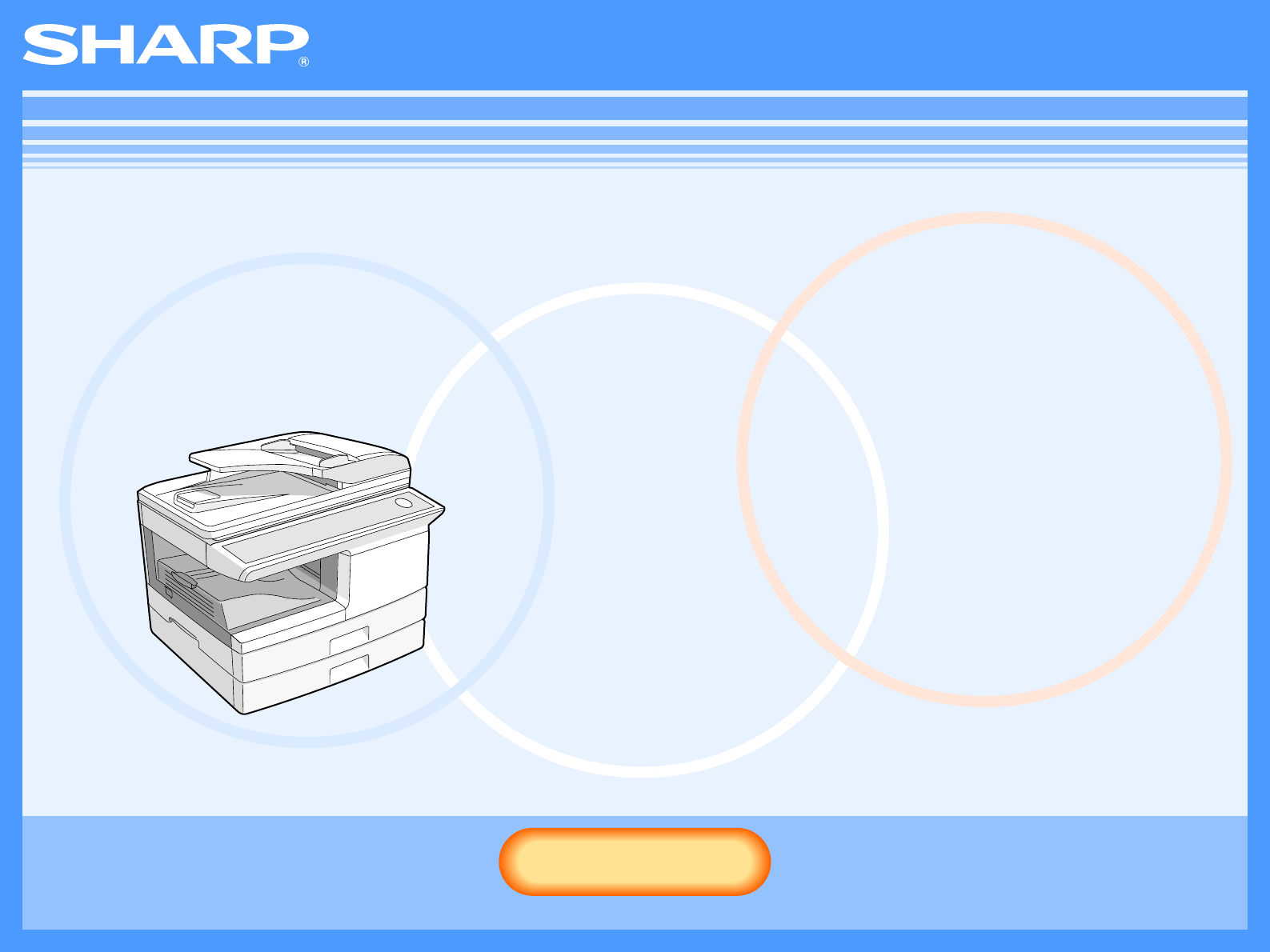
- FO-2080 Online Manual 1
- Introduction 2
- How to Use the Online Manual 3
- Contents 4
- Basic Printing 5
- Printer Driver Settings 8
- CONTENTS 10
- Two-sided Printing 11
- Printing a Watermark 13
- Scanning Overview 15
- (part 1) 16
- (part 2) 17
- (part 3) 18
- (part 4) 19
- (part 5) 20
- Outline of Button Manager 26
- Button Manager Settings 27
- Troubleshooting 29
- If a Notice Page is printed 35
- Printer Driver Features 36
- About the Web Page 38
- FO2080-US1 41
Inhaltsverzeichnis
FO-2080 Online ManualStartStartClick this "Start" button.
1PRINT10CONTENTSINDEXFitting the Printed Image to the PaperThe printer driver can adjust the size of the printed image to match the size of the paper
1PRINT11CONTENTSINDEXTwo-sided PrintingThis feature allows you to print on both sides of the paper.To use this function, open the printer driver setup
1PRINT12CONTENTSINDEXRotating the Print Image 180 DegreesThe print image can be rotated 180 degrees.This feature is used to enable correct printing on
1PRINT13CONTENTSINDEXPrinting a WatermarkYou can print a watermark such as "CONFIDENTIAL" on your document. To print a watermark, open the p
1PRINT14CONTENTSINDEXOutline of the Print Status WindowWhen printing begins, the Print Status Window automatically opens.The Print Status Window is a
2SCAN15CONTENTSINDEXScanning OverviewThe flow chart shown below provides an overview of scanning.*1 TWAIN is an international interface standard for s
2SCAN16CONTENTSINDEXScanning from a TWAIN-Compliant Application(part 1)The SHARP scanner driver is compatible with the TWAIN standard, allowing it to
2SCAN17CONTENTSINDEXScanning from a TWAIN-Compliant Application(part 2)5In the "Scanning Position" menu, select the location where you place
2SCAN18CONTENTSINDEXScanning from a TWAIN-Compliant Application(part 3)7Specify the scanning area and set the scan preferences.For information on spec
2SCAN19CONTENTSINDEXScanning from a TWAIN-Compliant Application(part 4)Scanner Driver SettingsThe scanner driver setup screen consists of the "Se
2CONTENTSINDEXIntroductionThis manual describes the printer and scanner functions of the FO-2080 digital multifunctional system.Trademark Acknowledgme
2SCAN20CONTENTSINDEXScanning from a TWAIN-Compliant Application(part 5)Preview screenPreview windowClick the "Preview" button in the Set-up
2SCAN21CONTENTSINDEXScanning from a WIA-Compliant Application (Windows XP/Vista)(part 1)If you are using Windows XP/Vista, you can use the WIA driver
2SCAN22CONTENTSINDEXScanning from a WIA-Compliant Application (Windows XP/Vista)(part 2)4Click the "Scan" button.●Scanning begins and the im
2SCAN23CONTENTSINDEXScanning from the "Scanner and Camera Wizard" (Windows XP)(part 1)The procedure for scanning with the "Scanner and
2SCAN24CONTENTSINDEXScanning from the "Scanner and Camera Wizard" (Windows XP)(part 2)5Select the "Picture type" and "Paper s
2SCAN25CONTENTSINDEXScanning from the "Scanner and Camera Wizard" (Windows XP)(part 3)7When scanning ends, the following screen will appear.
2SCAN26CONTENTSINDEXOutline of Button ManagerButton Manager is a software utility that allows you to use the scanner function at the machine. Button M
2SCAN27CONTENTSINDEXButton Manager Settings(part 1)Once installed, Button Manager normally runs in the background in the Windows operating system. If
2SCAN28CONTENTSINDEXButton Manager Settings(part 2)4Set up the "Color Mode", "Edge" and other scan settings in the "Scan Setu
3TROUBLESHOOTING29CONTENTSINDEXTroubleshooting(part 1)If you experience difficulty using the machine, check the following troubleshooting guide before
3CONTENTSINDEXHow to Use the Online ManualThis section explains how to view the online manual. Please read this section before using the online manual
3TROUBLESHOOTING30CONTENTSINDEXTroubleshooting(part 2)Problem Cause and solution PageThe machine does not print.The printer driver has not been instal
3TROUBLESHOOTING31CONTENTSINDEXTroubleshooting(part 3)Problem Cause and solution PageThe machine does not print.The "FORCED OUTPUT" setting
3TROUBLESHOOTING32CONTENTSINDEXTroubleshooting(part 4)Problem Cause and solution PageThe printed image is skewed or it runs off the paper.The size of
3TROUBLESHOOTING33CONTENTSINDEXTroubleshooting(part 5)Problem Cause and solution PagePoor scanning quality.You have not specified a suitable value for
3TROUBLESHOOTING34CONTENTSINDEXTroubleshooting(part 6)Problem Cause and solution PageUnable to scan the image.If scanning is not possible, shut down y
3TROUBLESHOOTING35CONTENTSINDEXIf a Notice Page is printedIf you find that a notice page has been printed at the end of a print job, the print data re
4PRINTER DRIVER FEATURES36CONTENTSINDEXPrinter Driver Features(part 1)(continued)*1 Will be reduced to letter size or the specified size before printi
4PRINTER DRIVER FEATURES37CONTENTSINDEXPrinter Driver Features(part 2)Tab Setting Selections Initial settingAdvanced Print Quality Draft/Normal/Photo
5WEB PAGE IN THE MACHINE38CONTENTSINDEXAbout the Web PageIf the machine is used as a network printer, you can access the Web page in the machine using
5WEB PAGE IN THE MACHINE39CONTENTSINDEXConfiguration via the Web PageTo change network settings, click "NIC Setup". The following screen wil
4CONTENTSINDEXContentsIntroduction 2How to Use the Online Manual 3Basic Printing 5Opening the Printer Driver From the "Start" Button 7Printe
6INDEX40CONTENTSIndexFor detailed information on the settings in the printer driver, Print Status Window, scanner driver, and Button Manager, see the
FO2080-US1
1PRINT5CONTENTSINDEXBasic Printing(part 1)The following example explains how to print a document from WordPad.Before printing, make sure that the corr
1PRINT6CONTENTSINDEXBasic Printing(part 2)If the tray runs out of paper during printingPrinting will automatically resume when paper is loaded in the
1PRINT7CONTENTSINDEXOpening the Printer Driver From the "Start" ButtonYou can open the printer driver and change the printer driver settings
1PRINT8CONTENTSINDEXPrinter Driver SettingsSome restrictions exist on the combinations of settings that can be selected in the printer driver setup sc
1PRINT9CONTENTSINDEXPrinting Multiple Pages on One PageThis feature allows you to reduce and print two or four document pages on a single sheet of pap
Verwandte Produkte und Handbücher für Kopierer Sharp FO-2080
 (100 Seiten)
(130 Seiten)
(89 Seiten)
(187 Seiten)
(104 Seiten)
(12 Seiten)
(54 Seiten)
(28 Seiten)
(98 Seiten)
(110 Seiten)
(12 Seiten)
(80 Seiten)
(188 Seiten)
(311 Seiten)
(148 Seiten)
(40 Seiten)
(4 Seiten)
(100 Seiten)
(76 Seiten)
(100 Seiten)
(130 Seiten)
(89 Seiten)
(187 Seiten)
(104 Seiten)
(12 Seiten)
(54 Seiten)
(28 Seiten)
(98 Seiten)
(110 Seiten)
(12 Seiten)
(80 Seiten)
(188 Seiten)
(311 Seiten)
(148 Seiten)
(40 Seiten)
(4 Seiten)
(100 Seiten)
(76 Seiten)
© 2020, manymanuals.de. Alle Rechte vorbehalten. | 0.034 s |
 Manymanuals.com
 Manymanuals.de
 Manymanuals.fr
 Manymanuals.it
 Manymanuals.pl
 Manymanuals.cz
 Manymanuals.es
 Manymanuals-pt.com
Kommentare zu diesen Handbüchern