Sharp FO-150 Spezifikationen Seite 1
Stöbern Sie online oder laden Sie Spezifikationen nach Faxgeräte Sharp FO-150 herunter. Sharp FO-150 Specifications [en] Benutzerhandbuch
- Seite / 152
- Inhaltsverzeichnis
- FEHLERBEHEBUNG
- LESEZEICHEN

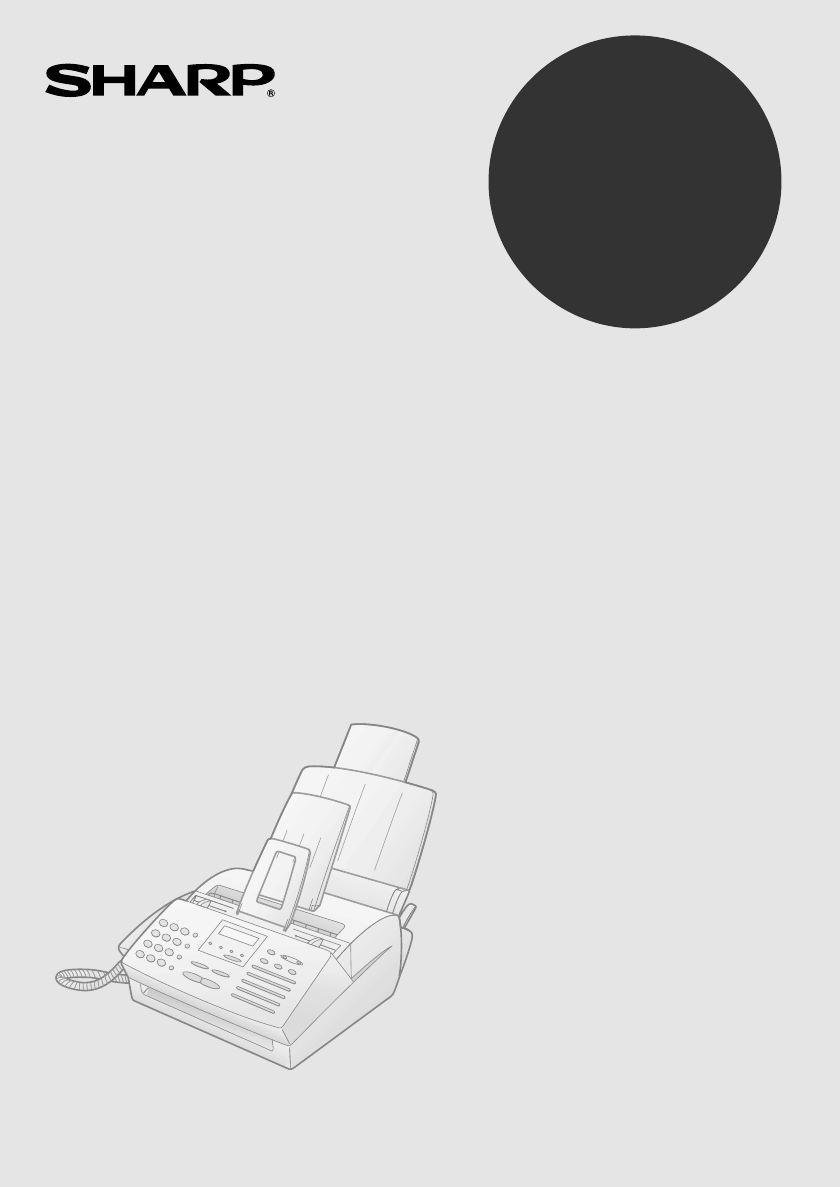
- FO-2950M 1
- Introduction 3
- Important safety information 5
- Table of Contents 7
- A Look at the Operation Panel 9
- 1. Installation 11
- 1. Installation 12
- Connections 13
- Connecting the Handset 14
- Loading Printing Paper 23
- Important: 24
- To enable the multifunction 26
- Press these keys: 30
- The display will show: 30
- OWN NUMBER SET 31
- PRESS START KEY 31
- ENTER FAX # 31
- ENTER YOUR NAME 31
- Press the START key 33
- Setting the Date and Time 34
- Setting the Reception Mode 37
- RECEIVE UNIT 38
- 1=FAX, 2=PC 38
- Volume Adjustment 40
- 2. Sending Documents 44
- Letters in the 45
- Loading the Document 46
- If you need to remove a 47
- Remove the document 48
- Resolution settings 49
- Contrast settings 49
- RESOLUTION 50
- 2. Sending 53
- Documents 53
- Rapid Keys 54
- SPEED DIAL key 54
- AUTO-DIAL E-MAIL 63
- 3. Receiving Documents 69
- Using TEL Reception Mode 71
- Phone goes dead 72
- RECEIVING 72
- 3. Receiving 77
- Making Copies 79
- 5. Making Telephone Calls 81
- Making Telephone Calls 82
- 6. Answering Machine Hookup 83
- RECEPTION 84
- 6. Answering 85
- 7. Special Functions 88
- SET RESOLUTION 89
- PRESS RESO. KEY 89
- Step 3 or 92
- Distinctive Ring 95
- Comments: 100
- FUNCTION 101
- Rapid Dial Key 104
- (Example) 104
- Timer Operations 110
- Explanation of headings 113
- Printing Lists 115
- Option Setting List 116
- Junk Fax Number List 116
- 9. Maintenance 119
- Replacing the toner cartridge 120
- Maintenance 122
- Cleaning the drum cartridge 124
- 10. Troubleshooting 126
- Problems and Solutions 127
- Answering machine connection 129
- General problems 130
- Messages and Signals 132
- Audible signals 134
- Clearing Paper Jams 135
- Fusing unit 138
- FCC Regulatory Information 139
- Section 3. Ingredients 140
- Sending Faxes 143
- Receiving Faxes 143
- Transmisión de mensajes 145
- Recepción de mensajes 145
- Transaction Report 148
- SHARP CORPORATION 152
Inhaltsverzeichnis
OPERATION MANUALFACSIMILEMODELFO-2950M 1. Installation 2. Sending Documents 3. Receiving Documents 4. Making Copies 5. Making Tele
8Panel releaseGrasp this release and pull toward you to open the operation panel.PC IN USE lightThis blinks when data is being sent to or from the com
Batch Page Numbering984Dial the receiving machine and transmit the document.Comments:♦ If you need to cancel a batch number entry, remove the document
Blocking Reception of Unwanted Faxes997. SpecialFunctionsBlocking Reception of Unwanted FaxesThe Anti Junk Fax function allows you to block reception
Blocking Reception of Unwanted Faxes1003Entering: Enter a 1-digit number from 1 to 5 with the numeric keys. This number identifies the fax number that
Polling (Requesting a Fax Transmission)1017 SpecialFunctionsPolling (Requesting a Fax Transmission)Polling allows you to call another fax machine and
Polling (Requesting a Fax Transmission)1021Dial the fax machine you want to poll using one of the following methods:• Pick up the handset (or press th
Polling (Requesting a Fax Transmission)1037 SpecialFunctions2Press the RECEPTION MODE key to set the reception mode to FAX.3Press these keys:The displ
Polling (Requesting a Fax Transmission)1044Press 1 to select SET.5Press 1 to allow polling only once, or 2 to allow polling an unlimited number of tim
Polling (Requesting a Fax Transmission)1057 SpecialFunctionsPolling securityPolling Security allows you to prevent unauthorized polling of your machin
Polling (Requesting a Fax Transmission)106Storing and clearing fax numbers for polling permissionYou can store up to 10 fax numbers in your machine&ap
Timer Operations1077. SpecialFunctionsTimer OperationsThe Timer function allows you to set up a transmission or polling operation to be performed auto
91. InstallationREDUCTION/ENLARGEMENT keyPress this key to select an enlargement or reduction setting when making a copy of a document.STOP keyPress t
Timer Operations1088Press the START key.9Press a Rapid Key or enter a Speed Dial number for the receiving fax machine.• If this is a polling operation
Timer Operations1097. SpecialFunctionsTo cancel a timer operationIf you need to cancel a timer operation after it has been set, follow the steps below
1108. Printing ListsYou can print lists showing settings and information entered in the fax machine. You can also print out reports on recent activit
Printing Lists1118. PrintingListsExplanation of headingsSENDER/RECEIVERThe name or fax number of the other machine involved in the transaction. If tha
Printing Lists112If desired, you can set the Activity Report to automatically print out whenever information on 30 operations has accumulated. (A repo
Printing Lists1138. PrintingListsTelephone Number ListThis list shows the fax numbers that have been programmed for automatic dialing.Passcode ListThi
Printing Lists114Option Setting ListThis list shows the current status of the option settings.Junk Fax Number ListThis list shows the numbers that are
Printing Lists1158. PrintingListsGroup ListThis list shows the fax numbers that have been programmed into each Group Key.Transaction ReportThis report
Printing Lists1162Press a number from 1 to 5 to select the condition for printing.ALWAYS PRINT A report will be printed after each transmission, recep
1179. Maintenance9. MaintenanceScanning glass and rollersClean the scanning glass and rollers frequently to ensure that your transmitted images and c
101. InstallationUnpacking ChecklistIf any are missing, contact your dealer or retailer.Before setting up, make sure you have all of the following it
Maintenance118Replacing the toner cartridgeWhen the toner cartridge nears empty (about 100 pages can still be printed), the TONER EMPTY indicator on t
Maintenance1199. Maintenance3Install the new toner cartridge and reset the toner counter. (Refer to Installing the Toner Cartridge in Chapter 1.)Repla
Maintenance1202Grasp the finger hold on the toner cartridge handle where it is marked PUSH, and pull the handle out. Rehold the handle and pull the to
Maintenance1219. Maintenance5Insert the drum cartridge into the print compartment, aligning the guides on the cartridge with the runners on the sides
Maintenance122Cleaning the drum cartridgeIf you find that characters or parts of an image are missing from your printed pages, the drum in the drum ca
Maintenance1239. Maintenance4Take a sheet of clean paper and roll it into a tube. Roll it tightly so that the diameter of the holes at each end is les
12410. TroubleshootingProblems and SolutionsLine errorProblem SolutionLINE ERROR appears in the display.Try the transaction again. If the error persi
Problems and Solutions12510. Trouble-shootingDialing and transmission problemsProblem SolutionNo dial tone when you pick up the handset or press the S
Problems and Solutions126Reception and copying problemsProblem SolutionThe fax machine doesn't receive documents automatically.• Make sure that t
Problems and Solutions12710. Trouble-shootingThe quality of copies is poor and/or black spots appear.• Any dirt or material on the scanning glass will
Connections111. InstallationConnectionsPoints to keep in mind when setting upDo not place the machine and the drum cartridge in direct sunlight.Do not
128General problemsProblem SolutionNothing appears in the display.• Make sure the power cord is properly plugged into a power outlet.• Connect another
Problems and Solutions12910. Trouble-shootingUsing the RESET keyIf the fax machine stops responding when you press any of the operation panel keys, yo
Messages and Signals130Messages and SignalsDisplay messagesCAN’T PRINT DATA A fax has been received to memory because printing is not possible. This m
Messages and Signals13110. Trouble-shootingMEMORY IS FULL The memory is full. This may occur during fax reception if too much data is received before
Messages and Signals132SIZE ERROR The paper size setting is longer than the paper loaded in the tray. Change the paper size setting as explained in Lo
Clearing Paper Jams13310. Trouble-shootingClearing Paper JamsClearing a jammed documentIf the original document doesn’t feed properly during transmiss
Clearing Paper Jams1342If the jammed page comes out, take out the rest of the paper in the tray, straighten the stack, put it back in the paper tray,
Clearing Paper Jams13510. Trouble-shooting5Grasp the tabs on the drum cartridge handle and gently pull the cartridge out of the machine.4Grasp the fin
Clearing Paper Jams1367Gently pull the jammed paper out of the machine.• If needed, turn the wheel on the right side of the fusing unit to eject the p
FCC Regulatory Information137FCC Regulatory InformationThis equipment complies with FCC rules, Part 68. On this equipment is a label that contains, am
Connections12Connecting the HandsetConnect the handset as shown and place it on the handset rest.♦The ends of the handset cord are identical, so they
138SHARPDate Revised :Date Issued : July. 16. 1999MATERIAL SAFETY DATA SHEET (1/2)MSDS No. P-00102Section 1. Product IdentificationProduct: FO-2950/F
139SHARPDate Revised :Date Issued : July. 16. 1999MATERIAL SAFETY DATA SHEET (2/2)MSDS No. P-00102Section 5. Health Hazard DataEmergency and First Ai
140Entering Your Name and Number1. Press:Display shows:2. Press:3. Enter your fax number (max. of 20 digits) by pressing the number keys. •To insert
Quick Reference Guide141Sending FaxesPlace your document (up to 20 pages) face down in the document feeder.Normal Dialing 1. Lift the handset or press
142Guía de referencia rápidaIntroducción de su nombre y número1. Pulse:El visor muestra:2. Pulse:3. Introduzca su número de telefax (20 dígi-tos como
Guía de referencia rápida143RECEPTIONMODETransmisión de mensajes telefaxColoque el original (hasta 20 páginas) cara abajo en el alimentador de documen
144AA.M. reception mode, 35, 82Activity Report, 110Auto print-out, 112Answering machine hookupActivating, 82Connecting, 81Fax reception when TAD fails
Index145JJams, clearing, 133 - 136LLetters, entering, 30Line error, 124LINE IN USE light, 8Loading printing paper, 21 - 23Loading the document, 44MMem
Index146Transaction Report, 115 Setting print-out condition, 115all-fo2950.book Page 146 Monday, September 25, 2000 8:57 AM
Index147all-fo2950.book Page 147 Monday, September 25, 2000 8:57 AM
Connections131. InstallationConnecting the power cordPlug the power cord into a 120 V, 60 Hz, grounded AC (3-prong) outlet.Caution!Do not plug the pow
Index148all-fo2950.book Page 148 Monday, September 25, 2000 8:57 AM
NOTICE BE SURE TO ASK YOUR AUTHORIZED SHARP DEALERABOUT THE WARRANTY THAT YOUR SELLING DEALEREXTENDS TO YOU. In order to assure you, the end-user, ofw
SHARP DOCUMENT NETWORK SYSTEM OF AMERICASharp Plaza, Mahwah, New Jersey 07430-2135SHARP CORPORATIONPRINTED IN CHINA(TINSE4094SCZA)FOR YOUR RECORDSPlea
Connections14Connecting the telephone line cordInsert one end of the line cord into the jack on the left of the machine marked TEL. LINE. Insert the o
Connections151. InstallationAttaching the paper tray and document supportsAttach the paper tray.Attach the original document support.♦Make sure the fr
Connections16Extension phone (optional)If desired, you can connect an extension phone to the TEL. SET jack on the fax.♦To connect an answering machine
Installing the Toner Cartridge171. InstallationInstalling the Toner CartridgeThe laser printer in your fax machine uses a toner cartridge and a drum c
WARNING - FCC Regulations state that any unauthorized changes or modifications to this equipment not expressly approved by the manufacturer could void
Installing the Toner Cartridge182The drum cartridge has been installed at the factory. Gently pull the paper tab to remove the black sheet of protecti
Installing the Toner Cartridge191. Installation4Hold the toner cartridge by the handle with the stamped markings on the cartridge facing upwards, and
Installing the Toner Cartridge207Reset the toner counter by pressing the following keys:8Reset the drum counter by pressing the following keys:•Note:
Loading Printing Paper211. InstallationLoading Printing PaperYou can load up to 200 sheets of letter, A4 or legal paper (max. 20 lbs.) in the paper tr
Loading Printing Paper226Push the paper release lever back down.•Note: If the paper does not feed correctly, remove the entire stack from the tray an
Loading Printing Paper231. Installation7The fax has been set at the factory to scale the size of received faxes to letter size paper. If you have load
Setting Up the Multifunction Interface24Setting Up the Multifunction InterfaceConnecting the parallel cableConnect the fax machine to your computer wi
Setting Up the Multifunction Interface251. InstallationNote: There is normally no need to change the parallel port setting in your computer's set
Setting Up the Multifunction Interface26Installing the Multifunction softwareMinimum system requirementsProcessor: Pentium 90 MHz or higherOperating s
Setting Up the Multifunction Interface271. InstallationOnline Operation Guide Detailed instructions for using the Sharp Laser Multifunction software c
1Introduction*Based on ITU-T Test Chart #1 at standard resolution in Sharp special mode, excluding time for protocol signals (i.e., ITU-T phase C time
Entering Your Name and Fax Number28Entering Your Name and Fax NumberImportant!The law requires that your name, telephone/fax number, and the date and
Entering Your Name and Fax Number291. Installation 4Enter your fax number by pressing the number keys (max. of 20 di
Entering Your Name and Fax Number306Enter your name by pressing number keys for each letter as shown in the chart below. Up to 24 characters can be en
Entering Your Name and Fax Number311. Installation7Press the START key.The display will show:8Press the STOP key to return to the date and time displa
Setting the Date and Time32Setting the Date and Time1Press these keys:The display will show:Set the date and time by pressing the keys on the operatio
Setting the Date and Time331. Installation7Enter a two-digit number for the hour (“01” to “12”) and a two-digit number for the minute (“00” to “59”).8
Setting the Date and Time34Daylight Saving TimeIf desired, you can set the clock to move forward and backward automatically at the beginning and end o
Setting the Reception Mode351. InstallationSetting the Reception ModeYour fax machine has three modes for receiving incoming calls and faxes:TEL mode:
Setting the Reception Mode362Press 1 (FAX) to select the fax machine, or 2 (PC) to select the computer.• The display briefly shows your selection and
Setting the Reception Mode371. Installation4If you selected reception to the computer but also want to receive voice calls, set the reception mode of
2Automatic document feeder20 pages max. (20-lb. letter paper)Halftone (grayscale) 64 levels (PC scan: 256 levels)Paper tray capacity 200 sheets (20-lb
Volume Adjustment38Volume AdjustmentYou can adjust the volume of the speaker, handset, and ringer using the UP and DOWN keys.2Press the UP or DOWN key
Volume Adjustment391. Installation3When the display shows the desired volume level, press the SPEAKER key to turn off the speaker.Handset1Lift the han
Volume Adjustment40Ringer1Press the UP or DOWN key. (Make sure the SPEAKER key has not been pressed.)• The ringer will ring once at the selected level
Volume Adjustment411. InstallationBeep lengthYour fax machine normally signals the end of transmission, reception, or copying with a 3-second beep. If
42 5.5"(140 mm) 5.8"(148 mm) 8.5"(216 mm) 39.4"(1.0 m) 14 lbs. (52 g/m² ) 42 lbs. (157 g/m²) 11"(279 mm
Transmittable Documents432. SendingDocumentsNote: Letters or graphics on the edges of a document will not be scanned.Other restrictions♦ The scanner c
Loading the Document442Place the document face down and push it gently into the document feeder. The top edge of the document should enter the machine
Loading the Document452. SendingDocuments3Adjust the resolution and/or contrast settings (if desired) as explained in the section Resolution and Contr
Loading the Document463Close the operation panel, making sure it clicks into place.2Remove the document.all-fo2950.book Page 46 Monday, September 25
Adjusting the Resolution and Contrast472. SendingDocumentsAdjusting the Resolution and ContrastIf desired, you can adjust the resolution and contrast
3Dimensions Width: 15.2" (386 mm)Depth: 15.7" (398 mm)Height: 6.7" (169 mm)WeightApprox. 13.8 lbs. (6.3 kg)As a part of our policy of c
Adjusting the Resolution and Contrast481Load the document(s).• The document must be loaded before the resolution and contrast can be adjusted.2Press t
Adjusting the Resolution and Contrast492. SendingDocumentsChanging the default resolutionIf desired, you can change the default resolution for faxing
Sending a Fax by Normal Dialing50Sending a Fax by Normal DialingWith Normal Dialing, you pick up the handset (or press the SPEAKER key) and dial by pr
Sending a Fax by Normal Dialing512. SendingDocuments4Wait for the connection. Depending on the setting of the receiving machine, you will either hear
Sending a Fax by Automatic Dialing52Sending a Fax by Automatic DialingYou can dial a fax or telephone number by simply pressing a Rapid Key, or by pre
Sending a Fax by Automatic Dialing532. SendingDocumentsStoring fax and telephone numbers for Automatic Dialing1Press these keys:The display will show:
Sending a Fax by Automatic Dialing545Press the START key.6Enter the name of the party by pressing the number keys as shown below. (If you don’t want t
Sending a Fax by Automatic Dialing552. SendingDocuments9Return to Step 3 to store another number, or press the STOP key to return to the date and time
Sending a Fax by Automatic Dialing564Press the START key.5Return to Step 3 to clear another number, or press the STOP key to return to the date and ti
Sending a Fax by Automatic Dialing572. SendingDocumentsDual AccessThe fax machine features full dual access, which means that you can load a document
4- Liquid has been spilled into the machine or the machine has been exposed to rain or water.- The machine produces odors, smoke, or unusual noises.-
Sending a Fax by Automatic Dialing582Press the appropriate Rapid Key.• The document is automatically transmitted once the connection is established.Ra
Sending a Fax by Automatic Dialing592. SendingDocumentsSpeed DialingIf the number you want to dial has been programmed in a Speed Dial number, you can
Sending a Fax by Automatic Dialing60Direct Keypad DialingYou can also enter a full number with the number keys and then press the START key to begin d
Sending a Fax by Automatic Dialing612. SendingDocumentsSearching for an auto-dial numberIf you don’t remember the Rapid Key or Speed Dial number in wh
Sending a Fax by Automatic Dialing625Press the # key or the * key to scroll through the names (numbers if you pressed 0). Stop when the desired name a
Sending a Fax by Automatic Dialing632. SendingDocuments2Enter a 2-digit number from 01 to 15 for the number of minutes of the interval.3Press the STOP
Sending a Fax by Automatic Dialing64Checking and cancelling transmission jobsTo display information on currently set transmission (and polling) jobs,
Sending a Fax by Automatic Dialing652. SendingDocumentsError Correction ModeThe fax machine is set to automatically correct any distortions in a trans
Sending a Fax by Automatic Dialing66Quick OnlineWhen you transmit a document, the fax machine normally dials the receiving party and begins transmitti
673. ReceivingDocumentsWhen the reception mode is set to FAX, the fax machine will automatically answer all calls on four rings and receive incoming f
5Table of ContentsIntroduction 1Important safety information . . . . . . . . . . . . . . . . . . . . . . . . . . . . . . . . 3Table of Contents 5A Loo
Using FAX Mode68Changing the number of ringsIf desired, you can change the number of rings on which the fax machine answers incoming calls in FAX mode
Using TEL Reception Mode693. ReceivingDocuments1When the fax machine rings, pick up the handset.2If you hear a fax tone, wait until the display shows
Using TEL Reception Mode703If the other party first speaks with you and then wants to send a fax, press the START key after speaking. (Press your STAR
Using TEL Reception Mode713. ReceivingDocuments3If the fax doesn't respond, or if the other party first talks to you and then wants to send a fax
Using TEL Reception Mode723Press the STOP key to return to the date and time display.Turning off detection of the Tel/Fax Remote NumberIf you don&apos
Using TEL Reception Mode733. ReceivingDocumentsFax Signal ReceiveYour fax will automatically begin reception if you hear a soft fax tone after answeri
Using TEL Reception Mode74Reception RatioThe fax has been set at the factory to automatically reduce the size of received documents to fit the size of
Substitute Reception to Memory753. ReceivingDocumentsSubstitute Reception to MemoryIn situations where printing is not possible, such as when your fax
762If desired, select one or more of the following optional copy settings:• SORT COPY: If you are making multiple copies of more than one original and
Making Copies774. MakingCopies• RESOLUTION:If desired, set the resolution and/or contrast. (The default setting for copying is FINE.)3Press the COPY/H
Table of Contents66. Answering Machine Hookup 81Connecting an Answering Machine . . . . . . . . . . . . . . . . . . . . . . . . . 81Optional A.M. Mo
Making Copies78Copy Cut-offWhen making a copy of a document that is longer than the printing paper, use the copy cut-off setting to select whether the
795. MakingPhone Calls5. Making Telephone CallsYour fax machine can be used like a regular telephone to make and receive voice calls.♦ To make or rec
Making Telephone Calls80Comments:♦ While the handset of the fax is lifted (off hook), an extension phone connected directly to the fax cannot be used
816. Answering Machine6. Answering Machine HookupConnecting an Answering MachineIf desired, you can connect an answering machine to your fax machine&
Connecting an Answering Machine82Changing the outgoing messageThe outgoing message (OGM) of your answering machine should be changed to inform callers
Connecting an Answering Machine836. Answering MachineNote:If your answering machine has a remote retrieval function, make sure the code used to activa
Optional A.M. Mode Settings84Optional A.M. Mode SettingsIf necessary, you can use the following settings to improve the response of the answering mach
Optional A.M. Mode Settings856. Answering Machine3Press the STOP key to return to the date and time display.Fax when Answering machine FailsWhen this
867. Special FunctionsBroadcastingThe Broadcasting function allows you to send the same document to as many as 30 different locations with just one o
Broadcasting877. SpecialFunctions4Press the START key.The display will show:• If desired, adjust the resolution and/or contrast.SET RESOLUTIONPRESS RE
7SPEED DIAL keyPress this key to dial a fax or voice number using an abbreviated 2-digit Speed Dial number.REDIAL keyPress this key to automatically r
Broadcasting88Broadcasting using a Group KeyIf the fax machines to which you want to broadcast have all been programmed into one Group Key (see Storin
Broadcasting897. SpecialFunctions1Press these keys.The display will show:GROUP ENTRY MODE1=SET, 2=CLEAR2Press 1 (SET) to program a Group Key, or 2 (CL
Broadcasting905Press the START key.6Return to Step 3 to program another Group Key, or press the STOP key repeatedly until you return to the date and t
Distinctive Ring917. SpecialFunctionsDistinctive Ring (Requires Subscription to Service)Important:♦ To use distinctive ring, you must subscribe to a d
Distinctive Ring923Press a number from 1 to 3 to select the ring pattern below that matches your second number’s ring pattern. Or, press 4 to have you
Distinctive Ring937. SpecialFunctions♦ When using distinctive ring, you must set the reception mode of your fax machine to FAX. When your designated f
Cover Sheet94Cover SheetYou can have the fax generate a cover sheet and send it as the last page of each of your fax transmissions.Follow the steps be
Cover Sheet957. SpecialFunctions2Press 1 (YES) to turn on the cover sheet function, or 2 (NO) to turn it off.The display will briefly show your select
Cover Sheet963Select a message by entering a number from 1 to 4:1: URGENT2: IMPORTANT3: CONFIDENTIAL4: PLS. DISTRIBUTE(Example)4Dial the receiving mac
Batch Page Numbering977. SpecialFunctionsBatch Page NumberingYou can change the page numbering of the fax from simple numbering (“P.01”, “P.02”, etc.)
Weitere Dokumente für Faxgeräte Sharp FO-150

Verwandte Produkte und Handbücher für Faxgeräte Sharp FO-150
 (76 Seiten)
(6 Seiten)
(76 Seiten)
(6 Seiten)


 (100 Seiten)
(88 Seiten)
(108 Seiten)
(104 Seiten)
(80 Seiten)
(100 Seiten)
(88 Seiten)
(108 Seiten)
(104 Seiten)
(80 Seiten)
 (130 Seiten)
 (120 Seiten)
 (198 Seiten)
(107 Seiten)
(12 Seiten)
(116 Seiten)
(91 Seiten)
(4 Seiten)
(114 Seiten)
(96 Seiten)
(198 Seiten)
(107 Seiten)
(12 Seiten)
(116 Seiten)
(91 Seiten)
(4 Seiten)
(114 Seiten)
(96 Seiten)
© 2020, manymanuals.de. Alle Rechte vorbehalten. | 0.083 s |
 Manymanuals.com
 Manymanuals.de
 Manymanuals.fr
 Manymanuals.it
 Manymanuals.pl
 Manymanuals.cz
 Manymanuals.es
 Manymanuals-pt.com
Kommentare zu diesen Handbüchern