Sharp LC-60UD20KN Spezifikationen Seite 1
Stöbern Sie online oder laden Sie Spezifikationen nach LED-Fernseher Sharp LC-60UD20KN herunter. Sharp LC-60UD20KN 60" 4K Ultra HD 3D compatibility Smart TV Wi-Fi Black LED TV [en] Benutzerhandbuch
- Seite / 89
- Inhaltsverzeichnis
- LESEZEICHEN

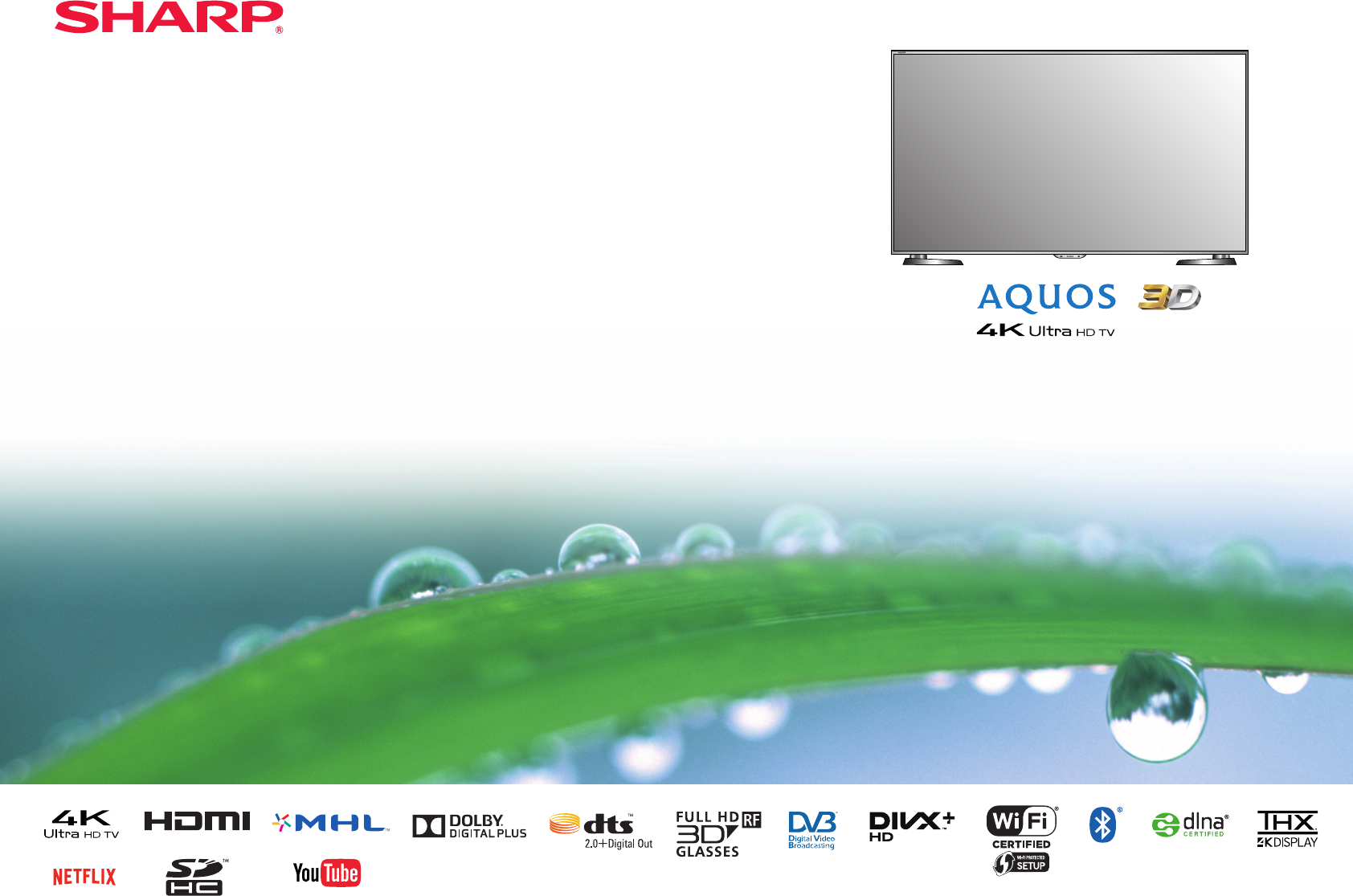
- OPERATION MANUAL 1
- CE Statement: 2
- Introduction 3
- [ ENGLISH ] 3
- Important safety precautions 4
- Preparation 6
- Part names and functions 7
- Remote control unit 8
- 3. Daily operation 10
- 4. Advanced features 10
- 5. Enjoy additional features 10
- Recording CAM PIN setting 11
- CI plus 1.3 Standard 11
- Using the HOME screen 12
- Quick guide 13
- Initial auto installation 14
- Digital broadcast setting 15
- Analogue broadcast setting 15
- Checking signal strength and 17
- Watching TV 18
- Selecting a sound mode 19
- Channel display 19
- Favourite Channel Information 20
- Operator profile 20
- View setting 21
- Display/Close the EPG screen 22
- Select a programme 22
- Back to EPG 23
- TELETEXT 24
- Connecting external devices 26
- Video connections 27
- HDMI connection 27
- SCART connection 28
- Component connection 28
- After connecting 29
- Connecting external devices 29
- AQUOS LINK 30
- AQUOS LINK connection 31
- AQUOS LINK setup 32
- Basic operation 32
- AQUOS LINK menu 32
- Auto Power On 34
- Auto Input Selection 34
- Basic adjustment 35
- Picture adjustments 36
- Advanced 36
- Basic adjustment 37
- “Energy save” status icons 39
- View settings 40
- Auto installation 40
- Programme setup 40
- Digital setting 40
- Satellite setting 41
- Analogue setting 42
- Digital audio language 44
- Subtitle 44
- Language 44
- Useful viewing functions 45
- Switchable 46
- Additional features 48
- Illumination 48
- Quick start 48
- Wallpaper setting 48
- Boot picture 48
- Game play time 49
- Bluetooth 49
- devices 49
- Key lock 49
- Bluetooth 49
- Other useful features 51
- How to operate USB-recording 52
- USB-recording 53
- USB-recording timer setting 53
- Timer list 53
- USB-recording playback 53
- SD/ USB media/Home network 55
- Photo mode 55
- Selecting the BGM 56
- Slide show 56
- Music mode 57
- Video mode 57
- Connecting a PC 59
- Adjusting the PC image 60
- Auto sync 60
- Fine sync 60
- Connecting a PC 61
- PC control of the TV 62
- Command list 63
- Network setup 64
- Wireless installation 65
- Display the start page 66
- Select a service 66
- Exit Net TV 66
- Enjoying 3D image viewing 67
- Using the 3D glasses 69
- Before using the 3D Glasses 69
- Usage Range of the 3D Glasses 69
- Replacing the Battery 70
- Cautions for 3D image viewing 71
- Enjoying 3D image viewing 72
- Side by Side 73
- 3D setup 75
- Appendix 77
- Reset the PIN 78
- Information 79
- Trademarks 81
- Specifications 83
- Specifications (Bluetooth 84
- Environmental specifications 85
- Mounting the TV on a wall 85
- Dimensional drawings 87
- 14P09-PL-NE 89
Inhaltsverzeichnis
MODELLC-70UD20ELC-70UD20ENLC-70UD20KNLC-60UD20ELC-60UD20ENLC-60UD20KNOPERATION MANUALLCD COLOUR TELEVISION®
83. Daily operation 1 Turn on/off the TV(Page 16)• You can turn on/off the power using both the remote control and the TV. 2 Switch between digital,
9 Inserting the CA card into the CI moduleNOTE• It takes a few minutes to certify the licence key when you insert a CA card into the CI+ compatible C
10Quick guide Using the HOME screenYou can easily launch this “HOME” screen to enjoy Internet connection and Home network functions and to perform set
11 Using the Menu screenYou need to call up the OSD to perform settings for the TV. The OSD for the settings is called “Menu”. The “Menu” enables vari
12 Initial auto installationWhen the TV is powered on for the first time after purchase, the initial auto installation wizard appears. Follow the menu
13 Digital broadcast settingPress c/d to select “Terrestrial” or “Cable”, and then press ;.TerrestrialCable ESearching for terrestrial broadcastsThe T
14 Searching for satellite broadcasts Press a/b to select “Satellite search”, and then press ;.Digital searchAnalogue searchSatellite search• The ant
15Checking signal strength and channel strength (DVB-T/T2/C/S/S2)If you install a DVB-T/T2/C/S/S2 antenna for the first time or relocate it, you shoul
16Daily operation Switching on/off Turning on/off the powerPress a on the TV or >a on the remote control unit.Standby modeFrom standby, press a on
17 Selecting a sound mode EDTV/SAT modeIf multi sound modes are received, each time you press 7 the mode switches as follows.Audio (ENG) STEREOL/R LRL
ASACE Statement:Hereby, SHARP Electronics declares that this LCD TV is in compliance with the essential requirements and other relevant provisions of
18Favourite Channel InformationBefore installationThis function allows you to group your favourite channels in a separate list. Pre-setting “My favour
19 EPGEPG is a programme list that is displayed on the screen. With the EPG, you can check the schedule for DTV/SAT/RADIO/DATA, view detailed informat
20Selecting a programme using EPGThe illustrations on this page are explained using three digit services.Display/Close the EPG screenPress EPG.SelectE
21 Timer setup using EPGThe TV can be switched to a programme or start recording for USB-recording at the set time. 1 Press EPG. 2 Press a/b/c/d to se
22 TeletextTurning teletext on/off 1 Select a TV channel or external source providing a teletext programme. 2 Press m to display the teletext.• Many
23Watching TV MHEG-5 application (UK only)Some services bring you programmes with the MHEG application encoded, letting you experience DTV interactive
24 Introduction to connectionsThe TV is equipped with the terminals as shown below. Find the cable corresponding the TV’s terminal and connect the dev
25 Video connections HDMI connectionExample of connectable devices EDVD player/recorder EBlu-ray player/recorder EGame consoleThe HDMI connections per
26Connecting external devices SCART connectionYPB(CB)PR(CR) Component connectionExample of connectable devices EVCR EDVD player/recorder nSCA
27 VIDEO connectionExample of connectable devices EVCR EDVD player/recorder EGame console ECamcorderYou can use the EXT 2 terminal when connecting to
1Dear SHARP customerThank you for your purchase of the SHARP LCD colour TV product. To ensure safety and many years of trouble-free operation of your
28 Controlling HDMI devices using AQUOS LINK EWhat is AQUOS LINK?Using the HDMI CEC protocol, with AQUOS LINK you can interactively operate compatible
29 AQUOS LINK connectionFirst connect the AQUOS AUDIO speaker system or an AQUOS BD player/AQUOS recorder that supports the HDMI CEC protocol. Connect
30AQUOS LINK setupBasic operationGo to “TV Menu” > “Link operation” > “AQUOS LINK setup” > select the menu you want to set. AQUOS LINK contro
31Top menu/title listThis section explains how to play back a title in the AQUOS BD player/AQUOS recorder. 1 Press a/b to select “Top menu/title list”
32AQUOS LINKUsing a Smartphone with the TVThis function enables you to connect the TV to a smartphone that supports Mobile High-Definition Link (MHL)
33 Picture settingsGo to “TV Menu” > “Setup” > “Picture”.SetupAV modePictureTHX room mode settingCH list:Back:EnterMenuBacklightOPC[Off]Picture
34PictureOPCAutomatically adjusts the brightness of the screen.ItemOffThe brightness is fixed at the value set in “Backlight”.OnAutomatically adjusts.
35Gamma adjustmentSelects the tone difference of the brightness and darkness of the image according to the type of programme watched from a maximum of
36Audio settingsGo to “TV Menu” > “Setup” > “Audio”.SetupBassAdaptive volumeAudioTreble[Off]STANDARDCH list:Back:EnterMenuBalanceL30 R30AudioAda
37 Power save settingsGo to “TV Menu” > “Setup” > “ECO”.SetupNo signal offECO picture controlECOEnergy saveCH list:Back:EnterMenuNo operation of
2Important safety precautions• Cleaning—Unplug the AC cord from the AC outlet before cleaning the product. Use a damp cloth to clean the product. Do
38 View settingsGo to “TV Menu” > “Setup” > “View setting”.SetupNetwork setupAuto installationView settingChannel settingsCH list:Back:EnterMenu
39 Buttons for “Manual adjust” operationLockPress R button.When the service is locked, you must enter your PIN whenever you tune to the service.CH ski
40 Analogue settingYou can reconfigure the analogue TV channels settings automatically or manually. EAdditional searchUse this menu to add new service
41 Individual setting — PINView setting PINAllows you to use a PIN to protect certain settings from being accidentally changed.Go to “TV Menu” > “S
42Individual setting — LanguageView settingDigital audio languageSet up to three preferred multi audio languages to display if the audio languages ar
43 Optional features settingsGo to “TV Menu” > “Setup” > “Option”.SetupOption for viewOption3D setupCH list:Back:EnterMenuTerminal settingEPG se
44Terminal settingOptionDigital audio outputThis function allows you to select the digital audio signal type.Go to “TV Menu” > “Setup” > “Option
45Option Headphone/Audio out selectYou can select which device is used for outputting audio.Go to “TV Menu” > “Setup” > “Option” > “Terminal
46 Additional featuresOptionIlluminationThis function makes the LED on the front of TV illuminated in several ways.Go to “TV Menu” > “Setup” > “
47OptionGame play timeThis function allows you to display the elapsed time on the screen when “AV mode” is set to “GAME”.Go to “TV Menu” > “Setup”
3IntroductionCaring for the front panel• Turn off the main power and unplug the AC cord from the wall outlet before handling.• Gently wipe the surfac
48 Wireless Channel Setting㼃㼕㼞㼑㼘㼑㼟㼟㻌㻿㼏㼞㼑㼑㼚㻌㼢㼕㼍㻌㻹㼕㼞㼍㼏㼍㼟㼠㻌㻙 㻻㼡㼠㼘㼕㼚㼑MIRACASTBy Miracast technology you can enjoy the contents of Miracast compatible smar
49 USB-recordingYou can enjoy DTV/SAT recording or playback by connecting a commercially available USB HDD to the TV.• USB-recording does not work fo
50 How to operate USB-recordingYou can enjoy DTV/SAT recording or playback by connecting a commercially available USB HDD to the TV.CAUTION• Do not u
51 USB-recordingYou can record the programme you are watching to the registered USB HDD.Starting USB-recordingPress REC E.• The TV starts USB-recordi
52Time shift playbackPlayback recorded scenes of the programme being recorded.Press d during recording.• Press H to return the scene that is broadcast
53SD/ USB media/Home networkSD/USB media/Home network (DLNA)In both modes, you can enjoy viewing photos, listening to music and watching videos from e
54Viewing enlarged photosButtons for enlarged photo display operation(When using USB media mode)Buttons Descriptionc/d (Cursor)Go to the previous/next
55Music mode* This screen image is for the USB media mode. It may be slightly different in the Home network mode.Buttons for music mode(When using USB
56View settingDivX® setupThis is the function to confirm your registration code. You need to register the code at www.divx.com.Go to “TV Menu” > “S
57 Connecting a PCHDMI connectionPC HDMI 1, 2, 3 or 4 terminal nHDMI-certified cable (commercially available)PC HDMI 3 terminal* oø 3.5 mm stereo mini
4 Using the remote control unit Inserting the batteriesBefore using the TV for the first time, insert the two supplied “AAA” size batteries. When the
58Adjusting the PC image automaticallyOptionAuto sync.This function enables the screen to be automatically adjusted to its best possible condition whe
59 PC compatibility chartResolutionHorizontal frequencyVertical frequencyAnalogue (D-Sub)Digital (HDMI)VESA standardVGA 640 x 480 31.5 kHz 60 Hz✔✔✔SVG
60PC control of the TV• When a programme is set, the TV can be controlled from the PC using RS-232C or IP. The input signal (PC/video) can be selecte
61 Command listCONTROL ITEMCOMMAND PARAMETER CONTROL CONTENTSPOWER SETTINGP O W R 0 _ _ _ POWER OFF (STANDBY)INPUT SELECTION AI T G D _ _ _ _ INPUT SW
62 Connecting to the networkTo enjoy internet services, you need to connect the TV to a router with a high speed connection to the internet. You can a
63 Wireless installationThis TV is equipped with a wireless LAN function. EWireless connection overview nPC oWireless LAN router/access point pWireles
64 What is Net TV?Net TV offers internet service and websites tailored for your TV. Use the TV remote control unit to browse the Net TV internet pages
65You can enjoy 3D-supported images on this TV when you wear 3D glasses.To produce 3D images, liquid crystal shutters in the 3D glasses alternately op
66 Enjoying 3D image viewingPreparing for the 3D glassesSupplied accessoriesMake sure the following accessories are provided with the 3D glasses.3D gl
67Using the 3D glassesBefore using the 3D GlassesBefore using the 3D glasses for the first time, remove the insulating sheet attached to them.Using th
5 TV (front/side view)This panel emits a signal towards the 3D glasses you wear when viewing 3D images. Refer to page 73 for details. I 3D mode: Blue
68Replacing the BatteryThe battery has an expected service life of approximately 75 hours.• When replacing the button battery, use only the designate
69Enjoying 3D image viewingCautions for 3D image viewing 3D glasses lenses• Do not apply pressure to the lenses of the 3D glasses. Also, do not drop
70 Display format for 3D and 2D imagesImage for input signalsSelectable mode Description3D mode (using the 3D glasses)2D s 3D• Converts normal 2D ima
71 Viewing 3D imagesNOTE• Refer to the operation manual of the 3D glasses for details regarding usage.• The TV screen may temporarily become black w
72 Watching 2D images in 3DYou can convert normal 2D images into 3D images. 1 Press 3D. 2 Press c/d to select “2D s 3D”, and then press ;. 3 Turn on t
73 3D setup EBasic operationGo to “TV Menu” > “Setup” > “Option” > “3D setup” > select the menu you want to set. 3D auto changeThis functi
74Enjoying 3D image viewingSpecifications — 3D glasses Troubleshooting — 3D ImagesProduct 3D GlassesLens type Liquid crystal shutterPower supply DC3V
75Appendix TroubleshootingProblem Possible solution• No power. • Is the AC cord disconnected?• Check if you pressed a on the TV.• The TV cannot be
76Appendix Reset the PIN 1 Go to “TV Menu” > “Setup”. 2 Press a/b to select “Auto installation”, “Programme setup”, “PIN”, “Parental rating” or “Re
77Updating your TV via DVB-T/T2/C/S/S2Ensure that your TV software version is always up to date. From time to time SHARP will make updated TV base sof
6 Remote control unit 1 >a (Standby/On) (Page 16) 2 ATVAccess conventional analogue TV mode.DTVAccess digital TV mode.SATAccess satellite mode.RADI
78InformationReceiver reportDisplay reports regarding failures and changes for timer settings.Go to “TV Menu” > “Setup” > “Information” > “Re
79Trademarks• The terms HDMI and HDMI High-Definition Multimedia Interface, and the HDMI Logo are trademarks or registered trademarks of HDMI Licensi
80Software licences for Net TV Disclaimers for services using the InternetDISCLAIMERS• • • • • • Appendixhttp:
81Appendix SpecificationsItem Model: LC-70UD20E LC-60UD20ELC-70UD20EN LC-60UD20ENLC-70UD20KN LC-60UD20KNLCD panel177 cm (70o) 152 cm (60o) Res
82 Specifications (Wireless LAN)Standard IEEE 802.11a/b/g/nFrequency band2400_2497 MHz5150_5850 MHzSecurity Static WEP (64/128 bit, key index 1 only)W
83 Environmental specificationsItem60o 70oIOn-mode (W) (in home-mode)173 W 184 WJEnergy-Save-Mode (W)Advanced 125 W 134 WKStandby-Mode (W)0.18 W 0.18
84 Rating table for child lockUser-adjusted ratingBroadcasted ratingAGE4 5 6 7 8 9 10 11 12 13 14 15 16 17 18Universal viewing✔——————————————Parental
85Appendix Dimensional drawings I Active area J Thinnest part (except of terminal height)NOTE• Dimensions do not include protrusions such as screws a
86Appendix EU Energy Label for TelevisionsOn 30 November, 2010 the European Commission adopted the Commission Delegated Regulation (EU) No 1062/2010 w
14P09-PL-NE
7 Operation overviewFollow the steps below one by one when using the TV. Some steps may not be necessary depending on your TV installation and connect
Verwandte Produkte und Handbücher für LED-Fernseher Sharp LC-60UD20KN
 (44 Seiten)
(41 Seiten)
(74 Seiten)
(85 Seiten)
(44 Seiten)
(41 Seiten)
(74 Seiten)
(85 Seiten)

 (65 Seiten)
(10 Seiten)
(41 Seiten)
(85 Seiten)
(16 Seiten)
(49 Seiten)
(44 Seiten)
(80 Seiten)
(65 Seiten)
(10 Seiten)
(41 Seiten)
(85 Seiten)
(16 Seiten)
(49 Seiten)
(44 Seiten)
(80 Seiten)
© 2020, manymanuals.de. Alle Rechte vorbehalten. | 0.056 s |
 Manymanuals.com
 Manymanuals.de
 Manymanuals.fr
 Manymanuals.it
 Manymanuals.pl
 Manymanuals.cz
 Manymanuals.es
 Manymanuals-pt.com
Kommentare zu diesen Handbüchern