Sharp R-230L Wartungshandbuch
Stöbern Sie online oder laden Sie Wartungshandbuch nach Mikrowellen Sharp R-230L herunter. Sharp R-230L Service manual Benutzerhandbuch
- Seite / 80
- Inhaltsverzeichnis
- LESEZEICHEN

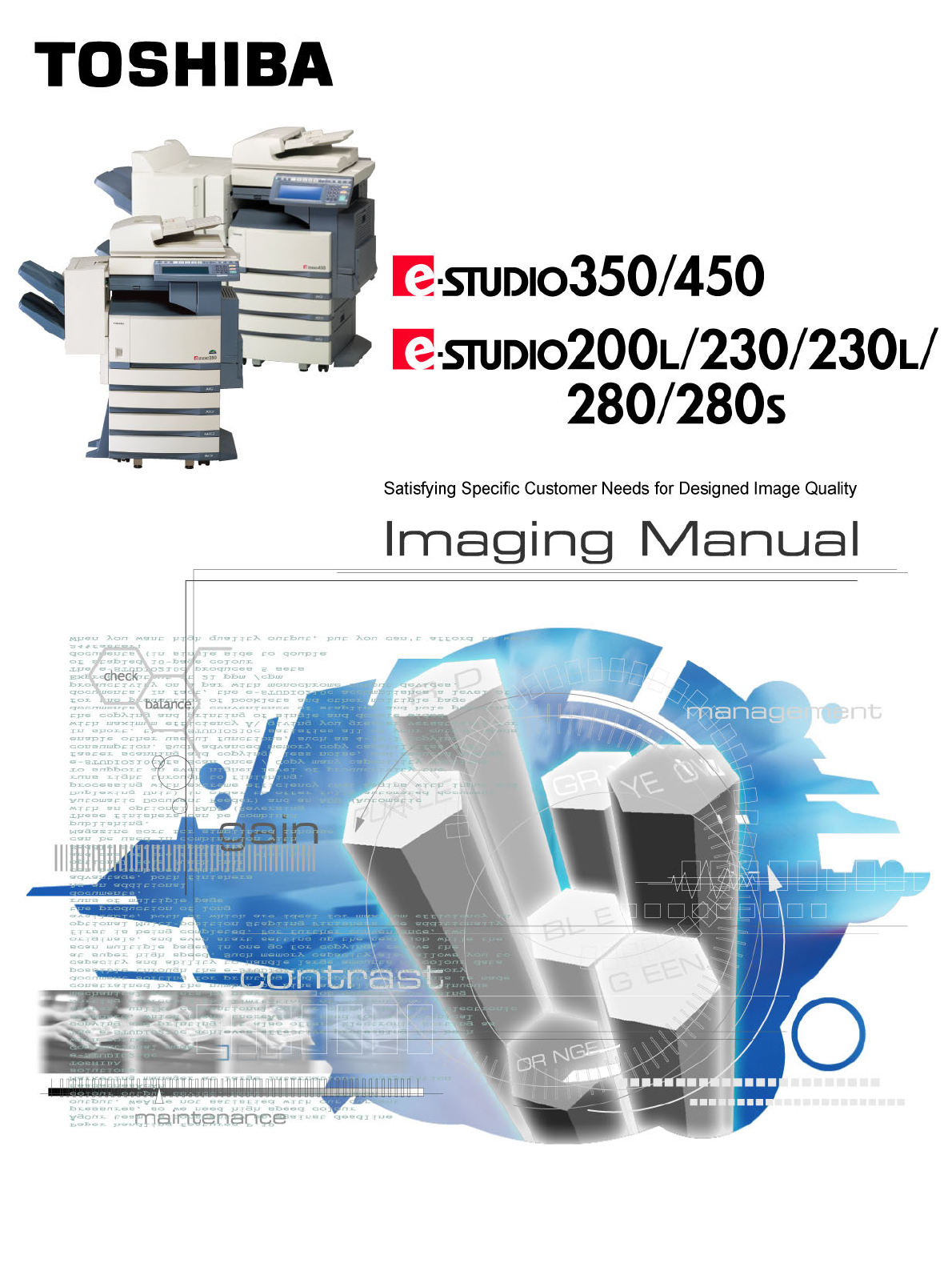
- File No. SME04002400 1
- Ver01_2004-09 1
- All rights reserved 2
- Revision Record 3
- Precautions in Servicing 4
- Table of Contents 6
- (Solid black area) 8
- 1.2 To Obtain a Darker Image 12
- 1. General Adjustments 14
- 2.4 To Eliminate Moiré 32
- Paper feeding direction 34
- (To use Custom mode) 37
- (To make the dots smaller) 45
- PCL6 PS3 Mac 47
- PCL6 PS3 50
- to Box 72
- Scan to Box 75
Inhaltsverzeichnis
File No. SME04002400 Ver01_2004-09
e-STUDIO350/450, e-STUDIO200L/230/230L/280/280S (2) Change the value for adjustment mode [05] or setting mode [08] to increase the toner transfer eff
e-STUDIO350/450, e-STUDIO200L/230/230L/280/280S <Notes> • Increasing the transfer charger output (toner transfer efficiency) may possibly cause
e-STUDIO350/450, e-STUDIO200L/230/230L/280/280S 1.2 To Obtain a Darker Image Before the adjustment After the adjustment The copy image looks li
e-STUDIO350/450, e-STUDIO200L/230/230L/280/280S (1) Enter adjustment mode [05]. Increase the value for code [501/503/504] or [512/514/515] to scan t
e-STUDIO350/450, e-STUDIO200L/230/230L/280/280S (2) Press the [BASIC] button on the Control Panel. Select "TEXT" from among the original m
e-STUDIO350/450, e-STUDIO200L/230/230L/280/280S For e-STUDIO200L/230/230L/280/280S • Set "1," "2," and "3" for code 08-4
e-STUDIO350/450, e-STUDIO200L/230/230L/280/280S 1.3 To Achieve the Image Quality Most Suitable for Paper Used (To prevent the image printed on the bac
e-STUDIO350/450, e-STUDIO200L/230/230L/280/280S For e-STUDIO200L/230/230L/280/280S Enter setting mode [08]. Change the value for code [491], [492],
e-STUDIO350/450, e-STUDIO200L/230/230L/280/280S 1.4 To Fix the Sufficient Amount of Toner on a Photo or Gradational Image (To improve the fusibility o
e-STUDIO350/450, e-STUDIO200L/230/230L/280/280S 1.4.1 To Adjust the e-STUDIO350/450 * You can start with any of the procedures, but an adjustment sh
© 2004 TOSHIBA TEC CORPORATION All rights reserved
e-STUDIO350/450, e-STUDIO200L/230/230L/280/280S To print in "TRANSPARENCY (OHP FILM)" mode • Change the value for code 08-526 to "10.&q
e-STUDIO350/450, e-STUDIO200L/230/230L/280/280S 1.4.2 To Adjust the e-STUDIO200L/230/230L280/280S * You can start with any of the procedures, but an
e-STUDIO350/450, e-STUDIO200L/230/230L/280/280S (2) Enter setting mode [08]. Change the value for code [417], [439], [440], [441], [523], or [526] t
e-STUDIO350/450, e-STUDIO200L/230/230L/280/280S * The table below shows you the acceptable paper weight for the paper types. Paper type Acceptable p
e-STUDIO350/450, e-STUDIO200L/230/230L/280/280S 2.1 To Sharply Copy Light Text or Thin Lines Before the adjustment After the adjustment When th
e-STUDIO350/450, e-STUDIO200L/230/230L/280/280S (2) Enter adjustment mode [05]. Increase the value for code [653] to increase the copy density of te
e-STUDIO350/450, e-STUDIO200L/230/230L/280/280S For e-STUDIO200L/230/230L/280/280S Original mode [05] code Value recommended Default Text/Photo 05
e-STUDIO350/450, e-STUDIO200L/230/230L/280/280S Cautions after the completion of the adjustment The adjustment may possibly cause an increase in the
e-STUDIO350/450, e-STUDIO200L/230/230L/280/280S 2.2 To Copy Handwritten Text More Sharply and Darkly Before the adjustment After the adjustment
e-STUDIO350/450, e-STUDIO200L/230/230L/280/280S * Set value (Ex.: The sharpness intensity in Text/Photo mode (code 05-620) is "6.") For
Revision Record File No. SME04002400 Date Rev. No. Item Descriptions Remarks March, 2004 00 --- Issue of the first version Information on the
e-STUDIO350/450, e-STUDIO200L/230/230L/280/280S 2.3 To Eliminate the Background Color Before the adjustment After the adjustment The background
e-STUDIO350/450, e-STUDIO200L/230/230L/280/280S (2) Enter adjustment mode [05]. Increase the value for code [593/594/595] to decrease the background
e-STUDIO350/450, e-STUDIO200L/230/230L/280/280S 2.4 To Eliminate Moiré Before the adjustment After the adjustment Moiré occurs on the photo image
e-STUDIO350/450, e-STUDIO200L/230/230L/280/280S (3) Press the [BASIC] button on the Control Panel and select "PHOTO" from among the origina
e-STUDIO350/450, e-STUDIO200L/230/230L/280/280S 2.5 To Clearly Copy at the Trailing Edge of the Paper in Duplex Copying (To adjust the bottom margin o
e-STUDIO350/450, e-STUDIO200L/230/230L/280/280S (2) Enter adjustment mode [05]. Change the value for subcode "0" of code [434] to adjust t
e-STUDIO350/450, e-STUDIO200L/230/230L/280/280S 2.6 To Adjust Reproducibility to Uses in Photo Mode (To attach importance to halftone reproducibility,
e-STUDIO350/450, e-STUDIO200L/230/230L/280/280S 2.7 To Program Frequently Used Copy Settings (To use Custom mode) Explanation For the e-STUDIO350/4
e-STUDIO350/450, e-STUDIO200L/230/230L/280/280S (2) Enter adjustment mode [05]. Adjust the set values of the adjustment items in order to satisfy th
e-STUDIO350/450, e-STUDIO200L/230/230L/280/280S To increase the sharpness intensity (to copy light text or thin lines more clearly) * This adjustment
The Imaging Manual is intended for customers using the Toshiba e-STUDIO350/450 and e-STUDIO200L/230/230L/280/280S with a variety of specific needs a
e-STUDIO350/450, e-STUDIO200L/230/230L/280/280S To copy while eliminating the background color (to adjust the reference value for the background densi
e-STUDIO350/450, e-STUDIO200L/230/230L/280/280S To scan an original manually placed on the original glass Value recommended Default Custom mode optio
e-STUDIO350/450, e-STUDIO200L/230/230L/280/280S Remarks Specific examples of how Custom mode is used are explained below. To program copy settings
e-STUDIO350/450, e-STUDIO200L/230/230L/280/280S To program copy settings specifically for copying clippings in a scrapbook, in Custom mode Before the
e-STUDIO350/450, e-STUDIO200L/230/230L/280/280S 3.1 To Clearly Print Lines or Text (To adjust density or thickness of lines or text) Before the adju
e-STUDIO350/450, e-STUDIO200L/230/230L/280/280S PS3 3.1.1 To Clearly Print Light-colored Thin Lines or Text (To make the dots smaller) Before the a
e-STUDIO350/450, e-STUDIO200L/230/230L/280/280S Mac For Macintosh Open the print settings dialog box. In the "Quality" menu, select "
e-STUDIO350/450, e-STUDIO200L/230/230L/280/280S 3.1.2 To Print Light-colored Lines or Text More Darkly * The service technician must perform the adj
e-STUDIO350/450, e-STUDIO200L/230/230L/280/280S PS3 3.1.3 To Print Thinner Lines or Text * Perform the adjustments in order as listed below. * Proce
e-STUDIO350/450, e-STUDIO200L/230/230L/280/280S Mac For Macintosh Open the print settings dialog box. In the "Quality" menu, select "
Icons The following icons used in this manual denotes the following: : An adjustment having an effect on printing on the Windows PCL6 emulation print
e-STUDIO350/450, e-STUDIO200L/230/230L/280/280S PCL6 PS3 (2) Enable toner save mode on the printer driver. For Windows Open the property page of
e-STUDIO350/450, e-STUDIO200L/230/230L/280/280S Mac For Macintosh Open the print settings dialog box. In the "Quality" menu, select the &q
e-STUDIO350/450, e-STUDIO200L/230/230L/280/280S (3) Enter adjustment mode [05]. Decrease the value for code [672] to decrease each image density le
e-STUDIO350/450, e-STUDIO200L/230/230L/280/280S Cautions after the completion of the adjustment The adjustment may possibly cause graininess or vari
e-STUDIO350/450, e-STUDIO200L/230/230L/280/280S 3.2 To Clearly Print the Thin Lines / White Lines on the Black Background Before the adjustment Af
e-STUDIO350/450, e-STUDIO200L/230/230L/280/280S Mac PCL6 PS3 For Windows Open the property page of the printer driver. Mark the "Distinguish
e-STUDIO350/450, e-STUDIO200L/230/230L/280/280S 3.3 To Decrease the Image Density and Save Toner Before the adjustment After the adjustment Def
e-STUDIO350/450, e-STUDIO200L/230/230L/280/280S PCL6 PS3 3.3.1 To Perform Printing in Toner Save Mode The e-STUDIO350/450 and the e-STUDIO200L/230/
e-STUDIO350/450, e-STUDIO200L/230/230L/280/280S Mac For Macintosh Open the print settings dialog box. In the "Quality" menu, select the
e-STUDIO350/450, e-STUDIO200L/230/230L/280/280S PCL6 PS3 Mac PCL6 PS3 Mac 3.3.2 To Adjust the Laser Power Output (e-STUDIO350/450 only) * This a
1. General Adjustments – Copying, Printing and e-Filing (Output from Box) 1.1 To Obtain a High-density Black Area (Solid black area) 1.2 To Obtai
e-STUDIO350/450, e-STUDIO200L/230/230L/280/280S PCL6 PS3 Mac 3.3.3 To Adjust the Image Density Level * The service technician must perform the adj
e-STUDIO350/450, e-STUDIO200L/230/230L/280/280S * Correlation of image density level value among subcode numbers should be that the higher the subcod
e-STUDIO350/450, e-STUDIO200L/230/230L/280/280S 3.4 To Adjust the Image Density in Toner Save Mode Before the adjustment After the adjustment T
e-STUDIO350/450, e-STUDIO200L/230/230L/280/280S 3.4.1 To Adjust the Laser Power Output in Toner Save Mode (e-STUDIO350/450 only) * This adjustment a
e-STUDIO350/450, e-STUDIO200L/230/230L/280/280S 3.4.2 To Adjust the Image Density Level in Toner Save Mode * The service technician must perform the
e-STUDIO350/450, e-STUDIO200L/230/230L/280/280S Cautions after the completion of the adjustment The adjustment may possibly cause degradation in pho
e-STUDIO350/450, e-STUDIO200L/230/230L/280/280S 3.5 To Print Illegible Gray or Colored Text in Black Before the adjustment After the adjustment
e-STUDIO350/450, e-STUDIO200L/230/230L/280/280S PCL6 PS3 (1) Open the property page of the printer driver. Mark the "Use Black for All Texts&
e-STUDIO350/450, e-STUDIO200L/230/230L/280/280S 3.6 To Ignore Blank Pages for Printing Before the adjustment After the adjustment A blank page
e-STUDIO350/450, e-STUDIO200L/230/230L/280/280S PCL6 PS3 For Windows Open the property page of the printer driver. Mark the "Do not Print
4. e-Filing-specific Adjustments 4.1 To Store the B/W Original with Photos and Text with the High Density (To change the density in Copy to Box) 4
e-STUDIO350/450, e-STUDIO200L/230/230L/280/280S Mac For Macintosh Open the print settings dialog box. In the "Printing Modes" menu, s
e-STUDIO350/450, e-STUDIO200L/230/230L/280/280S Cautions after the completion of the adjustment The adjustment may possibly cause the functions in
e-STUDIO350/450, e-STUDIO200L/230/230L/280/280S Copy to Box 4.1 To Store the B/W Original with Photos and Text with the High Density (To change the de
e-STUDIO350/450, e-STUDIO200L/230/230L/280/280S Copy to Box To change default original mode on the Control Panel • Use steps (a) to (d) to change defa
e-STUDIO350/450, e-STUDIO200L/230/230L/280/280S 4.2 To Store the Original Attaching Importance to Gradation Reproducibility of Printed Image (To chang
e-STUDIO350/450, e-STUDIO200L/230/230L/280/280S Scan to Box Procedures * The adjustment is performed by the service technician only. (1) Enter ad
e-STUDIO350/450, e-STUDIO200L/230/230L/280/280S 5.1 To Scan the Original, while Reducing the File Size Before the adjustment After the adjustment
e-STUDIO350/450, e-STUDIO200L/230/230L/280/280S (1) When scanning the original, press the [EDIT] button on the Control Panel. Select a lower resolut
e-STUDIO350/450, e-STUDIO200L/230/230L/280/280S 5.2 To Sharply Scan the Original (To increase the sharpness intensity) Before the adjustment After
e-STUDIO350/450, e-STUDIO200L/230/230L/280/280S (1) Enter adjustment mode [05]. Increase the value for code [865/866/867] to increase the sharpness
e-STUDIO350/450, e-STUDIO200L/230/230L/280/280S 1.1 To Obtain a High-density Black Area (Solid black area) Before the adjustment After the adjustm
Company names and product names in this manual are the trademarks or registered trademarks of their respective companies.
e-STUDIO350/450, e-STUDIO200L/230/230L/280/280S (1) Enter setting mode [08]. Change the value for code [414] to increase the toner density in the de
Weitere Dokumente für Mikrowellen Sharp R-230L


Verwandte Produkte und Handbücher für Mikrowellen Sharp R-230L
 (16 Seiten)
(103 Seiten)
(24 Seiten)
(41 Seiten)
(30 Seiten)
(24 Seiten)
(24 Seiten)
(72 Seiten)
(28 Seiten)
(22 Seiten)
(24 Seiten)
(36 Seiten)
(53 Seiten)
(40 Seiten)
(24 Seiten)
(24 Seiten)
(43 Seiten)
(33 Seiten)
(24 Seiten)
(16 Seiten)
(103 Seiten)
(24 Seiten)
(41 Seiten)
(30 Seiten)
(24 Seiten)
(24 Seiten)
(72 Seiten)
(28 Seiten)
(22 Seiten)
(24 Seiten)
(36 Seiten)
(53 Seiten)
(40 Seiten)
(24 Seiten)
(24 Seiten)
(43 Seiten)
(33 Seiten)
(24 Seiten)
© 2020, manymanuals.de. Alle Rechte vorbehalten. | 0.064 s |
 Manymanuals.com
 Manymanuals.de
 Manymanuals.fr
 Manymanuals.it
 Manymanuals.pl
 Manymanuals.cz
 Manymanuals.es
 Manymanuals-pt.com
Kommentare zu diesen Handbüchern