Sharp AR-C360P Bedienungsanleitung
Stöbern Sie online oder laden Sie Bedienungsanleitung nach Drucker Sharp AR-C360P herunter. Sharp AR-C360P User Manual Benutzerhandbuch
- Seite / 121
- Inhaltsverzeichnis
- FEHLERBEHEBUNG
- LESEZEICHEN

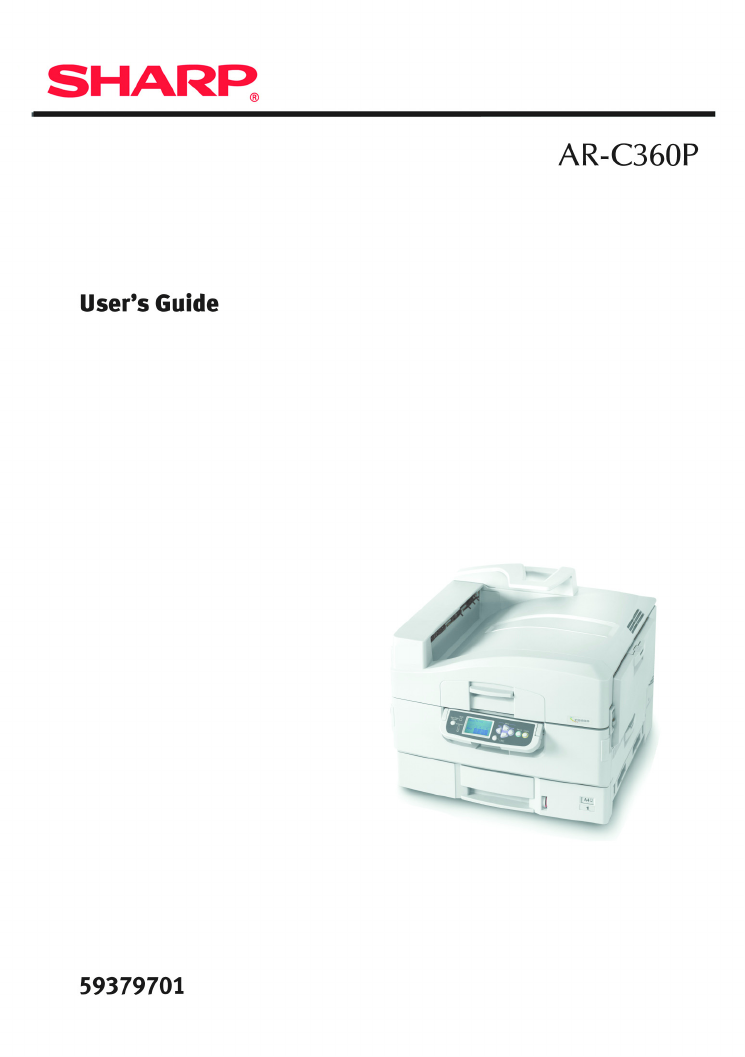
- Copyright Information 2
- Contents 3
- Contents > 4 4
- Notes, cautions and warnings! 6
- > PCL, PS emulations 8
- Introduction > 9 9
- About this guide 10
- Online usage 11
- Printing pages 11
- Introduction > 12 12
- Printer and paper overview 13
- Identifying major components 14
- 10. Face-down stacker 15
- 11. Power (on/off) switch 15
- 12. Face-up stacker 15
- 13. Duplex unit 15
- 28. Belt unit 18
- 29. Drum basket handle 18
- 30. Drum basket 18
- Software supplied 19
- Paper recommendations 20
- TYPE SIZE WEIGHT INPUT/ 21
- Trays and stackers 23
- Face-up stacker 24
- Duplex unit 24
- Tray and stacker examples 25
- Buttons and lights 32
- Control panel > 33 33
- Configuration information 35
- Using the menus 36
- Getting started 37
- Turning Off/On 38
- Turning On 39
- Connecting the USB interface 41
- Ethernet hub 42
- Using the Drivers CD 43
- Operation 44
- Consumables and maintenance 45
- ITEM LIFE ORDER NUMBER 46
- Cleaning the LED heads 47
- 3. Close the top cover 48
- 5. Replace Tray 1 50
- Tray 1 side cover 51
- 7. Turn on the printer 51
- Cleaning the printer casing 52
- 4. Turn on the printer 53
- Installing accessories 58
- Troubleshooting 59
- Troubleshooting > 60 60
- 4. Close the side cover 62
- WARNING! 63
- Troubleshooting > 65 65
- Troubleshooting > 67 67
- Troubleshooting > 69 69
- Troubleshooting > 70 70
- Troubleshooting > 72 72
- Troubleshooting > 74 74
- Troubleshooting > 76 76
- Troubleshooting > 78 78
- Troubleshooting > 80 80
- Troubleshooting > 82 82
- Check Inverter, paper jam 84
- Troubleshooting > 85 85
- Troubleshooting > 87 87
- Avoiding paper jams 89
- Check Finisher, Staple Jam 93
- 4. Pull out the staple unit 94
- Troubleshooting > 95 95
- Troubleshooting > 97 97
- ITEM SPECIFICATION 99
- MESSAGE COMMENT 100
- Appendix B – Menu system 102
- Configuration 103
- Supplies Life 104
- Paper Size in Tray 105
- ITEM VALUE DESCRIPTION 106
- Print Pages 107
- Sharp AR-C360P User’s Guide 108
- System Adjust 114
Inhaltsverzeichnis
Sharp AR-C360P User’s GuideIntroduction > 10About this guideNOTEImages used in this manual may include optional features that your printer does not
Sharp AR-C360P User’s GuideAppendix A – Display Panel Messages > 100Appendix A – Display Panel MessagesThe display panel messages are intended to b
Sharp AR-C360P User’s GuideAppendix A – Display Panel Messages > 101Open Cover Paper Remains tttttt Please see HELP for detailsAdditional paper has
Sharp AR-C360P User’s GuideAppendix B – Menu system > 102Appendix B – Menu systemThe top-level Functions menus are:> Configuration> Print Pag
Sharp AR-C360P User’s GuideAppendix B – Menu system > 103ConfigurationPrint Page CountFinisher CountITEM VALUE DESCRIPTIONColor Page nnnnnn Displ
Sharp AR-C360P User’s GuideAppendix B – Menu system > 104Supplies LifeNetworkThe items and settings displayed are specific to your system. Full det
Sharp AR-C360P User’s GuideAppendix B – Menu system > 105Paper Size in TraySystemITEM VALUE DESCRIPTIONTraym wh er e m is in range 1 to 4(similar
Sharp AR-C360P User’s GuideAppendix B – Menu system > 106Configuration example – monochrome pages printedTo display the total monochrome pages prin
Sharp AR-C360P User’s GuideAppendix B – Menu system > 107Print PagesITEM VALUE DESCRIPTIONPS Test Page Execute Prints the PostScript sample page.Co
Sharp AR-C360P User’s GuideAppendix B – Menu system > 108Print Information example – demonstration pageTo print a printer demo page to demonstrate
Sharp AR-C360P User’s GuideAppendix B – Menu system > 109Print Secure JobMenusTray ConfigurationITEM VALUE DESCRIPTIONEnter Password nnnn Enter a
Sharp AR-C360P User’s GuideIntroduction > 11These are paper documents that are packaged with the consumables and optional accessories.> Online H
Sharp AR-C360P User’s GuideAppendix B – Menu system > 110Traym Config, where m is in range 1 to 4(similar arrangement for all trays) Paper Size Tr
Sharp AR-C360P User’s GuideAppendix B – Menu system > 111Traym Config, where m is in range 1 to 4(similar arrangement for all trays) Media Weight
Sharp AR-C360P User’s GuideAppendix B – Menu system > 112MP Tray Config Paper Size A3 Nobi A3 Wide A3 A4 Sht Edge A4 Long Edge (A) A5 A6 B4
Sharp AR-C360P User’s GuideAppendix B – Menu system > 113MP Tray Config Media Type Plain Letterhead Transparency Labels Bond Recycled Card stock R
Sharp AR-C360P User’s GuideAppendix B – Menu system > 114System AdjustITEM VALUE DESCRIPTIONPower Save Time5 min 15 min 30 min 60 min 240 minSets t
Sharp AR-C360P User’s GuideAppendix B – Menu system > 115Low Toner Continue Stop Sets the printing operation when insufficient toner is detected. C
Sharp AR-C360P User’s GuideAppendix B – Menu system > 116Print Position AdjustDuplex X Adjust 0.00 +0.25 – +2.00 -2.00 – -0.25 mm 0.00 +0.01 – +0.
Sharp AR-C360P User’s GuideAppendix B – Menu system > 117Paper Black Setting0 +1 – +2 -2 – -1Used for micro adjustment when very visible faded prin
Sharp AR-C360P User’s GuideAppendix B – Menu system > 118Menus example 1 – Tray 1 transparenciesTo print on transparencies (accommodated in Tray1):
Sharp AR-C360P User’s GuideAppendix B – Menu system > 119Menus example 2 – MP Tray paper sizeTo set paper size in the MP Tray:1. Ensure that the di
Sharp AR-C360P User’s GuideIntroduction > 122. Choose which pages you wish to print:(a) [All pages], (1), for the entire manual.(b) [Current page],
Sharp AR-C360P User’s GuideIndex > 120INDEXAaccessories57installing58order details57arrow buttons33Bback button33Ccancel button33cleaningfeed rolle
Sharp AR-C360P User’s GuideIndex > 121software19specifications98Ttroubleshooting59turningoff38on39Uunsatisfactory printing91user’s guideprinting11
Sharp AR-C360P User’s GuidePrinter and paper overview > 13Printer and paper overviewOpening and closing the top coverTo open the top cover, squeeze
Sharp AR-C360P User’s GuidePrinter and paper overview > 14Identifying major componentsThe major components of your printer are identified in the gr
Sharp AR-C360P User’s GuidePrinter and paper overview > 1510. Face-down stacker11. Power (on/off) switch12. Face-up stacker13. Duplex unit10121113
Sharp AR-C360P User’s GuidePrinter and paper overview > 1614. Interface unit15. Network interface connector16. Parallel interface connector17. USB
Sharp AR-C360P User’s GuidePrinter and paper overview > 1720. Image drum cartridge and toner cartridge (Cyan)21. Image drum cartridge and toner car
Sharp AR-C360P User’s GuidePrinter and paper overview > 1828. Belt unit29. Drum basket handle30. Drum basket282930
Sharp AR-C360P User’s GuidePrinter and paper overview > 1931. High capacity Feeder (HCF) 3 traysSoftware suppliedCDs:> Printer DriversContains P
Sharp AR-C360P User’s GuideCopyright Information > 2Copyright InformationCopyright © 2005 Sharp Electronics Corporation and its suppliers.Document
Sharp AR-C360P User’s GuidePrinter and paper overview > 20Paper recommendationsYour printer will handle a variety of print media, including a range
Sharp AR-C360P User’s GuidePrinter and paper overview > 21Paper input and output informationThe following table relates paper parameters to input t
Sharp AR-C360P User’s GuidePrinter and paper overview > 22TransparenciesGlossy paperA4, Letter 0.004 in Tray 1 or MP TrayFace-up StackerTYPE SIZE W
Sharp AR-C360P User’s GuidePrinter and paper overview > 23Trays and stackersTrays 1 to 4Tray 1 is the standard blank paper input tray and can hold
Sharp AR-C360P User’s GuidePrinter and paper overview > 24stocks from 17 – 57 lb (64 – 216 g/m²). Pages printed in reading order (page 1 first) wil
Sharp AR-C360P User’s GuidePrinter and paper overview > 25Tray and stacker examplesLoading Trays 1 to 4Tray 1 is used in the following example.1. P
Sharp AR-C360P User’s GuidePrinter and paper overview > 26To avoid paper jams:> Do not leave space between the paper and the guides and rear sto
Sharp AR-C360P User’s GuidePrinter and paper overview > 27Using the MP Tray1. Squeeze the handle (1) and open the multi-purpose tray. 2. Fold out t
Sharp AR-C360P User’s GuidePrinter and paper overview > 284. Fan the paper to be loaded then tap the edges of the stack on a flat surface to make i
Sharp AR-C360P User’s GuidePrinter and paper overview > 29Using the stackersFace-down stackerWhen the face-up stacker (1) on the left side of the p
Sharp AR-C360P User’s GuideContents > 3ContentsCopyright Information . . . . . . . . . . . . . . . . . . . . . . 2Document Information . . . . .
Sharp AR-C360P User’s GuidePrinter and paper overview > 302. Flip out the paper support (2).3. Swivel out the paper support extension (3).23
Sharp AR-C360P User’s GuideControl panel > 31Control panelThe control panel can be swivelled to 90° (maximum) upwards from its base position (1) as
Sharp AR-C360P User’s GuideControl panel > 32Buttons and lightsThe parts of the control panel are identified and briefly explained below:1. Shutdow
Sharp AR-C360P User’s GuideControl panel > 335. Up-arrow button Enters menu mode and enables upward movement through the displayed list of menu ite
Sharp AR-C360P User’s GuideControl panel > 34Display Panel messagesThere are four types of display panel message:> Help information> Status i
Sharp AR-C360P User’s GuideControl panel > 35menus are available to the general user to make various settings that are used in the running of the p
Sharp AR-C360P User’s GuideControl panel > 36Using the menusNOTEMenu details are given in “Appendix B – Menu system” on page 102 for reference.The
Sharp AR-C360P User’s GuideGetting started > 37Getting startedThis section provides information to help you get started with using your printer.Pri
Sharp AR-C360P User’s GuideGetting started > 38> above your printer:Turning Off/OnTurning Off1. Hold down the Shutdown/Restart button (1) on the
Sharp AR-C360P User’s GuideGetting started > 392. When the display panel shows that you can either turn off or restart the printer, use the On/Off
Sharp AR-C360P User’s GuideContents > 4Checking current settings . . . . . . . . . . . . . . . . . . 40Interfaces and connection . . . . . . . .
Sharp AR-C360P User’s GuideGetting started > 40Checking current settingsCarry out the following steps to generate a Configuration report (Menu Map)
Sharp AR-C360P User’s GuideGetting started > 41> Ethernet – For network cable connection.NOTEInterface cables are not supplied with your printer
Sharp AR-C360P User’s GuideGetting started > 422. Remove the protective cover from the network connector on the printer.3. Connect an Ethernet cabl
Sharp AR-C360P User’s GuideGetting started > 434. Turn on the printer and then the computer.If your printer is to be installed as a network printer
Sharp AR-C360P User’s GuideOperation > 44OperationUsing the printerFor full details of how to use the printer and any optional accessories to print
Sharp AR-C360P User’s GuideConsumables and maintenance > 45Consumables and maintenanceThis section explains how to replace consumable and maintenan
Sharp AR-C360P User’s GuideConsumables and maintenance > 46Consumable item order informationMaintenance item order detailsITEM LIFE ORDER NUMBERTon
Sharp AR-C360P User’s GuideConsumables and maintenance > 47Replacing consumables/maintenance itemsEach consumable or maintenance item comes complet
Sharp AR-C360P User’s GuideConsumables and maintenance > 482. With an LED lens cleaner or soft cloth, gently wipe each of the four heads (1). Move
Sharp AR-C360P User’s GuideConsumables and maintenance > 49Cleaning the paper feed rollersClean the paper feed rollers if paper jams frequently occ
Sharp AR-C360P User’s GuideContents > 5Specifications . . . . . . . . . . . . . . . . . . . . . . . . . . . . 98Appendix A – Display Panel Message
Sharp AR-C360P User’s GuideConsumables and maintenance > 503. Remove Tray 1 completely from the printer.4. Gaining access through the gap left by T
Sharp AR-C360P User’s GuideConsumables and maintenance > 516. Return the paper guide plate to its original position and close Tray 1 side cover.7.
Sharp AR-C360P User’s GuideConsumables and maintenance > 52Cleaning the printer casing1. Turn the printer off by using the Shutdown/Restart button
Sharp AR-C360P User’s GuideConsumables and maintenance > 534. Turn on the printer.
Sharp AR-C360P User’s GuideConsumables and maintenance > 54Emptying the punch chip box (Punch unit optional accessory)When the display panel indica
Sharp AR-C360P User’s GuideConsumables and maintenance > 553. Discard the chips in an appropriate place.4. Replace the punch chip box carefully int
Sharp AR-C360P User’s GuideConsumables and maintenance > 565. Check that the punch chip box has been replaced correctly then move the Finisher back
Sharp AR-C360P User’s GuideOptional accessories > 57Optional accessoriesThis section describes optional accessory equipment for your printer. The f
Sharp AR-C360P User’s GuideOptional accessories > 58Installing accessoriesEach accessory (apart from the Finisher and MFP Upgrade Kit) comes comple
Sharp AR-C360P User’s GuideTroubleshooting > 59TroubleshootingThis section provides information to help you deal with problems that may arise when
Sharp AR-C360P User’s GuideNotes, cautions and warnings! > 6Notes, cautions and warnings!NOTEA note provides additional information to supplement t
Sharp AR-C360P User’s GuideTroubleshooting > 602. Holding it by the tab (2), turn the paper guide outward.3. Carefully remove the jammed paper.4. P
Sharp AR-C360P User’s GuideTroubleshooting > 61Open cover, paper jam, side cover1. If the MP Tray is open, close it so that the side cover (1) is v
Sharp AR-C360P User’s GuideTroubleshooting > 623. Carefully remove the jammed paper.4. Close the side cover.
Sharp AR-C360P User’s GuideTroubleshooting > 63Open cover, paper jam, top cover1. Squeeze the top cover handle (1) and open the top cover.2. Squeez
Sharp AR-C360P User’s GuideTroubleshooting > 643. Carefully remove any paper on the belt.4. If paper is jammed in the fuser unit, push the lock lev
Sharp AR-C360P User’s GuideTroubleshooting > 655. Pull up the jam release levers (5) and remove the jammed paper.6. Carefully replace the fuser uni
Sharp AR-C360P User’s GuideTroubleshooting > 667. If paper is jammed near the paper exit, open the face-up stacker (7).8. Open the side cover (pape
Sharp AR-C360P User’s GuideTroubleshooting > 679. Close the side cover (paper exit) and then the face-up stacker.10. Return the image drum basket (
Sharp AR-C360P User’s GuideTroubleshooting > 6811. Close the top cover and ensure it is latched.Paper jams – duplex unitCheck duplex unit, paper ja
Sharp AR-C360P User’s GuideTroubleshooting > 692. Operate the duplex cover release button (2) and open the cover.3. Carefully remove any jammed pap
Sharp AR-C360P User’s GuideIntroduction > 7IntroductionCongratulations on buying an Sharp color printer. Your new printer is designed with advanced
Sharp AR-C360P User’s GuideTroubleshooting > 704. Operate the levers (3) and pull out the duplex unit.5. Holding the front top cover by the grip (4
Sharp AR-C360P User’s GuideTroubleshooting > 716. Remove any jammed paper.7. In similar manner, check for and clear any paper jammed under the rear
Sharp AR-C360P User’s GuideTroubleshooting > 728. Replace the two top covers.9. Raise the front cover of the duplex unit.
Sharp AR-C360P User’s GuideTroubleshooting > 7310. Push the duplex unit back into position.11. If you detached a Finisher unit to gain access to th
Sharp AR-C360P User’s GuideTroubleshooting > 74Paper jams – Finisher (optional accessory)Check Finisher, paper jam/paper remainsUse the Help button
Sharp AR-C360P User’s GuideTroubleshooting > 752. Operate the Finisher lever (1) and move the Finisher away from the Inverter.3. Open the Finisher
Sharp AR-C360P User’s GuideTroubleshooting > 764. Carefully remove any jammed paper.5. Close the Finisher top cover.
Sharp AR-C360P User’s GuideTroubleshooting > 776. Move the Finisher back into position and connect it to the Inverter.594, 597, 598/ 644, 646 (pape
Sharp AR-C360P User’s GuideTroubleshooting > 782. Open the Finisher front cover (2).3. Continue to turn the lower knob (3) clockwise until any jamm
Sharp AR-C360P User’s GuideTroubleshooting > 794. Remove the ejected paper.5. Close the Finisher front cover.
Sharp AR-C360P User’s GuideIntroduction > 8> USB 2.0 and parallel (IEEE-1284) interfaces> PCL, PS emulations> EFI Fiery controller and sof
Sharp AR-C360P User’s GuideTroubleshooting > 806. Open the Finisher right side cover.7. Carefully remove any jammed paper.
Sharp AR-C360P User’s GuideTroubleshooting > 818. Close the Finisher right side cover.9. Move the Finisher back into position and connect it to the
Sharp AR-C360P User’s GuideTroubleshooting > 82590 (paper jam in Finisher/Punch unit)1. Operate the Finisher lever (1) and move the Finisher away f
Sharp AR-C360P User’s GuideTroubleshooting > 833. Open the Finisher top cover.4. Carefully remove any jammed paper.5. Close the Finisher top cover.
Sharp AR-C360P User’s GuideTroubleshooting > 846. Move the Finisher back into position and connect it to the Inverter.Check Inverter, paper jam1. O
Sharp AR-C360P User’s GuideTroubleshooting > 852. Squeeze the recessed handle (2) and open the left side cover of the Inverter.3. Carefully remove
Sharp AR-C360P User’s GuideTroubleshooting > 864. Close the Inverter left side cover.5. Move the Finisher back into position and connect it to the
Sharp AR-C360P User’s GuideTroubleshooting > 876. Operate the Inverter lever (3) and separate the Inverter from the printer.7. Open the right side
Sharp AR-C360P User’s GuideTroubleshooting > 888. Remove any jammed paper.9. Close the right side door.
Sharp AR-C360P User’s GuideTroubleshooting > 8910. Move the Finisher and Inverter back into position and connect to the printer.Avoiding paper jams
Sharp AR-C360P User’s GuideIntroduction > 9Additionally, the following optional features are available:> High Capacity Feeder (HCF) (1590 sheets
Sharp AR-C360P User’s GuideTroubleshooting > 90Your printer feed roller is dirty. Wipe the roller with a cloth moistened with water.Your printer fe
Sharp AR-C360P User’s GuideTroubleshooting > 91Dealing with unsatisfactory printingSYMPTOMS POSSIBLE CAUSES STEPS TO TAKEVertical white lines can
Sharp AR-C360P User’s GuideTroubleshooting > 92Vertical lines appear.The image drum cartridge is damaged. Replace the image drum cartridge. The ton
Sharp AR-C360P User’s GuideTroubleshooting > 93Staple jams – Finisher (optional accessory)Check Finisher, Staple JamWhen the display indicates a st
Sharp AR-C360P User’s GuideTroubleshooting > 943. Remove any paper that awaits stapling in the paper ejection area.4. Pull out the staple unit.
Sharp AR-C360P User’s GuideTroubleshooting > 955. Turn the knob in the direction indicated to move the stapler to the front.6. Grip both sides of t
Sharp AR-C360P User’s GuideTroubleshooting > 968. Remove all staples that are emerging from the staple case.9. Return the staple cartridge gate to
Sharp AR-C360P User’s GuideTroubleshooting > 9711. Ensure that the staple cartridge is securely installed back into the staple unit then push the s
Sharp AR-C360P User’s GuideSpecifications > 98SpecificationsITEM SPECIFICATIONDimensions 25.8x24.4x18.2 in (WxDxH)655x620x462 mm (WxDxH)Weight With
Sharp AR-C360P User’s GuideSpecifications > 99Noise level Operating: 53dBA maximumStandby: 40dBA maximumPower save: 40dBA maximum after 30 mins bac
Verwandte Produkte und Handbücher für Drucker Sharp AR-C360P
 (46 Seiten)
(47 Seiten)
(28 Seiten)
(88 Seiten)
(2 Seiten)
(849 Seiten)
(32 Seiten)
(84 Seiten)
(52 Seiten)
(58 Seiten)
(2 Seiten)
(6 Seiten)
(116 Seiten)
(144 Seiten)
(67 Seiten)
(76 Seiten)
(220 Seiten)
(248 Seiten)
(8 Seiten)
(46 Seiten)
(47 Seiten)
(28 Seiten)
(88 Seiten)
(2 Seiten)
(849 Seiten)
(32 Seiten)
(84 Seiten)
(52 Seiten)
(58 Seiten)
(2 Seiten)
(6 Seiten)
(116 Seiten)
(144 Seiten)
(67 Seiten)
(76 Seiten)
(220 Seiten)
(248 Seiten)
(8 Seiten)
© 2020, manymanuals.de. Alle Rechte vorbehalten. | 0.050 s |
 Manymanuals.com
 Manymanuals.de
 Manymanuals.fr
 Manymanuals.it
 Manymanuals.pl
 Manymanuals.cz
 Manymanuals.es
 Manymanuals-pt.com
Kommentare zu diesen Handbüchern