Sharp XE-A137-BK Bedienungsanleitung
Stöbern Sie online oder laden Sie Bedienungsanleitung nach Video Sharp XE-A137-BK herunter. Sharp XE-A137-BK User Manual Benutzerhandbuch
- Seite / 86
- Inhaltsverzeichnis
- LESEZEICHEN
Bewertet. / 5. Basierend auf Kundenbewertungen

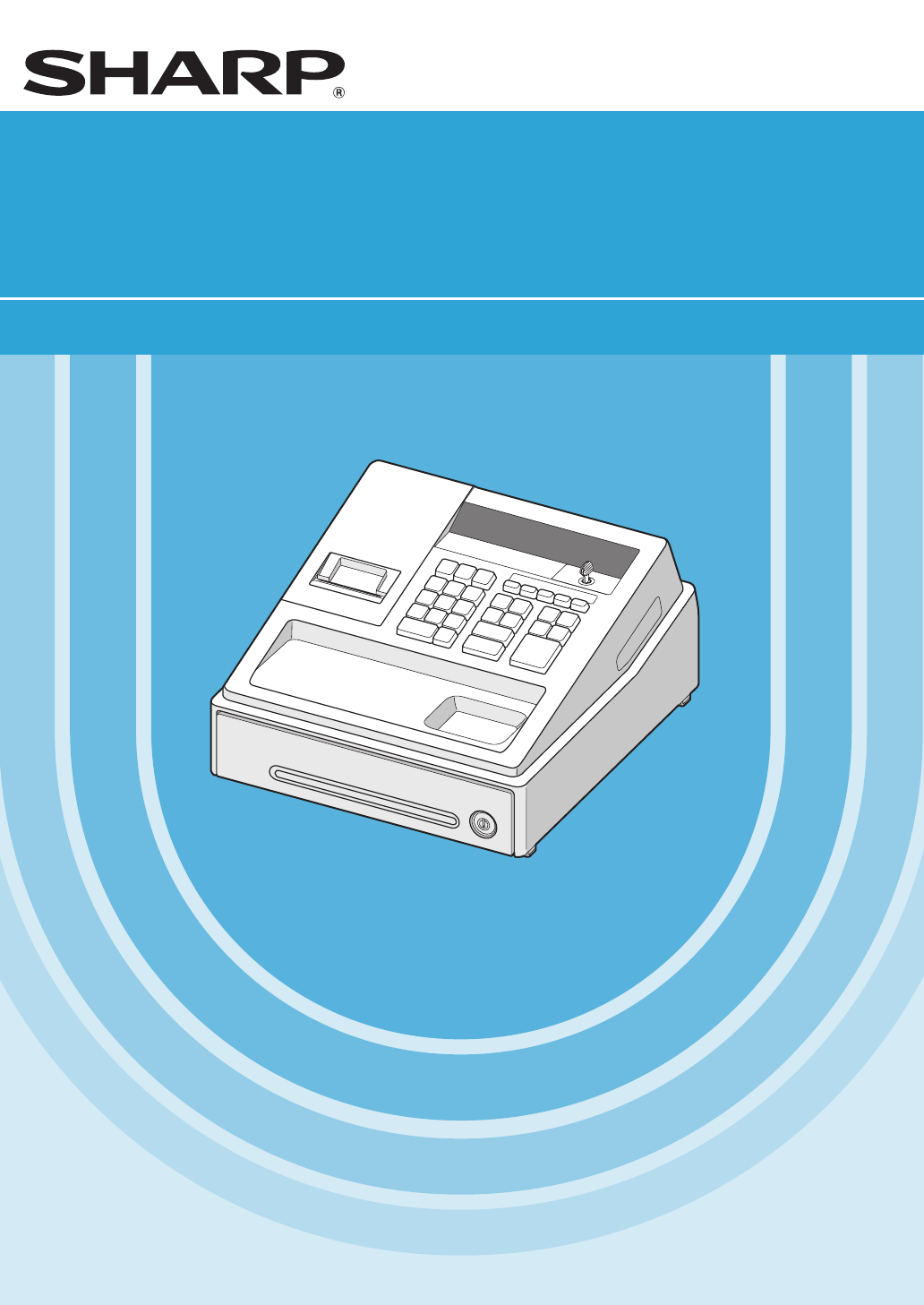
ELECTRONIC CASH REGISTER
FULL DETAILED INSTRUCTION MANUAL
SHARP ELECTRONICS (Europe) GmbH
Postbox 105504
20038 Hamburg, Germany
XE-A137/XE-A147
MODEL
XE-A137
XE-A147
- ELECTRONIC CASH REGISTER 1
- INTRODUCTION 3
- IMPORTANT 3
- CONTENTS 4
- PARTS AND THEIR FUNCTIONS 6
- PLU/Subdepartment code 8
- Department code Repeat 8
- Receipt off (“.”) 8
- PREPARING THE CASH REGISTER 9
- 2 Installing Batteries 10
- 3 Installing a Paper Roll 11
- HELP FUNCTION 12
- BASIC FUNCTION PROGRAMMING 13
- H H H H H H H 14
- (22 October, 2012) 15
- To set "0" 15
- *Language (0 - 4) 15
- Date(DD/MM/YY) 15
- 5 Tax Programming 16
- Tax rate programming 16
- 6 Department Programming 17
- Department status 17
- Unit price 18
- VAT/tax status (VAT/tax 2) 18
- HALO (entry digit limit) 19
- PLU code 20
- Associated dept 20
- PLU/subdept 20
- PLU text (item label) 21
- 8 Text Programming 22
- Logo messages 22
- BASIC SALES ENTRY (Example) 24
- 2 PLU Sales Entry 25
- CORRECTION 26
- 4 Subtotal Void 27
- (Void mode) 28
- OTHER BASIC SALES ENTRIES 31
- Department keyUnit price * 33
- (max. 8 digits) 33
- Multiplication entries 35
- 250 36
- VAT rate 39
- To use a programmed rate 39
- OPTIONAL FEATURES 41
- 42
- PRIOR TO PROGRAMMING 45
- Percent rate 47
- Currency 47
- Percentage limit 47
- Function parameters for 48
- From left, ABC 50
- Character entry 51
- (max. 4 characters) 51
- To keep the current setting 51
- Function text 52
- List of function texts 53
- ADVANCED FUNCTION PROGRAMMING 54
- 00000111 55
- Miscellaneous data 62
- 4 EURO Programming 65
- EURO system settings 65
- PLU programming report 69
- OF SALES TOTALS 70
- REPORT)” on page 27-28 71
- • Sample report 71
- EURO MIGRATION FUNCTION 73
- EURO status 75
- Preset date and time 75
- Remaining days 75
- SD CARD FUNCTION 76
- OPERATOR MAINTENANCE 78
- 4 Replacing the Batteries 79
- 1. Remove the printer cover 80
- 6 Removing a Paper Jam 81
- 8 Removing the Drawer 82
- 9 Opening the Drawer by Hand 82
- BEFORE CALLING FOR SERVICE 83
- SPECIFICATIONS 84
Inhaltsverzeichnis
Seite 1 - ELECTRONIC CASH REGISTER
ELECTRONIC CASH REGISTERFULL DETAILED INSTRUCTION MANUALSHARP ELECTRONICS (Europe) GmbHPostbox 10550420038 Hamburg, GermanyXE-A137/XE-A147MODELXE-A137
Seite 2
82 Installing BatteriesThree new alkaline batteries LR6 (“AA”size) must be installed in the cash register to prevent the data and user-programmed set
Seite 3 - IMPORTANT
93 Installing a Paper RollThe register can print receipts. For the printer, you must install the paper roll provided with the register.NOTE Install
Seite 4 - CONTENTS
10HELP FUNCTIONThe help function allows you to print guidance messages for basic programming procedures of the cash register. This function is availab
Seite 5
11BASIC FUNCTION PROGRAMMINGBefore starting sales entries, you must first program necessary items so the cash register suits your sales needs. In thi
Seite 6 - PARTS AND THEIR FUNCTIONS
12 Guidance for text programmingThe register allows you to program texts for department item names, PLU/subdepartment item names, logo messages, fore
Seite 7
133 Language Selection88To set "0"s @ A*Language (0 - 4)*Language: 0: English 1: German 2: French 3: Spanish 4: Swe
Seite 8 - Receipt off (“.”)
145 Tax ProgrammingIf you program the VAT/tax, the cash register can calculate the sales tax. In the VAT system, the tax is included in the price you
Seite 9 - PREPARING THE CASH REGISTER
156 Department ProgrammingMerchandise can be classified into a maximum of 8 departments. Items sold using the department keys can later be printed on
Seite 10 - 2 Installing Batteries
16 Preset unit priceFor dept. 5 through 8 To program zeroTo program another department Dept. keyAHUnit price (max. 8 digits) Key operation exampl
Seite 11 - 3 Installing a Paper Roll
17 HALO digits (entry digit limit)Set the number of allowable digits for the maximum entry amount for each department. The limit is effective for ope
Seite 12 - HELP FUNCTION
CAUTION: The cash register should be securely fitted to the supporting platform to avoid instability when the drawer is open.CAUTION:The socket-outlet
Seite 13 - BASIC FUNCTION PROGRAMMING
187 PLU (Price Look-Up) and Subdepartment ProgrammingThe PLU function allows speedy key entries whereby a price is automatically called up when a cod
Seite 14 - H H H H H H H
19 PLU text (item label)To keep current setting102 PLU code Character entry (max. 12 characters) To program another PLU code To program follow
Seite 15 - Date(DD/MM/YY)
208 Text ProgrammingPlease refer to “Guidance for text programming” section as for how to entering characters. Logo messages (6 lines and 30 charact
Seite 16 - Tax rate programming
21To print the logo message “THANK YOU” using double sized characters and centering on the third line. Key operation example Print s 104 @3 @W S W S
Seite 17 - Department status
22BASIC SALES ENTRY (Example)1 Basic Sales EntryListed below is a basic sales entry example when selling items by cash. For operation details, please
Seite 18 - VAT/tax status (VAT/tax 2)
232 PLU Sales EntryEnter a PLU code using numeric keys and press the p key. Key operation example Operator display Receipt print 1 p71 p141 p 3620
Seite 19 - HALO (entry digit limit)
24CORRECTION1 Cancellation of the Numeric EntryIf you make an incorrect numeric entry, you can clear the entry by pressing the l key only before pres
Seite 20 - PLU/subdept
253 Correction of the Next-to-last or Earlier Entry (indirect void)You can void any incorrect department entry, PLU/subdepartment entry or item refun
Seite 21 - PLU text (item label)
265 Correction after Finalizing a Transaction (Void mode)When you need to void incorrect entries that are found after finalizing a transaction or can
Seite 22 - Logo messages
27FULL SALES REPORT (X or Z REPORT)• Use the reading function (X) when you need to take a reading of sales information entered since the last reset. Y
Seite 23
1INTRODUCTIONThank you very much for your purchase of the SHARP Electronic Cash Register, Model XE-A137/XE-A147.Please read this manual carefully befo
Seite 24 - BASIC SALES ENTRY (Example)
28 Periodic consolidation (X2 or Z2 report)Put the mode key in the mode switch and turn it to the X/Flash or the Z/PGM position. Key operation H A
Seite 25 - 2 PLU Sales Entry
29OTHER BASIC SALES ENTRIES1 Additional Information for BASIC SALES ENTRYReceipt ON/OFF functionWhen you use the printer to issue receipts, you can d
Seite 26 - CORRECTION
303 Starting Cash Memory (SCM) EntryIf you enter the amount of currency for the starting amount in the drawer before entry operations, you canseparat
Seite 27 - 4 Subtotal Void
314 Item Entries Single item entriesDepartment entriesEnter a unit price and press a department key. If you use a programmed unit price, press a dep
Seite 28 - (Void mode)
32PLU/subdepartment entriesEnter a PLU code and press the p key. If you do not use a programmed unit price, you need to enter a unit price after press
Seite 29
33 Multiplication entriesUse this feature when you need to enter two or more of the same items.This feature helps you when you sell a large quantity
Seite 30
34 Single item cash sale (SICS)• This function is useful when a sale is for only one item and is for cash; such as a pack of cigarettes. This functio
Seite 31 - OTHER BASIC SALES ENTRIES
356 Finalization of Transaction Cash or cheque tenderingPress the s key to get a subtotal, enter the amount tendered by your customer, then press th
Seite 32
36 Cash or cheque sale that does not need any tender entryEnter items and press the A key if it is a cash sale or press the C key if it is a cheque s
Seite 33 - (max. 8 digits)
37 Mixed-tender saleExample Key operation Print s950 Ac NOTE PresstheCkeyinplaceoftheAkeywhenyourcustomermakespaymentbycheques.7
Seite 34
2CONTENTSINTRODUCTION ...
Seite 35 - Multiplication entries
38Manual tax 1 through 4 system (Manual entry method using programmed percentages) s tThis system provides the tax calculation for taxable 1, taxable
Seite 36 - 250
39OPTIONAL FEATURES1 Auxiliary Entries Percent calculations (premium or discount)• Your register provides percent calculations for a subtotal or eac
Seite 37
402 Auxiliary Payment Treatment Currency exchangeYour register allows payment entries in foreign currency. Press the V key to create a subtotal in f
Seite 38
41 Received-on-account entriesWhen you receive on account from a customer, use the R key. For the received-on-account (RA) entry, enter the amount, a
Seite 39 - To use a programmed rate
423 Special Printing Function After transaction receiptIn the OFF state (no receipting) of receipt ON-OFF function, the transaction receipt can be i
Seite 40
43PRIOR TO PROGRAMMING Procedure for programming1. Check to see whether a paper roll is present in the machine. If there is not enough paper on a ro
Seite 41 - OPTIONAL FEATURES
44 Alphanumeric character code table *(DC) : Double-size character code
Seite 42 -
45AUXILIARY FUNCTION PROGRAMMING1 Miscellaneous Key ProgrammingThe cash register provides miscellaneous keys such as %, R, t, V, C, c and A. Rate fo
Seite 43
46 Function parameters for % ABC%@ ATo program againTo program “0” for all itemsItem: Selection: Entry:A+/- sign + (premium) sign 0- (discount) sign*
Seite 44
47 Function parameters for V ABATo program “0” for all items@ VTo program againItem: Selection: Entry:AV key functionAllow* 0Disallow 1BPosition of d
Seite 45 - PRIOR TO PROGRAMMING
3ADVANCED FUNCTION PROGRAMMING ... 521 Register Number a
Seite 46
48 Function parameters for R, t, C, c and A key function ABC ATo program “0” for all itemsTo program for another key*1 :Press s key for A key settin
Seite 47 - Percentage limit
492 Other Text ProgrammingPlease refer to “Guidance for text programming” on page 12 or “Entering character codes with numeric keys on the keyboard”
Seite 48 - Function parameters for
50 Function text (12 characters) s @103@*Function no. (max. 2 digits)Character entry (max. 12 characters)ATo keep the current settingsTo program anot
Seite 49
51 List of function textsFunctionno.Key or functionDefault setting1 % %2 Differ DIFFER3 Taxable 1 subtotal TAX1 ST4 Taxable 2 subtotal TAX2 ST5 Taxab
Seite 50 - From left, ABC
52ADVANCED FUNCTION PROGRAMMING1 Register Number and Consecutive Number ProgrammingThe register number and consecutive numbers are printed on every r
Seite 51 - To keep the current setting
532 Various Function Selection Programming 1The cash register provides various detailed functions listed below.• Print format• Receipt print format•
Seite 52 - Function text
54 Receipt print formatJob code: 7Item: Selection: Entry:AAlways enter 0. 0BAlways enter 0. 0CSubtotal print with a press of subtotal key No* 0Yes 1D
Seite 53 - List of function texts
55Job code: 62Item: Selection: Entry:AHALO function Invalid* 0Valid 1BAlways enter 0. 0CAlways enter 0. 0DBuffered keyboard Yes* 0No 1EAlways enter 0.
Seite 54 - ADVANCED FUNCTION PROGRAMMING
56Job code: 64Item: Selection: Entry:APrinting of GT1 on Z report Yes* 0No 1BPrinting of GT2 on Z report Yes* 0No 1CPrinting of GT3 on Z report Yes* 0
Seite 55 - 00000111
57Job code: 67Item: Selection: Entry:ARounding amount printing No* 0Yes 1BTotal amount rounding when a transaction is finalized directly by C or c key
Seite 56
4PARTS AND THEIR FUNCTIONS1 External ViewPlug the AC adapter connector into the AC adapter jack, then plug the AC adapter into the wall outlet.Cheque
Seite 57
58Job code: 68Item: Selection: Entry:APrinting data on EJ Z report No 0Yes* 1BAlways enter 0. 0CTemporary EJ printing during a transaction Disable 0E
Seite 58
59Job code: 69Item: Selection: Entry:AAlways enter 0. 0BAlways enter 0. 0CAlways enter 0. 0DRounding of foreign currency for VRising to unit* 0Round
Seite 59
60Job code: 16 (Control unit (only available in specific countries))Item: Selection: Entry:AType Cash Control Unit (G&D)* 0Clean Cash (RI) 1BTrans
Seite 60
613 Various Function Selection Programming 2The cash register provides various options so you can use the register to suit your sales needs.In this s
Seite 61
62 Save SD function ABCDsTo set “0000”s @A15To program another job codeItem: Selection: Entry:ASave all RAM data in the SD card at general Z1 report
Seite 62 - Miscellaneous data
634 EURO ProgrammingFor details of EURO migration operation, please refer to “EURO MIGRATION FUNCTION”. EURO system settings AsTo set “0000”s8@ABCDT
Seite 63
64 Automatic EURO modication operation settings @ s AABTo set “00”s12To program another job codeItem: Selection: Entry:AConverting the preset unit p
Seite 64
65 Time setting for EURO modication operation s ATime (Hour) (00-23)@s14To set all zerosTo program another job codeExample Key operation Print s 14
Seite 65 - EURO system settings
665 Reading Stored ProgramsThe machine allows you to read every program stored in the Z/PGM mode. Key sequence for reading stored programReport name
Seite 66
67Programming report 2 Department programming reportJob codeA to H from the leftDomestic currency symbolLanguage selectionDept. functionDept. codeDept
Seite 67
53 Mode Switch and Mode keyInsert the mode key (the same key as drawer lock key) into the mode switch and move the key to get an appropriate mode.Mod
Seite 68
68READING (X) AND RESETTING (Z) OF SALES TOTALS• Use the reading function (X) when you need to take a reading of sales information entered since the l
Seite 69 - PLU programming report
692 Daily Sales TotalsFor the sample reports of the full sales and periodic consolidation report, refer to “FULL SALES REPORT (X or Z REPORT)” on pag
Seite 70 - OF SALES TOTALS
70EJ REPORT READING AND RESETTINGThe cash register provides an electronic journal (EJ) function. This function is intended to record the journal data
Seite 71 - • Sample report
71EURO MIGRATION FUNCTIONNOTE EUROprogrammingdescribedinthissectionareforusersinthecountrieswhichwilljointothemembersoftheEurope
Seite 72
72The details of the register system modification are as shown below:ItemsA=1(EURO status 1)A=2(EURO status 2)A=3(EURO status 3)General Z1 report Issu
Seite 73 - EURO MIGRATION FUNCTION
73Checking the current EURO statusYou can check the EURO status currently set on the cash register. Turn the mode switch to the X/Flashposition, and p
Seite 74
74SD CARD FUNCTIONThe register’s data can be saved to the SD memory card, and the programming data can be loaded from the SD memory card.To use the SD
Seite 75 - Remaining days
75 Data savingThe sales data, EJ data or programming data can be saved to the SD card. s A@s*Job no.*Job no. Saving data141 All programming data144 A
Seite 76 - SD CARD FUNCTION
76OPERATOR MAINTENANCE1 In Case of Power FailureWhen power is lost, the machine retains its memory contents and all information on sales entries. (No
Seite 77
774 Replacing the BatteriesThis cash register displays a low battery symbol ( ) when the batteries are low, and displays a no battery symbol () when
Seite 78 - OPERATOR MAINTENANCE
65 Display Operator displayYour cash register is equipped with a front LED (Light-Emitting Diode) display that affords easy visibility of 9 digits f
Seite 79 - 4 Replacing the Batteries
785 Replacing the Paper RollBe sure to use paper rolls specified by SHARP.The use of any other paper rolls other than those specified could cause pap
Seite 80 - 1. Remove the printer cover
796 Removing a Paper JamCaution: The paper cutter is mounted on the printer cover. Be careful not to cut yourself. Never touch the printer head i
Seite 81 - 6 Removing a Paper Jam
808 Removing the Drawer1Coin caseLeverLever2The drawer in the register is detachable. After closing your business for the day, remove the drawer. To
Seite 82 - 9 Opening the Drawer by Hand
81BEFORE CALLING FOR SERVICEThe malfunctions shown in the left-hand column below, labeled “Fault”, do not necessarily indicate functional faults of th
Seite 83 - BEFORE CALLING FOR SERVICE
82SPECIFICATIONSModel: XE-A137XE-A147Dimensions: 335 (W) x 360 (D) x 190 (H) mmWeight: Approx. 5 kgPower Source: Official (nominal) voltage and frequ
Seite 84 - SPECIFICATIONS
CAUTION: (only for the XE-A147) Shielded interface cables must be used with this equipment to maintain compliance with EMC regulations.XE-A137Noise le
Seite 85
ELECTRONIC CASH REGISTERFULL DETAILED INSTRUCTION MANUALSHARP ELECTRONICS (Europe) GmbHPostbox 10550420038 Hamburg, GermanyXE-A137/XE-A147MODELXE-A137
Seite 86
7PREPARING THE CASH REGISTERUnpack the cash register and make sure all accessories are included. For details of accessories, please refer to “SPECIFI
Weitere Dokumente für Video Sharp XE-A137-BK

Sharp XE-A137-BK Bedienungsanleitung
(2 Seiten)

Sharp XE-A137-BK Bedienungsanleitung
(2 Seiten)
Verwandte Produkte und Handbücher für Video Sharp XE-A137-BK
Video Sharp LC-50LE761K Bedienungsanleitung
 (2 Seiten)
(2 Seiten)
Video Sharp XE-A203 Bedienungsanleitung
(2 Seiten)
(2 Seiten)
Video Sharp LC-42LD266K Bedienungsanleitung
(2 Seiten)
(2 Seiten)
Video Sharp UP-3500 Bedienungsanleitung
(2 Seiten)
(2 Seiten)
Video Sharp MX-C300P Bedienungsanleitung
(6 Seiten)
(6 Seiten)
Video Sharp LC-60LE651K Bedienungsanleitung
(2 Seiten)
(2 Seiten)
Video Sharp EL-R287BBK Bedienungsanleitung
(2 Seiten)
(2 Seiten)
Video Sharp XE-A213 Bedienungsanleitung
(2 Seiten)
(2 Seiten)
Video Sharp LC-42LE761K Bedienungsanleitung
(39 Seiten)
(39 Seiten)
Video Sharp MX-C312 Bedienungsanleitung
(30 Seiten)
(30 Seiten)
Video Sharp LC-90LE757K Bedienungsanleitung
(2 Seiten)
(2 Seiten)
Video Sharp EL-531XBVL Bedienungsanleitung
(2 Seiten)
(2 Seiten)
Video Sharp EL-376SB Bedienungsanleitung
(2 Seiten)
(2 Seiten)
Video Sharp EL-2125C Bedienungsanleitung
(2 Seiten)
(2 Seiten)
Video Sharp MX-C312 Bedienungsanleitung
(6 Seiten)
(6 Seiten)
Video Sharp UP-3500 Bedienungsanleitung
(59 Seiten)
(59 Seiten)
Video Sharp EL-M332BPK Bedienungsanleitung
(2 Seiten)
(2 Seiten)
Video Sharp XE-A203 Bedienungsanleitung


 (454 Seiten)
(454 Seiten)
Video Sharp EL-S50BBL Bedienungsanleitung
(2 Seiten)
(2 Seiten)
Video Sharp XE-A102B Bedienungsanleitung
(2 Seiten)
(2 Seiten)
© 2020, manymanuals.de. Alle Rechte vorbehalten. | 0.047 s |
 Manymanuals.com
 Manymanuals.de
 Manymanuals.fr
 Manymanuals.it
 Manymanuals.pl
 Manymanuals.cz
 Manymanuals.es
 Manymanuals-pt.com
Kommentare zu diesen Handbüchern