Sharp AR-160 Spezifikationen
Stöbern Sie online oder laden Sie Spezifikationen nach Kopierer Sharp AR-160 herunter. Sharp AR-160 Specifications Benutzerhandbuch
- Seite / 92
- Inhaltsverzeichnis
- LESEZEICHEN

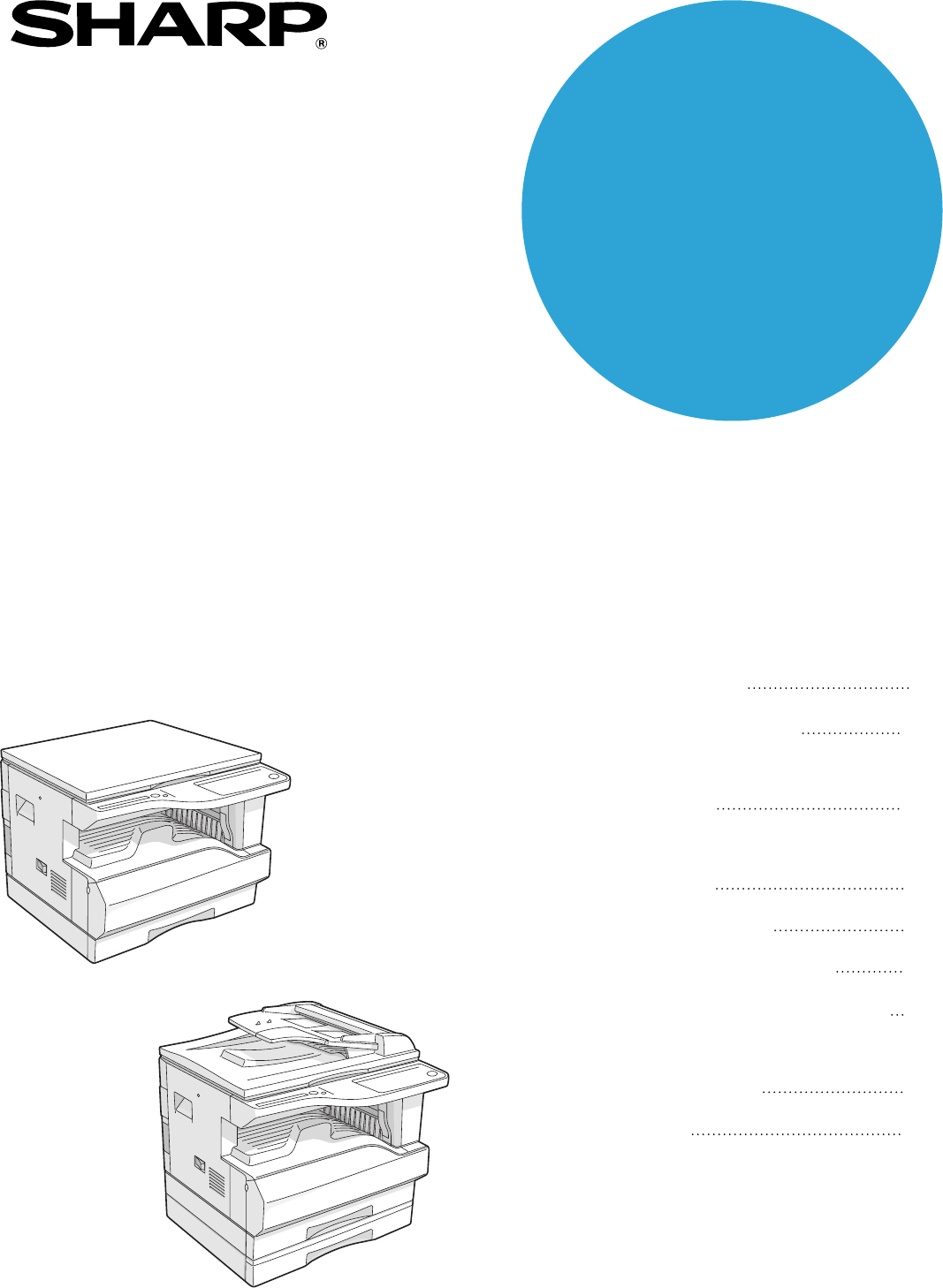
- CONTENTS 3
- USER SETTINGS 4
- TROUBLESHOOTING 4
- ROUTINE MAINTENANCE 4
- APPENDIX 4
- CAUTIONS 5
- CAUTIONS ON HANDLING 6
- CAUTIONS ON LASER 6
- USING THE MANUAL 7
- SPF AND RSPF 8
- DIFFERENCES BETWEEN MODELS 8
- MAIN FEATURES 9
- BEFORE USING THE MACHINE 10
- OPERATION PANEL 12
- POWER ON AND OFF 14
- LOADING PAPER 15
- Loading the bypass tray 17
- Envelopes 18
- Left guide 19
- Front guide 19
- COPY FUNCTIONS 20
- Copying from the SPF/RSPF 21
- SELECTING THE TRAY 23
- REDUCTION/ENLARGMENT/ZOOM 24
- MANUAL RATIO SELECTION 25
- COPY RATIOS SEPARATELY 26
- TWO-SIDED COPYING USING THE 28
- BYPASS TRAY 28
- AUTOMATIC TWO-SIDED COPYING 29
- Using the document glass 30
- Using the RSPF 30
- Original Copy 32
- INTERRUPTING A COPY RUN 33
- CONVENIENT COPY FUNCTIONS 34
- Using the SPF/RSPF 35
- COPYING MULTIPLE ORIGINALS 36
- ONTO A SINGLE SHEET OF PAPER 36
- Setting the layout pattern 37
- CREATING MARGINS WHEN COPYING 38
- ERASING SHADOWS AROUND THE 39
- EDGES OF A COPY 39
- PRINTER/SCANNER FUNCTIONS 40
- USING THE PRINTER MODE 41
- USING THE SCANNER MODE 42
- OPERATION IN COPY, PRINTER 43
- AND SCANNER MODES 43
- ENABLING TONER SAVE MODE 45
- CUSTOMISING SETTINGS 46
- Base settings 49
- SETTINGS FOR AUDITING MODE 50
- READ-END 51
- Auditing mode 52
- Account number entry 52
- Account number change 52
- Account number deletion 52
- Number of copies per account 52
- Resetting account 53
- MACHINE/COPYING PROBLEMS 55
- Notice page printed 63
- Removing the software 63
- MISFEED REMOVAL 65
- MISFEED IN THE BYPASS TRAY 66
- MISFEED IN THE MACHINE 67
- B. Misfeed in the fusing area 68
- Close the upper paper tray 70
- (AR-M205 only) 71
- REPLACING THE TONER CARTRIDGE 72
- CLEANING THE TRANSFER CHARGER 75
- PERIPHERAL DEVICES 76
- SINGLE PASS FEEDER/ 77
- REVERSING SINGLE PASS FEEDER 77
- 250-SHEET PAPER FEED UNIT/ 77
- 2 X 250-SHEET PAPER FEED UNIT 77
- STORAGE OF SUPPLIES 78
- Printer Function 80
- Scanner Function 81
- SOFTWARE LICENSE 82
- LUOKAN 1 LASERLAITE 90
- KLASS 1 LASERAPPARAT 90
- For users in the USA 91
- WARNING: 91
- SHARP CORPORATION 92
Inhaltsverzeichnis
MODELAR-M160AR-M205DIGITAL MULTIFUNCTIONAL SYSTEMOPERATION MANUAL• BEFORE USING THE MACHINE• COPY FUNCTIONS• CONVENIENT COPY FUNCTIONS• PRINTER/
81Chapter 1BEFORE USING THE MACHINEThis chapter contains basic information that should be read before using the machine.PART NAMES AND FUNCTIONSDocume
9BEFORE USING THE MACHINE1Parallel portConnect to your computer to use the printer function. (Software Setup Guide)USB 2.0 port (when the dual functio
10BEFORE USING THE MACHINEOPERATION PANELSCAN MENU keyUse to scan by means of the provided Button Manager software. (p.41)SCAN key ( ) / indicatorPres
11BEFORE USING THE MACHINE1POWER SAVE indicator ( )Lights up when the machine is in a power save mode. (p.12)DisplayShows the set number of copies, as
12POWER ON AND OFFThe power switch is located on the left side of the machine.POWER ONTurn the power switch to the "ON" positionIt will take
131LOADING PAPERThe paper required indicator ( ) will light up when there is no copy paper in the selected paper feed station, or when the selected
14BEFORE USING THE MACHINELOADING PAPERMake sure that the machine is not copying or printing, and then follow these steps to load paper.Loading the pa
15BEFORE USING THE MACHINE1Loading the bypass tray1Unfold the bypass tray.When feeding large paper such as B4 and A3 (8-1/2" x 14" and 11&qu
16BEFORE USING THE MACHINEEnvelopesDo not use the following envelopes, as misfeeds will occur.• Envelopes with metal tabs, clasps, strings, holes, or
17BEFORE USING THE MACHINE14Squeeze the lock lever of the front guide and slide the front guide to match the width of the paper, and move the left gui
The CE mark logo label is affixed on an equipment in case that the directives described in theabove sentence are applicable to the product. (This sent
182Chapter 2COPY FUNCTIONSThis chapter explains basic copying functions such as normal copying, reduction or enlargement, and exposure adjustment.NORM
19COPY FUNCTIONS2Copying from the SPF/RSPF1Make sure that an original has not been left on the document glass. Close the SPF/RSPF.2Adjust the original
20COPY FUNCTIONSAuto paper select modeWhen the AUTO PAPER SELECT indicator ( ) lights up, "Auto paper select mode" is enabled. This function
21COPY FUNCTIONS2MAKING A COPY DARKER OR LIGHTERAutomatic exposure adjustment is initially enabled. This function automatically adjusts the copy image
22COPY FUNCTIONSSETTING THE NUMBER OF COPIESPress the numeric keys to set the number of copies.● The set number of copies appears in the display. A ma
23COPY FUNCTIONS24Press the [AUTO IMAGE] key ( ).The AUTO IMAGE indicator ( ) lights up and the appropriate ratio for the original size and paper size
24COPY FUNCTIONSSELECTING THE VERTICAL AND HORIZONTAL COPY RATIOS SEPARATELY(XY ZOOM copying)The XY ZOOM feature allows the horizontal and vertical co
25COPY FUNCTIONS26Use the [PRESET RATIO] selector keys ( , ) and [Zoom] keys ( , ) to change the copy ratio in the horizontal direction.Press the [P
26TWO-SIDED COPYING USING THE BYPASS TRAYTo perform manual two-sided copying, follow these steps.Example: Copying originals A and B onto each side of
272AUTOMATIC TWO-SIDED COPYING(AR-M205 only)On models that support automatic two-sided copying, two originals placed on the document glass can be copi
1CONTENTSCAUTIONS...
28COPY FUNCTIONSUsing the document glass1Place the original that you wish to copy onto the front side of the paper on the document glass and close the
29COPY FUNCTIONS2IMAGE ROTATION IN DUPLEX COPYINGThis function is used to invert the top and bottom of the image on the front side of the paper during
30DUAL PAGE COPYINGA dual page original can be automatically separated into two pages during copying. This feature is convenient for making copies of
312INTERRUPTING A COPY RUN(Interrupt copying)A copy run can be temporarily interrupted to allow another copy job to be performed. When the other job i
323Chapter 3CONVENIENT COPY FUNCTIONSThis chapter explains convenient copy functions that can be used when the dual function board (AR-EB7) is install
33CONVENIENT COPY FUNCTIONS3Using the document glass1Place the first original. (p.18)2Select the original size. (p.18)3Press the [SORT/GROUP] key ( /
34COPYING MULTIPLE ORIGINALS ONTO A SINGLE SHEET OF PAPER(2 IN 1 / 4 IN 1 copy)Multiple originals can be copied onto a single sheet of paper in a sele
35CONVENIENT COPY FUNCTIONS3Using the SPF/RSPF1Place the originals. (p.19)2Press the [2 IN 1 / 4 IN 1] key ( / ) to select the mode.The mode is select
36CREATING MARGINS WHEN COPYING(Margin shift)The MARGIN SHIFT feature, in its initial setting, automatically shifts the text or image to increase the
373ERASING SHADOWS AROUND THE EDGES OF A COPY(Erase copy)● This feature is used to erase shadows that appear around the edges of copies of books and o
25USER SETTINGSADJUSTING THE AUTOMATIC EXPOSURE LEVEL ... 42ENABLING TONER SAVE MODE...
384Chapter 4PRINTER/SCANNER FUNCTIONSThe machine includes a USB 1.1 port and a parallel port as standard equipment.A computer can be connected to thes
394USING THE PRINTER MODEThe procedure for loading paper is the same as for loading copy paper. See "LOADING PAPER". (p.13)BASIC PROCEDURE F
40USING THE SCANNER MODEThe procedure for placing the original is the same as for copying. See "NORMAL COPYING". (p.18)SCANNING USING THE KE
41PRINTER/SCANNER FUNCTIONS4[SCAN MENU] keys and the Button Manager scan menuThe six [SCAN MENU] keys can be configured separately in Button Manager f
425Chapter 5USER SETTINGSThis chapter explains how to set the automatic exposure level, toner save mode, and the user programs, which are custom setti
435ENABLING TONER SAVE MODEToner save mode can be enabled to reduce toner consumption by about 10%.1Press the [AUTO/TEXT/PHOTO] key ( / / ) to select
44CUSTOMISING SETTINGS(User programs)The user programs allow you to customise the machine to match your needs.USER PROGRAMSProgram numberProgram nameS
45USER SETTINGS57Rotation copy*20: OFF1: ON• When the auto paper select function is enabled and there is no paper that is the same size as the origina
46USER SETTINGS*4AR-M160 is as follows:1: Upper tray (factory default), 2: 250-sheet paper feed unit/Upper paper tray of 2 x 250-sheet paper feed unit
47USER SETTINGS5SELECTING A SETTING FOR A USER PROGRAM1Hold down the [Light] key ( ) until the alarm indicators ( , , , , ) blink.The display shows
3CAUTIONSFollow the cautions below when using this machine.CAUTIONS ON USINGWarning:• The fusing area is hot. Exercise care in this area when removing
48SETTINGS FOR AUDITING MODEAUDITING MODEWhen "Auditing mode" is enabled, a count is kept of the number of copies made by each account (up t
49USER SETTINGS5SELECTING AUDITING MODE SETTINGS1Hold down the [Light] key ( ) until the alarm indicators ( , , , , ) blink.The display shows "
50USER SETTINGSAuditing mode (program No.10)1 Press the [1] key to enable "Auditing mode" or the [0] key to disable it, and then press the [
51USER SETTINGS5Resetting account(program No.15)The copy count of a single account or all accounts can be reset to 0. If no account numbers have been
526Chapter 6TROUBLESHOOTINGThis chapter describes troubleshooting and misfeed removal.TROUBLESHOOTINGIf you experience difficulty using the machine, c
53TROUBLESHOOTING6MACHINE/COPYING PROBLEMSThe following problems are related to the general operation of the machine and copying.Problem Cause and sol
54TROUBLESHOOTINGWrinkles appear in the paper or the image disappears in places.The paper is outside of the specified size and weight range.→ Use copy
55TROUBLESHOOTING6Copies are smudged or dirty.The document glass or the underside of the document cover/SPF/RSPF is dirty.→ Clean regularly.72Original
56TROUBLESHOOTINGPRINTING AND SCANNING PROBLEMSIn addition to this section, troubleshooting information can also be found in the README files for each
57TROUBLESHOOTING6Printing is slow.Simultaneous use of two or more application software programs.→ Start printing after quitting all unused applicatio
4The machine should be installed near an accessible power outlet for easy connection and disconnection.Be sure to connect the power cord only to a pow
58TROUBLESHOOTINGThe printed image is skewed or it runs off the paper.The paper loaded in the tray is not the same size as that specified in the print
59TROUBLESHOOTING6Poor scanning quality.The document glass or the underside of the document cover/SPF/RSPF is dirty.→ Clean regularly.72Original smudg
60TROUBLESHOOTINGUnable to scan the image.If scanning is not possible, shut down your computer, turn off the machine’s power switch, and unplug the ma
61TROUBLESHOOTING6Notice page printedIf you find that a notice page has been printed at the end of a print job, the print data received from the compu
62INDICATORS AND DISPLAY MESSAGESIf one of the following indicators lights up or one of the following messages appears in the display, check the meani
636MISFEED REMOVALWhen a misfeed occurs, the misfeed indicator ( ) and a misfeed location indicator ( ) will blink and the machine will automatically
64TROUBLESHOOTINGSection CRemove the misfed original from the exit area.If the misfed original cannot be easily removed from the exit area, open the m
65TROUBLESHOOTING6MISFEED IN THE MACHINE1Open the bypass tray and the side cover. 2Check the misfeed location. Remove the misfed paper following the i
66TROUBLESHOOTINGB. Misfeed in the fusing area1Push gently on both ends of the front cover.2Turn the roller rotating knob in the direction of the arro
67TROUBLESHOOTING6C. Misfeed in the transport area1Open the fusing paper guide by pressing down the projection on either side of the guide and remove
5ENVIRONMENTAL INFORMATIONFor users in CanadaUSING THE MANUALThis machine has been designed to provide convenient copying features in a minimum amount
68TROUBLESHOOTINGMISFEED IN THE UPPER PAPER TRAY1Lift and pull out the upper paper tray and remove the misfed paper.Be careful not to tear the misfed
69TROUBLESHOOTING6MISFEED IN THE LOWER PAPER TRAY (AR-M205 only)1Open the lower side cover.Grasp the handle to open the lower side cover.2Remove the m
70REPLACING THE TONER CARTRIDGEWhen the toner cartridge replacement required indicator ( ) lights up, the toner cartridge will need replacement soon.
717Chapter 7ROUTINE MAINTENANCEThis chapter explains how to keep the machine operating smoothly, including viewing copy count, and scan count, the ton
72ROUTINE MAINTENANCECHECKING THE TONER LEVELThe toner level is indicated by a 6-level display. Use it as a guideline for replacing the toner cartridg
73ROUTINE MAINTENANCE7CLEANING THE BYPASS TRAY PAPER FEED ROLLERIf misfeeds occur frequently when feeding envelopes, thick paper, etc. through the byp
748Chapter 8PERIPHERAL DEVICES AND SUPPLIESOptional equipment and supplies are explained in this chapter. To purchase optional equipment and supplies,
75PERIPHERAL DEVICES AND SUPPLIES8SINGLE PASS FEEDER/REVERSING SINGLE PASS FEEDERFor the names of the parts of the SPF/RSPF, see "PART NAMES AND
76PERIPHERAL DEVICES AND SUPPLIESDUAL FUNCTION BOARDA dual function board can be installed to add a variety of copy functions and enable use of the pr
779Chapter 9APPENDIXSPECIFICATIONSModelAR-M160 AR-M205TypeDigital Multifunction System, DesktopPhotoconductive typeOPC drumDocument glass typeFixedCop
6CONVENTIONS USED IN THIS MANUALSPF AND RSPFThis operation manual refers to the Single Pass Feeder as the "SPF", and the Reversing Single Pa
78APPENDIX* The first-copy time and warm-up time may vary depending on the power-supply voltage, ambient temperature, and other operating conditions.P
79APPENDIX9Scanner Function* The resolution may be enhanced by the scanner driver depending on the scanned area and amount of memory installed in the
80SOFTWARE LICENSEPLEASE READ THIS LICENSE CAREFULLY BEFORE USING THE SOFTWARE. BY USING THESOFTWARE, YOU ARE AGREEING TO BE BOUND BY THE TERMS OF THI
816. Limited Warranty on Media. SHARP warrants the disks on which the Software is recorded to be free from defects in materials and workmanship under
82INDEX22 IN 1 / 4 IN 1 copy ... 34, 44, 452 IN 1 / 4 IN 1 indicator ... 10, 342 I
83MMain features ... 7Maintenance indicator ... 10, 62Mak
84TToner cartridge... 9, 70Toner cartridge lock release lever... 9, 70Toner cartr
7MAIN FEATURESHigh-speed laser copying• First-copy time*1 at 300 dpi*2 is only 7.2 seconds .• Copying speed is 20/16 copies per minute at 600 dpi, Thi
LUOKAN 1 LASERLAITEKLASS 1 LASERAPPARATCLASS 1LASER PRODUCTLASER KLASSE 1
For users in the USAWARNING:FCC Regulations state that any unauthorized changes or modifications tothis equipment not expressly approved by the manufa
PRINTED IN CHINA2003F KS➁TINSE0909QSZZPrinted on 100% post-consumer recycled paperSHARP CORPORATIONAR-M160/AR-M205
Weitere Dokumente für Kopierer Sharp AR-160


Verwandte Produkte und Handbücher für Kopierer Sharp AR-160
 (104 Seiten)
(12 Seiten)
(4 Seiten)
(40 Seiten)
(12 Seiten)
(12 Seiten)
(88 Seiten)
(117 Seiten)
(12 Seiten)
(56 Seiten)
(44 Seiten)
(104 Seiten)
(12 Seiten)
(4 Seiten)
(40 Seiten)
(12 Seiten)
(12 Seiten)
(88 Seiten)
(117 Seiten)
(12 Seiten)
(56 Seiten)
(44 Seiten)

 (47 Seiten)
(160 Seiten)
(79 Seiten)
(36 Seiten)
(8 Seiten)
(16 Seiten)
(104 Seiten)
(6 Seiten)
(183 Seiten)
(47 Seiten)
(160 Seiten)
(79 Seiten)
(36 Seiten)
(8 Seiten)
(16 Seiten)
(104 Seiten)
(6 Seiten)
(183 Seiten)
© 2020, manymanuals.de. Alle Rechte vorbehalten. | 0.030 s |
 Manymanuals.com
 Manymanuals.de
 Manymanuals.fr
 Manymanuals.it
 Manymanuals.pl
 Manymanuals.cz
 Manymanuals.es
 Manymanuals-pt.com
Kommentare zu diesen Handbüchern