Sharp XV-Z200E Spezifikationen Seite 1
Stöbern Sie online oder laden Sie Spezifikationen nach Projektoren Sharp XV-Z200E herunter. Sharp XV-Z200E Specifications Benutzerhandbuch
- Seite / 73
- Inhaltsverzeichnis
- FEHLERBEHEBUNG
- LESEZEICHEN

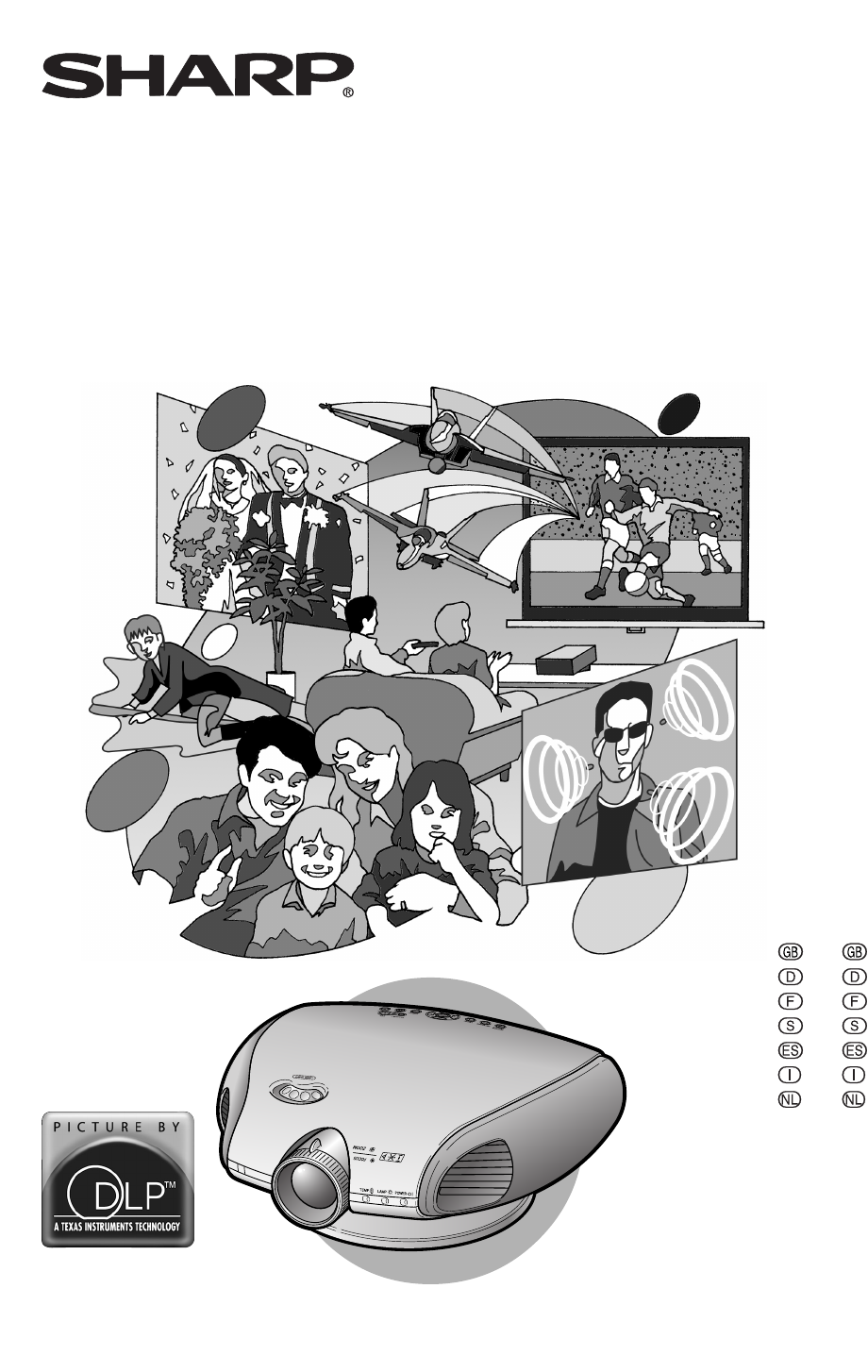
- SHARP CORPORATION 1
- Introduction 3
- WARNING: 4
- Contents 5
- IMPORTANT SAFEGUARDS 6
- Quick Guide 9
- Part Names 10
- Projector (Rear View) 11
- Remote Control (Front View) 12
- Remote Control (Top View) 12
- Operating the Remote Control 13
- 3 Insert the lower tab of the 13
- Accessories 14
- Connections and Setup 15
- Before Connecting 16
- Connecting the Power 16
- 1 Connect an S-video cable to 17
- 1 Connect a composite video 18
- 2 Connect the composite video 18
- Connecting to 19
- Component Video 19
- Equipment Using a 19
- Component Cable 19
- (INPUT 1) 19
- Connecting to RGB 21
- Video Equipment Using 21
- Adaptor and the RGB 21
- Cable (INPUT 2) 21
- 1 Slide the “DIGITAL INPUT 22
- Connecting to a Computer 23
- 1 Connect an RS-232C cable to 25
- 1 Lift the projector (2) with 26
- 3 Press the projector down 27
- I/P, 1080I 28
- Image Projection 30
- Basic Operation 31
- 3 Press , , , or 33
- 1 Press on the remote con 34
- 1 Press on the projector or 35
- 2 Press / to select “H Key 35
- Placement of the Pro 36
- Keystone Correction 36
- : Screen area 36
- 1 Press 37
- Adjustments and Settings 39
- Using the Menu Screen 40
- 2 Press 41
- 3 Press 41
- 4 Press 41
- 5 Press 41
- 5 Press 43
- 6 Press 43
- 7 Press 43
- Menu Bar Items 44
- ■ INPUT 3 / 4 Mode 45
- Adjusting the Picture 46
- Gamma Correction 48
- Function 48
- Emphasizing the 48
- Contrast 48
- Picture Setting 49
- PICTURE SETTING 49
- When Auto Sync is OFF 50
- Special Modes Adjust 51
- Auto Sync Adjustment 52
- Checking the Input Signal 52
- Using the “Options” Menu 53
- Selecting the Signal 54
- Setting the Video Signal 54
- (VIDEO menu only) 54
- Selecting a 55
- Background Image 55
- Setting the Eco Mode 55
- Automatic Power Shut 56
- Selecting the Menu 56
- Screen Position 56
- Setting the Projection 58
- Appendix 59
- Maintenance Indicators 60
- Regarding the Lamp 61
- 1 Put the projector into the 62
- 2 Unplug the power cord 62
- 4 Remove the lamp unit cover 62
- 5 Remove the lamp unit 62
- 6 Insert the new lamp unit 63
- 7 Attach the lamp unit cover 63
- 1 Plug the power cord 63
- 2 Reset the lamp timer 63
- Using the Kensington Lock 65
- Troubleshooting 65
- Connecting Pin Assignments 66
- PC control 67
- Communication conditions 67
- Basic format 67
- Commands 67
- Computer Compatibility Chart 68
- B: 0.7 Vp-p, 75 Ω terminated 69
- R: 0.7 Vp-p, 75 Ω terminated 69
- Dimensions 70
- Glossary 71
Inhaltsverzeichnis
XV-Z200EPrinted on 100% post-consumer recycled paper.Gedruckt auf 100% wiederverwertungs Papier.Imprimé sur 100% de papier recyclé.Utskrift på återvun
-8Projector (Front and Top View)305858POWER indicator6Exhaust ventilative holeLAMP indicatorTEMPERATURE WARNING indicator39ADJUSTMENT buttons(ƒ/∂/ß/©)
Introduction-9Projector (Rear View)Using the Terminal CoverWhen the projector is used on a desktop, high mounted or ceiling mounted, attach the termin
-10Part NamesRemote Control (Front View)Remote Control (Top View)FREEZE button323150523939383931313131354735STANDBY buttonENTER button33KEYSTONE butto
Introduction-11Operating the Remote Control The remote control can be used to control the projectorwithin the ranges shown in the illustration.Note•
-12AccessoriesRemote controlPower cord(For U.K., Hong Kongand Singapore)21 pin RCAconversion adaptor(Supplied for Europe only)Lens capVideo cableTwo A
Connections and SetupConnections and SetupXV_Z200E_E_p13_24.p65 03.10.30, 13:13PM13
-14Connecting the Projector to Other DevicesBefore ConnectingNote• Before connecting, be sure to unplug the power cord of the projector from the AC ou
Connections and Setup-15Connecting to Video EquipmentConnecting to VideoEquipment Using anS-video Cable (INPUT 3)Using an S-video cable, a VCR, DVD pl
Connecting to VideoEquipment Using aComposite Video Cable(INPUT 4)Using a composite video cable, a VCR, DVDplayer or other video equipment can be con-
Connections and Setup-17Connecting toComponent VideoEquipment Using aComponent Cable(INPUT 1)Use a component cable when connecting com-ponent video eq
SPECIAL NOTE FOR USERS IN THE U.K.The mains lead of this product is fitted with a non-rewireable (moulded) plug incorporating a 10A fuse.Should the fu
Connecting to Compo-nent Video EquipmentUsing a 3 RCA to 15-pinD-sub Cable and theDVI to 15-pin D-subAdaptor (INPUT 2)Use a 3 RCA to 15-pin D-sub cabl
Connections and Setup-19OptionalaccessoryDVI to 15-pin D-sub adaptorType: AN-A1DV (20 cm)Connecting to RGBVideo Equipment Usingthe DVI to 15-pin D-sub
OptionalaccessoryDVI cableType: AN-C3DV(3.0 m)Connecting to VideoEquipment with the DVIOutput Terminal Usinga DVI Cable (DIGITALINPUT)Use the DVI cabl
Connections and Setup-21To INPUT 2 terminalNotebook computerTo RGB output terminalRGB cable(commercially available)DVI to 15-pin D-sub adaptor(sold se
-22Connecting to a com-puter with DIGITALRGB output Terminal(DIGITAL INPUT)1 Slide the “DIGITAL INPUTTYPE” switch on the back ter-minal board to “PC”.
Connections and Setup-23Controlling theProjector Using anRS-232C CableWhen the RS-232C terminal on the projectoris connected to a computer with an RS-
-24123Setup Caution• Do not hold the lens when lifting, lower-ing or rotating the projector.•When lowering the projector, be careful notto get your fi
Connections and Setup-25Attaching the SwivelStand1 Align the tabs on the front bot-tom of the projector (1).2 While holding down the button(2), place
-26Adjusting the Projection DistanceSetup• Refer to pages 33 and 34 about the function of Keystone correction and placement of projector using thecorr
Connections and Setup-2790°90°90°90°Upper and Lower Lens Shift Position• This projector is equipped with a lens shift function that lets you adjust th
Introduction-1Before using the projector, please read this operation manual carefully.WARNING: Intense light source. Do not look into the beam or view
-28Rear Projection Place a translucent screen between the projector and the au-dience. Use the projector’s menu screen to reverse the projected im-a
Basic OperationBasic OperationXV_Z200E_E_p29_43.p65 03.10.30, 13:14PM29
-30Image Projection-30Basic ProcedureConnect the required external equipment tothe projector before operating the followingprocedures.Info•The languag
Basic Operation-313 Press , , , or on the remote control or onthe projector to select the IN-PUT mode.•After pressing once on the projector,u
-32-32Image ProjectionTurning the Power off1 Press on the remote con-trol or on the projector,then press or againwhile the confirmation messagei
Basic Operation-33Horizontal Keystone CorrectionVertical Keystone CorrectionKeystone CorrectionThis function can be used to adjust the Key-stone setti
-34Image Projection-34Placement of the Pro-jected Image Using theKeystone CorrectionPlace the projector at a distance from thescreen that allows image
-35Basic OperationFreezing a MovingImageYou can instantly freeze a moving image withthe remote control.1 Press .• The projected image is frozen.2 Pre
-36• “STRETCH” is fixed when 540P, 720P or 1080I signal is entered.• “SMART STRETCH” cannot be selected while input signal from a computer (VGA, SVGA
Adjustments and SettingsAdjustments and SettingsXV_Z200E_E_p29_43.p65 03.10.30, 13:14PM37
-2WARNING:Some IC chips in this product include confidential and/or trade secret property belonging to Texas Instruments.Therefore you may not copy, m
Using the Menu Screen-38The menu screens allow you to adjust the image and various projector settings.The menu can be operated to achieve two function
-39Adjustments and SettingsAdjust the item.Selectthe item.Select the menu icon.Menu icon Menu screenPictureFine SyncOptionsLanguagePRJ Mode2 Press \\\
-40Using the Menu ScreenMenu Selections(Settings)1 Press .• The menu screen is displayed.Note• The “Picture” menu screen for theselected input mode i
-41Adjustments and Settings3 Press """"" or ''''' to select theitem you want to set.Note• Press to
-42Menu Bar ItemsLanguage ( )EnglishDeutschEspañolNederlandsFrançaisItalianoSvenskaPortuguêsFrontCeilingⳭFrontRearCeilingⳭRearPicture ( )Tint
-43Adjustments and SettingsLamp Timer (Life)Picture ( )Tint Ⳮ30ⳮ30Ⳮ30ⳮ30Color Ⳮ30ⳮ30SharpContrast Ⳮ30ⳮ30Bright Ⳮ30ⳮ30Red Ⳮ30ⳮ30Blue Ⳮ30ⳮ30Reset550
-44You can adjust the projector’s picture to your preferences with the following picture set-tings.Adjusting the PictureAdjusting Image Prefer-encesNo
-45Adjustments and SettingsAdjusting the ColourTemperatureThis function allows for selecting the desiredcolour temperature. With the lower value se-le
-46Adjusting the Picture-46Gamma CorrectionFunctionGamma is an image quality enhancementfunction.Four gamma settings are available to allow fordiffere
-47Adjustments and SettingsPicture SettingFunctionThis function stores all items set in “Picture”.Five settings can be stored separately in“Memory 1”
Introduction-3ContentsIntroductionContents ... 3IMPORTANT SAFEGUARDS ...
-48Adjusting the Computer and DVD/DTV ImagesUse the Fine Sync function in case of irregularities such as vertical stripes or flickering inportions of
-49Adjustments and SettingsOn-screen DisplaySpecial Modes Adjust-mentOrdinarily, the type of input signal is detectedand the correct resolution mode i
On-screen Display-50Adjusting the Computer and DVD/DTV ImagesAuto Sync AdjustmentUsed to automatically adjust a computer im-age.Select whether the ima
-51Adjustments and SettingsUsing the “Options” MenuRemaining lamp life100% 5%Approx. Approx.4,000 hours 200 hoursApprox. Approx.3,000 hours 150
-52Using the “Options” Menu-52Selecting the SignalTypeThis function allows you to select the inputsignal type Component or RGB for INPUT 2.Select “Si
-53Adjustments and SettingsSelecting aBackground ImageThis function allows you to select the imagedisplayed when no signal is being sent to theproject
-54-54Using the “Options” MenuCenterUpperRightLowerRightUpperLeftLowerLeftSelected ItemThe menu is displayed on thecenter of the image.The menu is dis
-55Adjustments and SettingsSelecting the MenuColourThis function allows you to select the colourof the menu screen.Select “Menu Color” in the “Options
-56This projector is equipped with a reverse/invert image function that allows you to reverse orinvert the projected image for various applications.Se
AppendixAppendixXV_Z200E_E_p57_66.p65 03.10.30, 13:15PM57
-41. Unplug the Projector from the wall outlet beforecleaning.2. Do not use liquid cleaners or aerosol cleaners.Use a damp cloth for cleaning.3. Do no
-58Maintenance Indicators The warning lights on the projector indicate problems inside the projector. If a problem occurs, either the temperature wa
Appendix-59Regarding the LampInfo• If the temperature warning indicator illuminates, and the projector enters the standby mode, follow the pos-sible s
-60LampunitBQC-XVZ200++1Removing and Install-ing the Lamp Unit Caution• Be sure to remove the lamp unit by the handle.Do not touch the glass surface o
Appendix-616 Insert the new lamp unit.• Press the lamp unit firmly into the lampunit compartment. Fasten the secur-ing screws.7 Attach the lamp unit c
-62Cleaning the Ventilative Holes• This projector is equipped withventilative holes to ensure the opti-mal operating condition of the projec-tor.• Per
Appendix-63Check• Projector power cord is not plugged into the wall outlet.• Selected input is wrong. (See page 31.)• Cables incorrectly connected to
-64Connecting Pin AssignmentsRS-232C Port: 9-pin D-sub male connectorPin No. Signal Name I/O Reference1 Not connected2 RD Receive Data Input Connected
Appendix-65PC controlA computer can be used to control the projector by connecting an RS-232C cable (null modem, cross type,commercially available) to
-66Computer Compatibility ChartNote• This projector may not be able to display images from notebook computers in simultaneous (CRT/LCD)mode. Should th
Appendix-67SpecificationsProduct typeModelVideo systemDisplay methodDLP panelLensProjection lampVideo input signalS-video input signalComponent input
Introduction-519. This Projector is provided with one of the followingtypes of plugs. If the plug should fail to fit into thepower outlet, please cont
-68327153.8118368Front ViewBottom ViewSide ViewTop ViewSide ViewRear ViewDimensionsUnits: mmXV_Z200E_E_p67_70.p65 03.10.30, 13:15PM68
Appendix-69GlossaryAspect RatioWidth and height ratio of an image. The normalaspect ratio of a computer and video image is 4:3.There are also wide ima
-70IndexAAC socket ... 14Adjusting the Picture ...
XV-Z200EPrinted on 100% post-consumer recycled paper.Gedruckt auf 100% wiederverwertungs Papier.Imprimé sur 100% de papier recyclé.Utskrift på återvun
-6IMPORTANT SAFEGUARDSBe sure to read the following safeguards when setting upyour projector.Caution concerning the lamp unit There is a potential ha
Introduction-7The power indicatorilluminates green.In this page, connection of the projector and the video equipment is explained as an examplefor the
Weitere Dokumente für Projektoren Sharp XV-Z200E

Verwandte Produkte und Handbücher für Projektoren Sharp XV-Z200E
 (12 Seiten)
 (32 Seiten)
 (54 Seiten)
(62 Seiten)
(12 Seiten)
(53 Seiten)
(54 Seiten)
(62 Seiten)
(12 Seiten)
(53 Seiten)
© 2020, manymanuals.de. Alle Rechte vorbehalten. | 0.043 s |
 Manymanuals.com
 Manymanuals.de
 Manymanuals.fr
 Manymanuals.it
 Manymanuals.pl
 Manymanuals.cz
 Manymanuals.es
 Manymanuals-pt.com
Kommentare zu diesen Handbüchern