Sharp AR-164 Spezifikationen Seite 1
Stöbern Sie online oder laden Sie Spezifikationen nach Kopierer Sharp AR-164 herunter. Sharp AR-164 Specifications Benutzerhandbuch
- Seite / 80
- Inhaltsverzeichnis
- LESEZEICHEN

- CAUTIONS 2
- CONTENTS Page 3
- INTRODUCTION 4
- MAIN FEATURES 5
- PART NAMES AND FUNCTIONS 6
- COPIER INSTALLATION 10
- CAUTIONS ON HANDLING 11
- LOADING COPY PAPER 12
- AUDITING ACCOUNTS 15
- Using the SPF 16
- NORMAL COPYING 17
- Using the original table 18
- Automatic 20
- REDUCTION/ENLARGEMENT/ZOOM 21
- BYPASS FEED (special paper) 22
- MAKING COPIES 24
- Two-sided copying 24
- SORT/GROUP 25
- Copying in the sort mode 26
- Interrupting a copy run 27
- AUTOMATIC EXPOSURE ADJUSTMENT 28
- TONER SAVE MODE 29
- Original Copy 30
- SPECIAL FEATURES 31
- B/W REVERSE 32
- DUAL PAGE COPY 33
- ROTATION COPYING 34
- 2 IN 1 OR 4 IN 1 35
- Check the copy paper size 37
- Set the number of copies 38
- Press the START key 38
- Expanded margin 39
- Original 39
- TONER CARTRIDGE REPLACEMENT 40
- Toner cartridge life 41
- MISFEED REMOVAL 42
- Misfeed in the bypass tray 43
- Misfeed in the copier 43
- Roller rotating knob 44
- Fusing unit release levers 45
- Misfeed in the paper tray 46
- MAINTENANCE REQUIRED 47
- DEVELOPER REQUIRED 47
- USER PROGRAMS 48
- Setting the user programs 49
- Program No. 10: Auditing mode 51
- POWER SAVE MODES 55
- Setting the power save modes 56
- Copying from the preheat mode 56
- USER MAINTENANCE 57
- Charger 58
- COPIER TROUBLE? 59
- Self-diagnostic function 61
- SUPPLIES 62
- Genuine supplies statement 63
- Proper storage 63
- SPECIFICATIONS 64
- A (Bystander positions) 65
- A (Operator positions) 65
- GENERAL INFORMATION 66
- OPTIONAL 67
- EQUIPMENT 67
- SYSTEM CONFIGURATION 68
- 250-SHEET PAPER FEED UNIT 69
- (AR-DE5) 69
- 2x250-SHEET PAPER FEED UNIT 69
- (AR-DE6) 69
- Misfeed removal 70
- Specifications 71
- MATERIAL SAFETY DATA SHEET 74
- WARNING: 79
- SHARP CORPORATION 80
Inhaltsverzeichnis
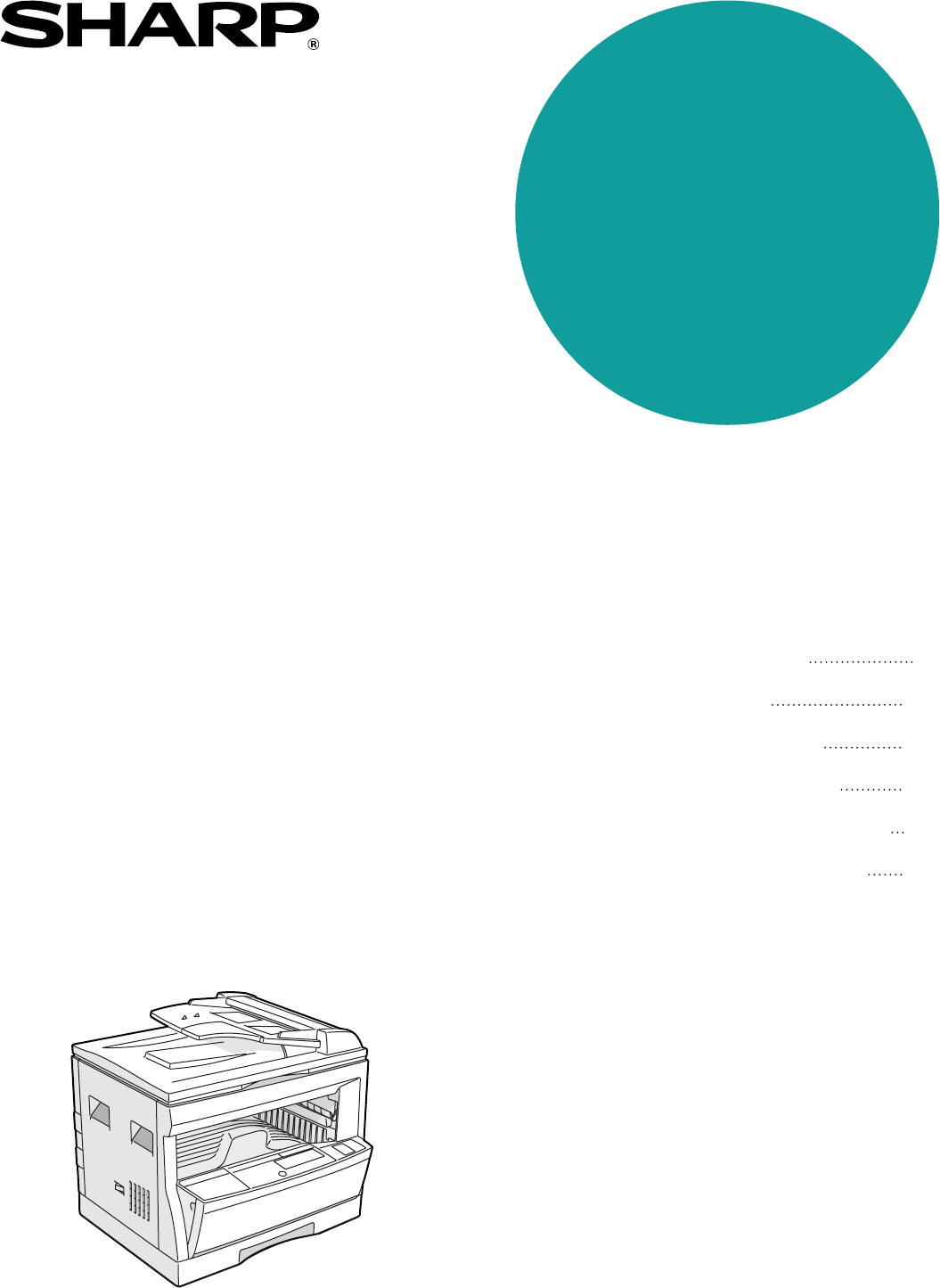
• GETTING STARTED• MAKING COPIES• SPECIAL FEATURES• STATUS INDICATORS• GENERAL INFORMATION• OPTIONAL EQUIPMENT 21328384665DIGITAL LASER COPIER/PRINTER
8GETTING STARTEDCopier installationCOPIER INSTALLATIONImproper installation may damage the copier. Please note the followingduring initial installatio
GETTING STARTEDGETTING STARTED9GETTING STARTEDCAUTIONS ON HANDLINGBe careful in handling the copier as follows to maintain the performance ofthis copi
10GETTING STARTEDLOADING COPY PAPERTo save space, this copier has been designed with an adjustable front-loadingtray, which is easily opened for paper
GETTING STARTEDGETTING STARTED11GETTING STARTEDChanging the copy paper size in the tray1Gently lift and pull out the paper tray until it stops.2Push t
12GETTING STARTED Loading copy paperLOADING COPY PAPER8To set the selected paper size, press the PAPER SIZEENTER key.●The selected paper feed location
13MAKING COPIESAUDITING ACCOUNTSIf this copier has been programmed in the auditing mode, it will not functionuntil an assigned 3-digit account number
14MAKING COPIESNORMAL COPYINGUsing the SPFStream feeding modeIf the stream feeding mode has been enabled using user programNo. 4, the SPF indicator wi
15MAKING COPIESNORMAL COPYINGNormal copying6Adjust the copy density.●This copier has three exposure modes to choose from — AUTOMATIC,MANUAL, and PHOTO
16MAKING COPIES1Turn the power switch on.●It will take about 35 seconds for the copier to warm up. However, youcan make desired settings and press the
17MAKING COPIES●For manual copy density adjustment, press the AUTO/MANUAL/PHOTO key to select MANUAL and adjust with the light ( ) anddark ( ) keys as
FOR YOUR RECORDS ...To protect against loss or theft, record and retain for reference thecopier’s serial number located on the back of the unit.Model
18MAKING COPIESREDUCTION/ENLARGEMENT/ZOOMReduction and enlargement ratios can be selected either automatically withthe AUTO IMAGE key or manually with
19MAKING COPIESREDUCTION/ENLARGEMENT/ZOOMReduction/enlargement/zoomManual1Place the original in the document feeder tray or on theoriginal table.2Use
20MAKING COPIESBYPASS FEED (special paper)The bypass tray is used to copy onto transparency film, labels, and otherspecial purpose papers. Up to 100 s
21MAKING COPIES4Press the TRAY SELECT key to select the bypass tray.5Leave the copy quantity at 0 if using special papers. Setthe number of copies if
22MAKING COPIESTWO-SIDED COPYINGTwo-sided copies can be made on this copier using the bypass tray.1Place the first original on the original table and
23MAKING COPIESSORT/GROUPThis copier has two sorter modes for different copying jobs: one sorts copies into setsmatching the sequence of the originals
24MAKING COPIESSort/groupSORT/GROUPCopying in the sort modeWhen copying in the sort mode, the original image will be stored in the copiermemory each t
25MAKING COPIES1Press the INTERRUPT key.●The copier will return to the initial settings.●If this copier has been programmed in the auditing mode using
26MAKING COPIES1Press the AUTO/MANUAL/PHOTO key to select thePHOTO mode.2Press and hold down the AUTO/MANUAL/PHOTO keyfor approximately 5 seconds.●The
27MAKING COPIES Toner save mode1Press the AUTO/MANUAL/PHOTO key to select theMANUAL mode.2Press and hold down the AUTO/MANUAL/PHOTO keyfor approximate
1GETTING STARTEDSPECIAL FEATURESMAKING COPIES GENERAL INFORMATIONOPTIONALEQUIPMENTCONTENTS PageGETTING STARTED●INTRODUCTION . . . . . . . . . . . . .
28SPECIAL FEATURES1Place the original in the document feeder tray or on theoriginal table.2Press the XY-ZOOM key.●The current value for the vertical d
29SPECIAL FEATURESXY zoomXY ZOOM5Use the PRESET RATIO selector ( , ) keys and zoom( , ) keys to change the copy ratio in the horizontaldirection in
30SPECIAL FEATURESB/W REVERSEThe B/W REVERSE feature is used to reverse black and white areas.●When the B/W REVERSE feature is selected, the exposure
31SPECIAL FEATURES1Place the originals on the original table with the centerof the two pages aligned with the paper size index (81/2 ). Close the plat
32SPECIAL FEATURESROTATION COPYINGIf user program No. 7 is set, the image of the original will rotate when theorientation of the original does not mat
33SPECIAL FEATURES1Set the originals face up in the document feeder tray.●The original table cannot be used for the 2 in 1 or 4 in 1 feature.2Use the
34SPECIAL FEATURES2 in 1 or 4 in 14Enter the desired pattern number using a numeric key.●The entered number will blink in the copy quantity display. F
35SPECIAL FEATURES1Place the original on the original table and close theplaten cover.●The SPF can also be used for this feature.2Press the ERASE key
36SPECIAL FEATURES4Set the number of copies.5Press the START key.EraseERASE
37SPECIAL FEATURESMargin shiftMARGIN SHIFTThe MARGIN SHIFT feature automatically shifts the text or image tothe right to increase the left margin by a
2GETTING STARTEDINTRODUCTIONThis copier has been designed to provide convenient copying features in a minimumamount of office space and with maximum o
38STATUSINDICATORS1Open the bypass tray. Lift slightly on the side cover andslide the cover out until it stops.2Push gently on both sides of the front
39STATUSINDICATORS Toner cartridge replacementTONER CARTRIDGE REPLACEMENT5Gently insert the toner cartridge along the guides untilit locks in place wh
40STATUSINDICATORSThe copier will stop when a misfeed occurs. The misfeed( ) indicator will blink, and blinking red misfeed locationindicators will in
41STATUSINDICATORS Misfeed removalMISFEED REMOVALRoller3If the misfed original cannot be removed in steps 1 and2, remove the misfed original from the
42STATUSINDICATORSMISFEED REMOVAL Misfeed removalIf the misfed paper is seen from this side, proceed to “C. Misfeed in the transport area”.If paper is
43STATUSINDICATORSMISFEED REMOVAL Misfeed removalRoller rotating knobFusing unit release levers2Turn the roller rotating knob in the direction of thea
44STATUSINDICATORSMISFEED REMOVAL Misfeed removal3Close the side cover by pressing the handle on thecover.●The misfeed ( ) indicator will go out.Misfe
45STATUSINDICATORS Developer required/Maintenance requiredMAINTENANCE REQUIREDWhen the indicator lights up, service by an authorized SHARP servicete
46GENERAL INFORMATIONUser programsUSER PROGRAMSThe user programs allow the parameters of certain functions to be set,changed, or canceled as desired.L
47GENERAL INFORMATIONSetting the user programs1Press and hold the light ( ) key for more than 5seconds until all the alarm indicators (, , , ,and )
GETTING STARTEDGETTING STARTED3GETTING STARTEDMain featuresMAIN FEATURESHigh-speed laser copying●First-copy time is only 7.2 seconds (except in a powe
48GENERAL INFORMATIONUSER PROGRAMS4Select the desired parameter using the numeric keys.●The entered parameter number will blink on the right side of t
49GENERAL INFORMATIONUSER PROGRAMSUser programsSettings for auditing accountsSetting of user programs No. 10 to 15 varies with the program number. For
50GENERAL INFORMATIONUSER PROGRAMSUser programsProgram No. 12: Account number changeProgram No. 12 is used to change account numbers. When program No.
51GENERAL INFORMATIONUser programsUSER PROGRAMSProgram No. 14: Number of copies per accountProgram No. 14 is used to display the total number of copie
52GENERAL INFORMATIONUSER PROGRAMSUser programsProgram No. 15: Resetting accountProgram No. 15 is used to reset all accounts or to reset any desired i
53GENERAL INFORMATIONPOWER SAVE MODESThe copier has two power save modes to reduce overall power consumptionthereby reduce the cost of operation. In a
54GENERAL INFORMATIONSetting the power save modesThe time that elapses before the copier enters a power save mode after anyoperation is made can be se
55GENERAL INFORMATIONUSER MAINTENANCEProper care is essential for clean, sharp copies. Please take a few minutes toregularly clean your copier.Origina
56GENERAL INFORMATIONTransfer charger cleaningIf copies start becoming streaky or blotchy, the transfer charger may be dirty.Clean the charger using t
57GENERAL INFORMATIONProblem Solution●Copier plugged in?●Power switch ON?●Copy density properly adjusted?●Is the original placed face up in theSPF o
4GETTING STARTEDPART NAMES AND FUNCTIONSOverall layoutDocument feeder coverOpen to make copies from the original table.Original tableAll originals whi
58GENERAL INFORMATIONProblem SolutionCopier trouble?COPIER TROUBLE?COPY/FAX keyThe COPY/FAX key is used to switchbetween the FAX and COPY modes.For
59GENERAL INFORMATIONCopier trouble?Self-diagnostic functionAn automatic self-diagnostic function is built into the copier. Should thecopier malfuncti
60GENERAL INFORMATIONSUPPLIESTypes and sizes of copy paperSize Weight Capacity Special paper(21 lb. bond paper)Paper tray 5-1/2" x 8-1/2"* 1
61GENERAL INFORMATIONSUPPLIESGenuine supplies statementStandard supplies for this copier that are to be replaced by the user are copypaper and toner c
62GENERAL INFORMATIONType DesktopCopy system Dry, electrostatic transferOriginals Sheets, bound documentsOriginal sizes Max. 11" x 17"Copy s
63GENERAL INFORMATIONSPECIFICATIONSSpecificationsOverall dimensions 23-15/64" (W) x 20-29/32" (D)(with bypass tray folded) (590 mm (W) x 531
64GENERAL INFORMATIONMEMO
65OPTIONALEQUIPMENTOPTIONALEQUIPMENTCONTENTSPage●SYSTEM CONFIGURATION . . . . . . . . . . . . . . . . . . . . . . . . . . . 66●250-SHEET PAPER FEED U
66OPTIONALEQUIPMENTSYSTEM CONFIGURATIONA number of options are available for the copier which allow you toconfigure a copier system to meet your parti
67OPTIONALEQUIPMENTLoading copy paperThe method of loading copy paper for the paper trays of these paper feed unitsis the same as for the paper tray i
GETTING STARTEDGETTING STARTED5GETTING STARTEDPART NAMES AND FUNCTIONSDocument feeder trayHolds up to 30 originals.Original guidesAdjust to the size o
68OPTIONALEQUIPMENTMisfeed removalThe copier will stop when a misfeed occurs. The misfeed ( ) indicator andthe red indicator which indicates the paper
69OPTIONALEQUIPMENTSpecificationsCopy paper size 8-1/2" x 11" to 11" x 17"Paper weight 15 lbs. to 21 lbs.Paper capacity One paper
702250-sheet paper feed unit . . . . . . . . . . . . . . . . . . . . . . . 672 in 1 . . . . . . . . . . . . . . . . . . . . . . . . . . . . . . . . .
71RReduction . . . . . . . . . . . . . . . . . . . . . . . . . . . . . . . . . . . 18Replacement– toner cartridge . . . . . . . . . . . . . . . . . .
72 Date Issued: Nov. 1, 2000MATERIAL SAFETY DATA SHEETMSDS No. F-00991Section 1. Product IdentificationProduct:AR-201NT/T/FT/ST (Black Toner)Section 2
73Section 6. Physical Chemical CharacteristicsBoiling / Melting Point: Not applicable Specific Gravity: 1.1Vapor Pressure: Not applicable Solubility i
74Date Issued: Nov. 1, 2000MATERIAL SAFETY DATA SHEETMSDS No. F-30991Section 1. Product IdentificationProductAR-201ND/DV/SD (Black Developer)Section 2
75Section 6. Physical Chemical CharacteristicsBoiling / Melting Point: Not applicable Specific Gravity: about 7.3Vapor Pressure: Not applicable Solubi
MEMO
WARNING:FCC Regulations state that any unauthorized changes or modifications tothis equipment not expressly approved by the manufacturer could void th
6GETTING STARTEDOperationpanelPART NAMES AND FUNCTIONSINTERRUPT key and indicator (p. 25)Interrupts a copy run.Copy quantity displayDisplays the speci
PRINTED IN CHINA2002B KS TINSE0000QSZZAR-164SHARP ELECTRONICS CORPORATIONSharp Plaza, Mahwah, New Jersey 07430-2135.SHARP CORPORATIONwww.sharp-usa.
GETTING STARTEDGETTING STARTED7GETTING STARTEDPART NAMES AND FUNCTIONSPress and hold down the key. 12,345 sheets output1st display2nd displayNote: 11&
Verwandte Produkte und Handbücher für Kopierer Sharp AR-164
 (188 Seiten)
(311 Seiten)
(148 Seiten)
(40 Seiten)
(4 Seiten)
(100 Seiten)
(76 Seiten)
(220 Seiten)
(148 Seiten)
(80 Seiten)
(8 Seiten)
(59 Seiten)
(196 Seiten)
(32 Seiten)
(2 Seiten)
(4 Seiten)
(188 Seiten)
(311 Seiten)
(148 Seiten)
(40 Seiten)
(4 Seiten)
(100 Seiten)
(76 Seiten)
(220 Seiten)
(148 Seiten)
(80 Seiten)
(8 Seiten)
(59 Seiten)
(196 Seiten)
(32 Seiten)
(2 Seiten)
(4 Seiten)
© 2020, manymanuals.de. Alle Rechte vorbehalten. | 0.035 s |
 Manymanuals.com
 Manymanuals.de
 Manymanuals.fr
 Manymanuals.it
 Manymanuals.pl
 Manymanuals.cz
 Manymanuals.es
 Manymanuals-pt.com
Kommentare zu diesen Handbüchern