Sharp DX-B450P Bedienungsanleitung
Stöbern Sie online oder laden Sie Bedienungsanleitung nach Drucker Sharp DX-B450P herunter. Sharp DX-B450P User Manual Benutzerhandbuch
- Seite / 146
- Inhaltsverzeichnis
- FEHLERBEHEBUNG
- LESEZEICHEN

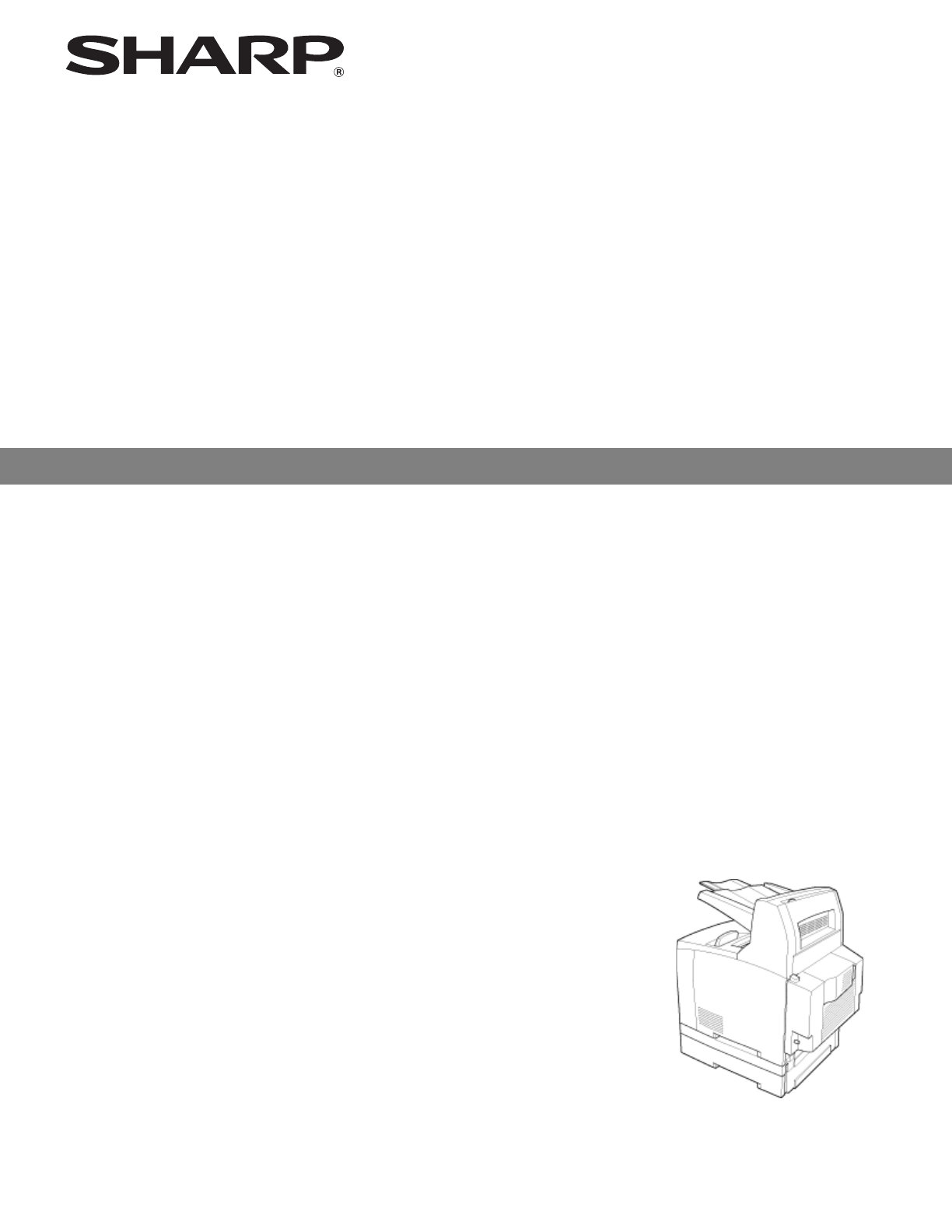
- User's Guide 1
- Contents 3
- TOC-2 User’s Guide 4
- User’s Guide TOC-3 5
- TOC-4 User’s Guide 6
- Chapter 1: Introduction 7
- Safety Notes 8
- Printer Orientation 8
- Components 9
- Rear View 10
- Internal Components 11
- Available Printer Drivers 12
- Paper Usage 13
- Custom Sizes 14
- Printing Transparencies 15
- Printing Envelopes 16
- Printing Labels 16
- Available Paper 17
- Loading Paper 19
- 2. Remove the lid 20
- 6. Fan the paper well 21
- Replacing the Toner Cartridge 23
- Cartridge 24
- Power Save Mode 25
- Getting to Know Your Printer 26
- Chapter 3: Operator Panel 27
- Operator Panel Features 28
- LED Indicators 28
- Push buttons 28
- Job Library 29
- Panel Lock 30
- Operator Panel Menus 31
- Paper Menu 32
- DX-B450P only) 33
- (DX-B450P only) 33
- Interface Menu 34
- PCL Menu 39
- System Menu 41
- Status Information 44
- Understanding Page Counters 46
- Counter Type Definition 46
- Chapter 4: Windows Operations 47
- Setting Default Values 48
- Printing a Test Page 50
- Cancelling Printing 51
- Windows Operations 52
- Saved Settings 53
- Main Tab 54
- Paper Tab 59
- Advanced Tab 63
- Using Overlays 64
- Job Handling Tab 65
- Watermark Tab 67
- 6. Click OK 68
- Installing the Driver 69
- Accessing the Driver 71
- Navigating the Driver 72
- Accessing the EWS 77
- Navigating the EWS 78
- Chapter 7: Networking 83
- Configuring the Driver 84
- Printer Network Configuration 85
- Notifications 86
- IP Filtering 86
- IPv6 Implementation 87
- Networking 88
- Chapter 8: Accessories 89
- Accessories 90
- Paper tray (A4/550 sheets) 91
- Paper trays 98
- Installing the Duplex Module 99
- Duplex module 100
- Offset Catch Tray 102
- 4. Open the rear cover 104
- 9. Close the rear cover 105
- Memory Expansion Module 108
- Hard Disk Drive 109
- Compact Flash (CF) Card 110
- Chapter 9: Troubleshooting 111
- Poor Print Quality 112
- No Power 116
- Cannot Print 116
- Printing is Not Clear 117
- Paper Incorrectly Fed 117
- Error and Warning Messages 118
- Error Messages 119
- In this Chapter 123
- At the Paper Trays 124
- At the Fuser Unit 126
- 5. Close the rear cover 127
- At the Toner Cartridge 128
- At the Duplex Module 130
- At the Offset Catch Tray 132
- Chapter 11: Windows Utilities 135
- Status Monitor Utility 136
- PCL5 Tray Mapping Utility 136
- To use the program: 137
- 2. Enter new tray IDs 137
- 3. Click OK 137
- Direct PDF Utility 138
- I-2 User’s Guide 140
- User’s Guide I-3 141
- I-4 User’s Guide 142
- User’s Guide I-5 143
- I-6 User’s Guide 144
- SHARP ELECTRONICS CORPORATION 146
Inhaltsverzeichnis
LASER PRINTER User's Guide MODEL: DX-B350PDX-B450P
2-2 User’s GuideComponentsGetting to Know Your PrinterThe maximum paper capacity with all options installed is 1800 sheets of 20 lb. (75 gsm) paper.Th
8-12 User’s GuideDuplex moduleAccessories4. Insert the right and left tabs at the bottom of the duplex module into the holes at the back of the printe
User’s Guide 8-13Duplex moduleAccessories2. Pull out the power cord from the power outlet and then the printer. 3. Loosen the screws at the both ends
8-14 User’s GuideOffset Catch TrayAccessories5. While holding up the duplex module, remove the right and left tabs of the duplex module from the holes
User’s Guide 8-15Offset Catch TrayAccessoriesInstalling/Uninstalling the Offset Catch TrayYou can install an optional Offset Catch Tray to this printe
8-16 User’s GuideOffset Catch TrayAccessories3. Lift up the second lever from the top left corner of the back of the printer. 4. Open the rear cover.
User’s Guide 8-17Offset Catch TrayAccessories6. Insert the right and left tabs of the Offset Catch Tray into the holes at the top of the printer (1) a
8-18 User’s GuideOffset Catch TrayAccessoriesUninstalling the Offset Catch Tray1. Switch off the power to the printer. 2. Pull out the power cord from
User’s Guide 8-19Offset Catch TrayAccessories4. Lift up the second lever (1) from the top left corner of the back of the printer to open the rear cove
8-20 User’s GuideMemory Expansion ModuleAccessoriesMemory Expansion Module1. Ensure that the printer power switch is set to the OFF <O> position
User’s Guide 8-21Hard Disk DriveAccessoriesHard Disk Drive1. Ensure that the printer power switch is set to the OFF <O> position.2. Disconnect t
User’s Guide 2-3ComponentsGetting to Know Your PrinterInternal Components1235445123No. Name Description1 Paper Stop Raise this when printing on paper
8-22 User’s GuideCompact Flash (CF) CardAccessories9. Connect the power cord to the wall outlet.Turn the printer power switch to the ON <I> posi
9-1Chapter 9: TroubleshootingThis chapter provides information to help you trouble shoot problems. It explains what to if the printer is not printing
9-2 User’s GuidePoor Print QualityTroubleshootingPoor Print QualityPaper Is Output Blank or All BlackPrintout Is Faded, Stained, Missing, Wrinkled, or
User’s Guide 9-3Poor Print QualityTroubleshootingBlack spots are printed. Is the correct type of paper used? Load the correct type of paper. Is the To
9-4 User’s GuidePoor Print QualityTroubleshootingShadows are printed around black filled areas.Are you using paper that has been left unwrapped for a
User’s Guide 9-5Poor Print QualityTroubleshootingImage is printed at an angle.Image is printed at an unexpected location.Are the paper tray guides set
9-6 User’s GuideNo PowerTroubleshootingNo PowerCannot PrintText is blurred. Is the paper damp? Replace with paper from a new ream.Is the correct type
User’s Guide 9-7Printing is Not ClearTroubleshootingPrinting is Not ClearPaper Incorrectly FedStatus Items to check ActionTransparencies are not print
9-8 User’s GuideNoiseTroubleshootingNoiseError and Warning MessagesYour printer’s Operator Panel provides you with information and troubleshooting hel
User’s Guide 9-9Error and Warning MessagesTroubleshootingError Messages The table below lists error messages, the possible causes of each error, and t
2-4 User’s GuideTurning the Printer On and OffGetting to Know Your PrinterTurning the Printer On and OffTurning the Printer On1. Press the power switc
9-10 User’s GuideError and Warning MessagesTroubleshootingROS Failure Call Service The ROS has failed. Turn the printer off, then turn it on. If the p
User’s Guide 9-11Error and Warning MessagesTroubleshootingJOBLIB Error 03 Press Start JobLibrary private mode datastream missing PIN.Ensure the PIN is
9-12 User’s GuideError and Warning MessagesTroubleshootingPrinting Job printing NoneNormal Printer OperationProcessing Data received NoneNormal Printe
10-1Chapter 10: Clearing Paper JamsWhen there is a paper jam, refer to the following procedures and follow the instructions.NOTE: Paper jams could be
10-2 User’s GuideAt the Paper TraysClearing Paper JamsAt the Paper Trays1. Pull the paper tray out of the printer.The paper tray must be pulled out co
User’s Guide 10-3At the Paper TraysClearing Paper Jams3. Remove any paper jammed inside the printer. NOTE: If the printer is installed with the two op
10-4 User’s GuideAt the Fuser UnitClearing Paper JamsAt the Fuser Unit1. Remove any paper from the Standard Output Tray. NOTE: If the duplex unit is i
User’s Guide 10-5At the Fuser UnitClearing Paper Jams4. Open the cover of the Fuser Unit and remove any jammed paper. If paper is torn, check for any
10-6 User’s GuideAt the Toner CartridgeClearing Paper Jams6. Open and close the top cover to clear the Jam message. At the Toner Cartridge1. Remove an
User’s Guide 10-7At the Toner CartridgeClearing Paper Jams3. Hold the Toner Cartridge by the grip and pull it out slowly. Then place it on a flat surf
User’s Guide 2-5Paper UsageGetting to Know Your PrinterPaper UsageThis section describes available paper sizes, paper types, recommended papers, unusa
10-8 User’s GuideAt the Duplex ModuleClearing Paper JamsNOTE: Do not touch any parts inside the printer. Ensure that the Toner Cartridge is correctly
User’s Guide 10-9At the Duplex ModuleClearing Paper Jams2. Open and close the top cover to clear the Jam message.Duplex at the interior of the top cov
10-10 User’s GuideAt the Offset Catch TrayClearing Paper Jams3. Close the top cover of the duplex module to clear the Jam message. At the Offset Catch
User’s Guide 10-11At the Offset Catch TrayClearing Paper Jams3. Close the Offset Catch Tray cover. 4. Lift up the second lever from the top left corne
10-12 User’s GuideAt the Offset Catch TrayClearing Paper Jams6. Close the rear cover to clear the Jam message.
11-1Chapter 11: Windows UtilitiesA variety of Windows utilities are available with your printer. During installation, you can choose to install any of
11-2 User’s GuideStatus Monitor UtilityWindows UtilitiesStatus Monitor UtilityThe printer Status Monitor utility runs on the Windows XP, Win2K, or Vis
User’s Guide 11-3PCL5 Tray Mapping UtilityWindows UtilitiesTo use the program:1. Select the target printer. The printer must be installed on a Windows
11-4 User’s GuideDirect PDF UtilityWindows UtilitiesDirect PDF UtilityThe printer’s Direct PDF Utility allows you to send a Version 1.3 PDF file direc
IndexI-1SymbolsSNMP Alerts 7-6Numerics2-Sided Printing 4-9AA4 2-5A5 2-5A6 2-5About 1-1Access panel 2-1Accessing the Driver 4-6Accessories 8-1acid pape
2-6 User’s GuidePaper UsageGetting to Know Your PrinterCustom SizesIn addition to the standard sizes of paper you can use, you can also print on custo
I-2 User’s GuideDHCP 6-5, 7-1Direct PDF Utility 11-4Disk 3-17Display 3-1Display Area 6-2Display Language 3-15, 6-3, 6-4DL 2-5DNS 6-5DNS Settings 6-4Dr
User’s Guide I-3JJam Recovery 3-16, 6-4Jams 10-1Job Accounting 4-19, 6-4Job Accounting Menu 3-5Job Handling 4-21Job Handling tab 4-7, 4-19Job Library
I-4 User’s GuideOffset Catch Tray Rear Cover 2-2Offset from GMT 3-17On 2-4Operator Panel 2-1, 3-1Operator Panel MenusDefined 3-5Navigate 3-3Optional D
User’s Guide I-5Protocols 7-1PS Menu 3-13PSERVER 6-5pulp paper 2-11QQuality 4-17Quality Menu 3-16RRAM Buffer Clear 6-5Rear Cover 2-2Rear view 2-2Reboo
I-6 User’s GuideTray 3 2-1Tray 4 2-1Tray Controls 6-4Tray Linking 3-7, 6-4Tray Module 2-1, 8-2Tray Settings 4-13Treated colored paper 2-11Troubleshoot
PRINTED IN CHINA2008H KS1TINSExxxxFCZZSHARP ELECTRONICS CORPORATION1 Sharp Plaza, Mahwah, New Jersey 07495-1163.www.sharpusa.comSHARP ELECTRONICS OF C
User’s Guide 2-7Paper UsageGetting to Know Your PrinterYou should set your printer Media Type to Thick1 or any of the other paper types that use Thick
2-8 User’s GuidePaper UsageGetting to Know Your Printer8. In the printer driver or the computer application program, select Transparency as the paper
User’s Guide 2-9Paper UsageGetting to Know Your PrinterAvailable PaperThe following table describes common brands of paper and other media that are su
2-10 User’s GuidePaper UsageGetting to Know Your Printer3M Transparency(CG3300) A4 Transparency A4 CG3300 A4PostcardXerox Postcard Premier TCF160 CUT
User’s Guide 2-11Loading PaperGetting to Know Your PrinterUnusable PaperUsing the following types of paper might cause paper jams, malfunctions or dam
2-12 User’s GuideLoading PaperGetting to Know Your Printer2. Remove the lid. 3. If the base plate of the paper tray is raised, push it down. 4. Squeez
User’s Guide 2-13Loading PaperGetting to Know Your Printer5. Squeeze the right width guide and slide it to the desired paper size. 6. Fan the paper we
2-14 User’s GuideLoading PaperGetting to Know Your Printer8. Replace the lid of the paper tray and firmly close the lid. 9. Firmly insert the tray in
User’s Guide 2-15Replacing the Toner CartridgeGetting to Know Your Printer4. Grasp the front of the paper tray and extend it until the right and left
2-16 User’s GuideReplacing the Toner CartridgeGetting to Know Your Printer1. Open the top cover and remove the empty Toner Cartridge. 2. Take the Tone
User’s Guide 2-17Power Save ModeGetting to Know Your Printer4. Hold the Toner Cartridge by the grip and insert it into the slot inside the printer. 5.
2-18 User’s GuideUnderstanding Printing OptionsGetting to Know Your Printer
3-1Chapter 3: Operator PanelOperator Panel FeaturesThe Operator Panel is located on the front of the printer. It contains the display, indicators, and
3-2 User’s GuideOperator Panel FeaturesOperator PanelLED IndicatorsThe LED indicators indicate printer status. The table below explains the LED indica
User’s Guide 3-3Operator Panel FeaturesOperator PanelNavigating the Operator Panel MenusWhen you press the MENU button on the Operator Panel, you ente
TOC-1Contents1 Introduction... 1-1Conventio
3-4 User’s GuidePrinting a Configuration SummaryOperator Panel1. Pressing the MENU button on the Operator Panel enters the printer’s menu. The first l
User’s Guide 3-5Operator Panel MenusOperator PanelOperator Panel MenusThe tables below describe the items available in the Operator Panel. Each item i
3-6 User’s GuideOperator Panel MenusOperator PanelPaper MenuThe Paper menu provides a variety of options for paper type selection as well as paper inp
User’s Guide 3-7Operator Panel MenusOperator Panel Media Type Plain TransparencyPre-PunchedLetter HeadColorPre-PrintedBondLabelsCard StockPos
3-8 User’s GuideOperator Panel MenusOperator PanelInterface MenuThe Interface menu provides a variety of options for port setup and network configurat
User’s Guide 3-9Operator Panel MenusOperator Panel Delay Out Close On/Off Off When ON, the printer will wait until the job is completely printed a
3-10 User’s GuideOperator Panel MenusOperator Panel RTS On1/Off1 On/Off Off If On, the RTS signal will reflect the Online/Offline status. RTS
User’s Guide 3-11Operator Panel MenusOperator Panel Network Address <hex display of MAC address>NA Displays MAC address of network interface
3-12 User’s GuideOperator Panel MenusOperator Panel Binary PS On/Off On When On, the feature allows all binary codes to be processed by the PostSc
User’s Guide 3-13Operator Panel MenusOperator PanelPS MenuThe PS menu allows you to Print PS Errors. Items available in this menu are described belowP
TOC-2 User’s Guide4 Windows Operations ...4-1Installing PC
3-14 User’s GuideOperator Panel MenusOperator PanelPitch 0.08 - 100.00 10.00 Change the default pitch of text.Symbol Set All available symbol sets10U:
User’s Guide 3-15Operator Panel MenusOperator PanelSystem MenuThe System menu allows you to specify system-level operation of the printer during norma
3-16 User’s GuideOperator Panel MenusOperator PanelQuality MenuThe Quality Menu allows you set image quality options. Items available in this menu are
User’s Guide 3-17Operator Panel MenusOperator PanelFLASH/Disk/CF MenuFor each installed drive: FLASH, Disk, CF the following menu items are available.
3-18 User’s GuideOperator Panel MenusOperator PanelStatus InformationStatus information is printed on the Configuration Summary.Changes to some config
User’s Guide 3-19Operator Panel MenusOperator Panel mDNS SVC Name data entry Model Name plus last 7 digits of MAC (Network) address Current Zo
3-20 User’s GuideOperator Panel MenusOperator PanelUnderstanding Page CountersPage Counters are included in Status information.Counter Type Definition
4-1Chapter 4: Windows OperationsThis chapter describes features of the Windows Driver. The driver allows you set default settings for all print jobs a
4-2 User’s GuideSetting Default ValuesWindows Operations10. Click Browse… and navigate to:<CD drive>\Drivers\<Language>\<Platform>\&
User’s Guide 4-3Setting Default ValuesWindows OperationsThe Printer’s configuration window appears.The driver can automatically recognize all the inst
User’s Guide TOC-3Protocols ...
4-4 User’s GuidePrinting a Test PageWindows Operations3. On the General Tab, click Printing PreferencesThe Printing Preferences window appears.4. Any
User’s Guide 4-5Cancelling PrintingWindows OperationsCancelling PrintingTo cancel printing, you can either cancel the print job at the printer or at t
4-6 User’s GuideAccessing the Driver from an ApplicationWindows OperationsAccessing the Driver from an ApplicationTo make changes that apply to docume
User’s Guide 4-7Navigating the Printer Properties WindowWindows OperationsNavigating the Printer Properties WindowThe driver screens are divided in to
4-8 User’s GuideMain TabWindows OperationsMain TabSelecting Number of CopiesYou can select the number of copies to print via your Printer Properties.
User’s Guide 4-9Main TabWindows OperationsCollating CopiesWhen printing multiple copies of a job, the output can be automatically collated. When copie
4-10 User’s GuideMain TabWindows OperationsTo print on both sides of the paper from your Printer Properties:1. Select the Main tab within your Printer
User’s Guide 4-11Main TabWindows Operations1. Select the Main tab within your Printer Properties.2. Select the PosterPrint Document Style.3. Click Opt
4-12 User’s GuideMain TabWindows OperationsMultiple Pages to Single Sheet (N-up)You can print multiple pages on a single sheet when printing a multi-p
User’s Guide 4-13Paper TabWindows OperationsJob OffsetThe Offset Catch Tray can place sheets in alternate positions to separate one print job from ano
TOC-4 User’s GuideDuplex at the paper exit ...
4-14 User’s GuidePaper TabWindows OperationsSelecting Paper SizeYou can select from a list of standard paper sizes. Available sizes are defined in “Pa
User’s Guide 4-15Paper TabWindows OperationsZoom SettingsYou can scale any page image to fit the paper size being used. Zoom settings are unavailable
4-16 User’s GuidePaper TabWindows Operations“Load Paper” or“Load Paper TrayX” “X” is the tray number where the paper should be loaded.If
User’s Guide 4-17Advanced TabWindows OperationsManual FeedTray 1 can be used for manual feed. You must also set your Printer Properties for manual fee
4-18 User’s GuideAdvanced TabWindows OperationsTo create an overlay:1. Access your printer’s properties from your application.2. Select the Advanced t
User’s Guide 4-19Job Handling TabWindows Operations3. Click the Font Substitution button.4. Select the desired TrueType Download Type.5. Check Font Su
4-20 User’s GuideJob Handling TabWindows OperationsConfigure this feature using your Printer Properties. It is enabled at the Operator Panel or EWS.To
User’s Guide 4-21Watermark TabWindows OperationsTo set retention options:1. Select the Job Handling tab within your Printer Properties.2. Click the Re
4-22 User’s GuideWatermark TabWindows OperationsThe text is shown centered on the page.5. Use the sliders to change the size, position, and angle of t
5-1Chapter 5: Macintosh OperationsInstalling the DriverThe Mac driver is installed by installing the PPD for the desired printer. The PPD is located o
1-1Chapter 1: IntroductionThank you for selecting the DX-B350P/B450P Laser printer. The DX-B350P prints 35 ppm on Letter paper and 34 ppm on A4 paper.
5-2 User’s GuideInstalling the DriverMacintosh Operations2. Select Print & Fax from the Hardware menu.3. Click + to add the printer.4. Enter a nam
User’s Guide 5-3Accessing the DriverMacintosh Operations6. Select Other from the Print Using pulldown.A browse window is displayed.7. Browse to the CD
5-4 User’s GuideNavigating the DriverMacintosh OperationsNavigating the DriverDriver features and presentation may vary by Mac operating system. In ge
User’s Guide 5-5Navigating the DriverMacintosh Operations.Navigation Level 1 Navigation Level 2 Navigation Level 3 Description and Available ItemsAlwa
5-6 User’s GuideNavigating the DriverMacintosh OperationsScale down only Prints smaller page sizes on the current page size. Checked by default. .Page
User’s Guide 5-7Navigating the DriverMacintosh OperationsTray Switching Checked by defaultJam Recovery Checked by defaultNavigation Level 1 Navigation
5-8 User’s GuideNavigating the DriverMacintosh Operations
6-1Chapter 6: Embedded Web ServerThis printer comes with an Embedded Web Server (EWS). The EWS resides in the printer and requires no installation. Th
6-2 User’s GuideNavigating the EWSEmbedded Web ServerNavigating the EWSThe EWS interface consists of a left-navigation area and a display area. Use th
User’s Guide 6-3Navigating the EWSEmbedded Web ServerThe following table defines the structure of the EWS. Some EWS functions require an Administrator
1-2 User’s GuideSafety NotesIntroductionSafety NotesFor your own safety, please read these carefully before using the machine.• Do not place the machi
6-4 User’s GuideNavigating the EWSEmbedded Web ServerFile Management User Flash Directory of files in User Flash EWS only FeatureView the files locate
User’s Guide 6-5Navigating the EWSEmbedded Web ServerNetwork Settings Protocol Settings TAB: TCP/IPTCP/IP: TCP/IP, DHCP, IPv6, IP Address, Subnet Mask
6-6 User’s GuideNavigating the EWSEmbedded Web Server
7-1Chapter 7: NetworkingThe DX-B350P/B450P is a fast network capable printer and supports an Ethernet 10/100 Base-Tx network connection. ProtocolsThe
7-2 User’s GuideConfiguring the DriverNetworkingSetting the Network Configuration ManuallyYou can make changes to the printer’s default network config
User’s Guide 7-3Printer Network ConfigurationNetworkingPrinter Network ConfigurationThe Operator Panel and the Embedded Web Server allow control of ma
7-4 User’s GuideNotificationsNetworkingNotificationsAutomatic notifications of printer unavailability during printing can be sent in the following way
User’s Guide 7-5IPv6 ImplementationNetworkingIPv6 ImplementationSpecificationsThe IPv6 implementation conforms to the following IETF documents:Operati
7-6 User’s GuideSNMPNetworkingIn an SNMP agent, parameters are arranged in a tree. SNMP uses an Object Identifier (OID) to specify the exact parameter
8-1Chapter 8: AccessoriesThe following optional accessories are available for this printer:1. Tray Module (A4/Letter, 550 Sheets) Tray 3, Tray 42. Dup
2-1Chapter 2: Getting to Know Your PrinterComponentsFront ViewNo. Name1Paper Stop2 Operator Panel3 Tray 1 - Capacity is 150 sheets 20 lb. (75 gsm) pap
8-2 User’s GuideTray module (A4/Letter, 550 sheets)AccessoriesTray module (A4/Letter, 550 sheets)NOTE: You can add up to two Tray Modules.NOTE: Tray M
User’s Guide 8-3Tray module (A4/Letter, 550 sheets)AccessoriesTray module (A4/Letter, 550 sheets)Installing the Tray Module1. Place the tray module to
8-4 User’s GuideTray module (A4/Letter, 550 sheets)Accessories2. Lift up the tray module to be installed at the top level by holding the parts as show
User’s Guide 8-5Tray module (A4/Letter, 550 sheets)Accessories5. Switch off the power to the printer. 6. Pull out the power cord from the power outlet
8-6 User’s GuideTray module (A4/Letter, 550 sheets)Accessories8. Pull the paper tray out of the printer. 9. Lift up the printer by holding the recesse
User’s Guide 8-7Tray module (A4/Letter, 550 sheets)Accessories11. Insert the fasteners provided into the 2 locations inside and 2 locations at the bac
8-8 User’s GuideTray module (A4/Letter, 550 sheets)Accessories3. Remove any paper in the Standard Output Tray (1) and return the Paper Stop to its ori
User’s Guide 8-9Tray module (A4/Letter, 550 sheets)Accessories6. Lift up the printer by holding the recessed areas as shown in the diagram and then re
8-10 User’s GuidePaper traysAccessoriesPaper traysPaper tray (A4/Letter, 550 sheets)This Tray Module is interchangeable with the standard Tray 2.Duple
User’s Guide 8-11Duplex moduleAccessoriesInstalling the Duplex Module1. Switch off the power of the printer. 2. Pull out the power cord from the power
Verwandte Produkte und Handbücher für Drucker Sharp DX-B450P
 (8 Seiten)
(55 Seiten)
(148 Seiten)
(2 Seiten)
(84 Seiten)
(56 Seiten)
(80 Seiten)
(112 Seiten)
(52 Seiten)
(11 Seiten)
(311 Seiten)
(168 Seiten)
(310 Seiten)
(2 Seiten)
(12 Seiten)
(118 Seiten)
(4 Seiten)
(152 Seiten)
(128 Seiten)
(224 Seiten)
(8 Seiten)
(55 Seiten)
(148 Seiten)
(2 Seiten)
(84 Seiten)
(56 Seiten)
(80 Seiten)
(112 Seiten)
(52 Seiten)
(11 Seiten)
(311 Seiten)
(168 Seiten)
(310 Seiten)
(2 Seiten)
(12 Seiten)
(118 Seiten)
(4 Seiten)
(152 Seiten)
(128 Seiten)
(224 Seiten)
Hunter-fan 40135 manuels
Manuels d'utilisation et guides de l'utilisateur pour Panneau de contrôle Hunter-fan 40135.
Nous fournissons des manuels en pdf 1 Hunter-fan 40135 à télécharger gratuitement par type de document : Manuel de l'utilisateur

Hunter fan 40135 Manuel de l'utilisateur (30 pages)
marque: Hunter-fan | Catégorie: Control panel | Taille: 1.14 MB |
Table des matières
10
12
17
18
21
23
28
Plus de produits et de manuels pour Panneau de contrôle Hunter-fan
| Modèles | Type de document |
|---|---|
| 47350A |
Manuel de l'utilisateur
Hunter Fan 47350A User Manual,
23 pages
|
| 44260 |
Manuel de l'utilisateur
 Hunter Fan 44260 User Manual,
104 pages
Hunter Fan 44260 User Manual,
104 pages
|
| 44377W |
Manuel de l'utilisateur
Hunter Fan 44377W User Manual,
64 pages
|
| PH20-30A |
Manuel de l'utilisateur
Hunter Fan PH20-30A User Manual,
26 pages
|
| 40170 |
Manuel de l'utilisateur
Hunter Fan 40170 User Manual,
33 pages
|
| 44550 |
Manuel de l'utilisateur
Hunter Fan 44550 User Manual,
38 pages
|
| 44459 |
Manuel de l'utilisateur
Hunter Fan 44459 User Manual,
40 pages
|
| 43665 |
Manuel de l'utilisateur
Hunter Fan 43665 User Manual,
49 pages
|
| 44360 |
Manuel de l'utilisateur
Hunter Fan 44360 User Manual,
58 pages
|
| 44660 |
Manuel de l'utilisateur
Hunter Fan 44660 User Manual,
2 pages
|
| SET & SAVE 44155C |
Manuel de l'utilisateur
Hunter Fan SET & SAVE 44155C User Manual,
52 pages
|
| 144860 |
Manuel de l'utilisateur
Hunter Fan 144860 User Manual,
76 pages
|
| 47110A |
Manuel de l'utilisateur
Hunter Fan 47110A User Manual,
2 pages
|
| 43157 |
Manuel de l'utilisateur
Hunter Fan 43157 User Manual,
2 pages
|
| 47250A |
Manuel de l'utilisateur
Hunter Fan 47250A User Manual,
7 pages
|
| 42999 44050S |
Manuel de l'utilisateur
Hunter Fan 42999 44050S User Manual,
23 pages
|
| 47200A |
Manuel de l'utilisateur
Hunter Fan 47200A User Manual,
7 pages
|
| 44428 |
Manuel de l'utilisateur
Hunter Fan 44428 User Manual,
22 pages
|
| 42177 |
Manuel de l'utilisateur
Hunter Fan 42177 User Manual,
25 pages
|
| 42711-01 |
Manuel de l'utilisateur
Hunter Fan 42711-01 User Manual,
55 pages
|
© 2020, manymanuals.de. Alle Rechte vorbehalten. | 0.059 s |
 Manymanuals.com
 Manymanuals.de
 Manymanuals.fr
 Manymanuals.it
 Manymanuals.pl
 Manymanuals.cz
 Manymanuals.es
 Manymanuals-pt.com
Kommentare zu diesen Handbüchern