Sharp MX-4101N Einstellungsanleitung Seite 40: Select the PPD file
 1
 2
 3
 4
 5
 6
 7
 8
 9
 10
 11
 12
 13
 14
 15
 16
 17
 18
 19
 20
 21
 22
 23
 24
 25
 26
 27
 28
 29
 30
 31
 32
 33
 34
 35
 36
 37
 38
 39
 40
 41
 42
 43
 44
 45
38
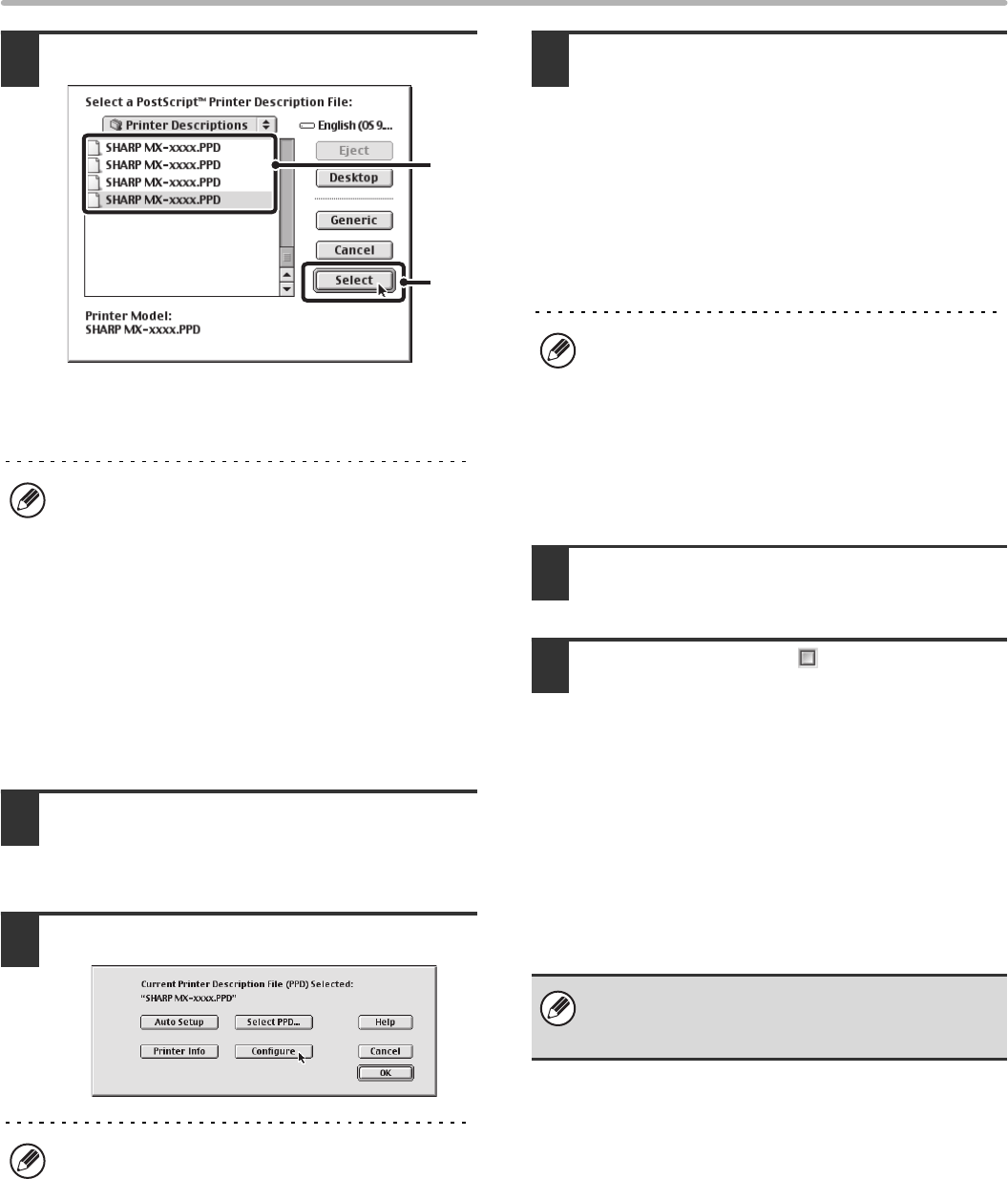
MAC OS 9.0 - 9.2.2
9
Select the PPD file.
(1) Click the PPD file for your model.
(2) Click the [Select] button.
10
Make sure that the machine is selected
in the "Select a PostScript Printer" list
and then click the [Setup] button.
11
Click the [Configure] button.
12
Select the machine configuration.
(1) Select the options that are installed on
the machine.
(2) Select [Options 2] from the menu to
change the screen and continue
selecting the options that have been
installed on the machine.
(3) Click the [OK] button.
13
Click the [OK] button in the window of
step 11 to close the window.
14
Click the close box (
) to close the
"Chooser".
This completes the configuration of the printer
driver.
Installing the screen fonts
The screen fonts for Mac OS 9.0 - 9.2.2 are contained in
the [Font] folder of the "PRINTER UTILITIES" CD-ROM
that accompanies the PS3 expansion kit. Copy the fonts
that you wish to install to the [System Folder] of the
startup disk.
• If the above dialog box does not appear and you
return to the "Chooser" dialog box, follow these
steps to select the PPD file manually.
(1) Make sure that the machine is selected in the
"Select a PostScript Printer" list, and then click
the [Setup] button followed by the [Select PPD]
button.
(2) Select the PPD file for your model and click the
[Open] button.
(3) Click the [OK] button.
• The PPD file is installed in the [Printer Descriptions]
folder in the [Extensions] folder.
To automatically configure the settings based on the
installed machine options that are detected, click the
[Auto Setup] button.
(1)
(2)
You can check the options that are installed on the
machine by printing out the "All Custom Setting List" in
the system settings. (However, note that "Input Tray
Options" must be set to the number of trays on the
machine.) Follow these steps to print out the "All
Custom Setting List": Press the [SYSTEM SETTINGS]
key, touch the [List Print (User)] key, and select "All
Custom Setting List".
If you experience problems that may be due to the
installed screen fonts, immediately delete the installed
fonts from the system.
PDF-Datei · ·
Fragen zu Sharp MX-4101N
Zu diesem Handbuch gibt es noch keine Fragen. Stellen Sie die erste.
Verwandte Produkte und Handbücher für Multifunktionsgeräte Sharp MX-4101N
- Multifunktionsgeräte Sharp MX-M362N Bedienungsanleitung
 (12 Seiten)
- Multifunktionsgeräte Sharp AR-5520D Bedienungsanleitung
 (91 Seiten)
- Multifunktionsgeräte Sharp DC525 - FO B/W Laser Bedienungsanleitung
(6 Seiten)
- Multifunktionsgeräte Sharp MFP Series Bedienungsanleitung
(16 Seiten)
- Multifunktionsgeräte Sharp LC-70UD1X Spezifikationen
(96 Seiten)
- Multifunktionsgeräte Sharp MX-LCX3 Bedienungsanleitung
(12 Seiten)
- Multifunktionsgeräte Sharp MX-M753N Bedienungsanleitung
(12 Seiten)
- Multifunktionsgeräte Sharp MX-4101N Bedienungsanleitung
(2 Seiten)
- Multifunktionsgeräte Sharp MX-7500N Bedienungsanleitung
(2 Seiten)
- Multifunktionsgeräte Sharp MX-B402 Bedienungsanleitung
(9 Seiten)
- Multifunktionsgeräte Sharp EL-6230 Bedienungsanleitung
(438 Seiten)
- Multifunktionsgeräte Sharp MX-M260 Bedienungsanleitung
(8 Seiten)
- Multifunktionsgeräte Sharp MX-B402 Bedienungsanleitung
(12 Seiten)
- Multifunktionsgeräte Sharp MX-M362N Bedienungsanleitung
 (56 Seiten)
- Multifunktionsgeräte Sharp MX-2010U Spezifikationen
(12 Seiten)
- Multifunktionsgeräte Sharp MX-M314U N Bedienungsanleitung
(2 Seiten)
- Multifunktionsgeräte Sharp User Authentication Bedienungsanleitung
(40 Seiten)
- Multifunktionsgeräte Sharp MX-M753N Bedienungsanleitung
(12 Seiten)
- Multifunktionsgeräte Sharp AM-400 Bedienungsanleitung
(6 Seiten)
- Multifunktionsgeräte Sharp AL-1217 Spezifikationen
(86 Seiten)