Sharp MX-2301N Spezifikationen Seite 14: USING THE TOUCH PANEL
 1
 2
 3
 4
 5
 6
 7
 8
 9
 10
 11
 12
 13
 14
 15
 16
 17
 18
 19
 20
 21
 22
 23
 24
 25
 26
 27
 28
 29
 30
 31
 32
 33
 34
 35
 36
 37
 38
 39
 40
 41
 42
 43
 44
 45
 46
 47
 48
 49
 50
 51
 52
 53
 54
 55
 56
 57
 58
 59
 60
 61
 62
 63
 64
 65
 66
 67
 68
 69
 70
 71
 72
 73
 74
 75
 76
 77
 78
 79
 80
 81
 82
 83
 84
 85
 86
 87
 88
 89
 90
 91
 92
 93
 94
 95
 96
 97
 98
 99
 100
 101
 102
 103
 104
 105
 106
 107
 108
 109
 110
 111
 112
 113
 114
 115
 116
12
USING THE TOUCH PANEL
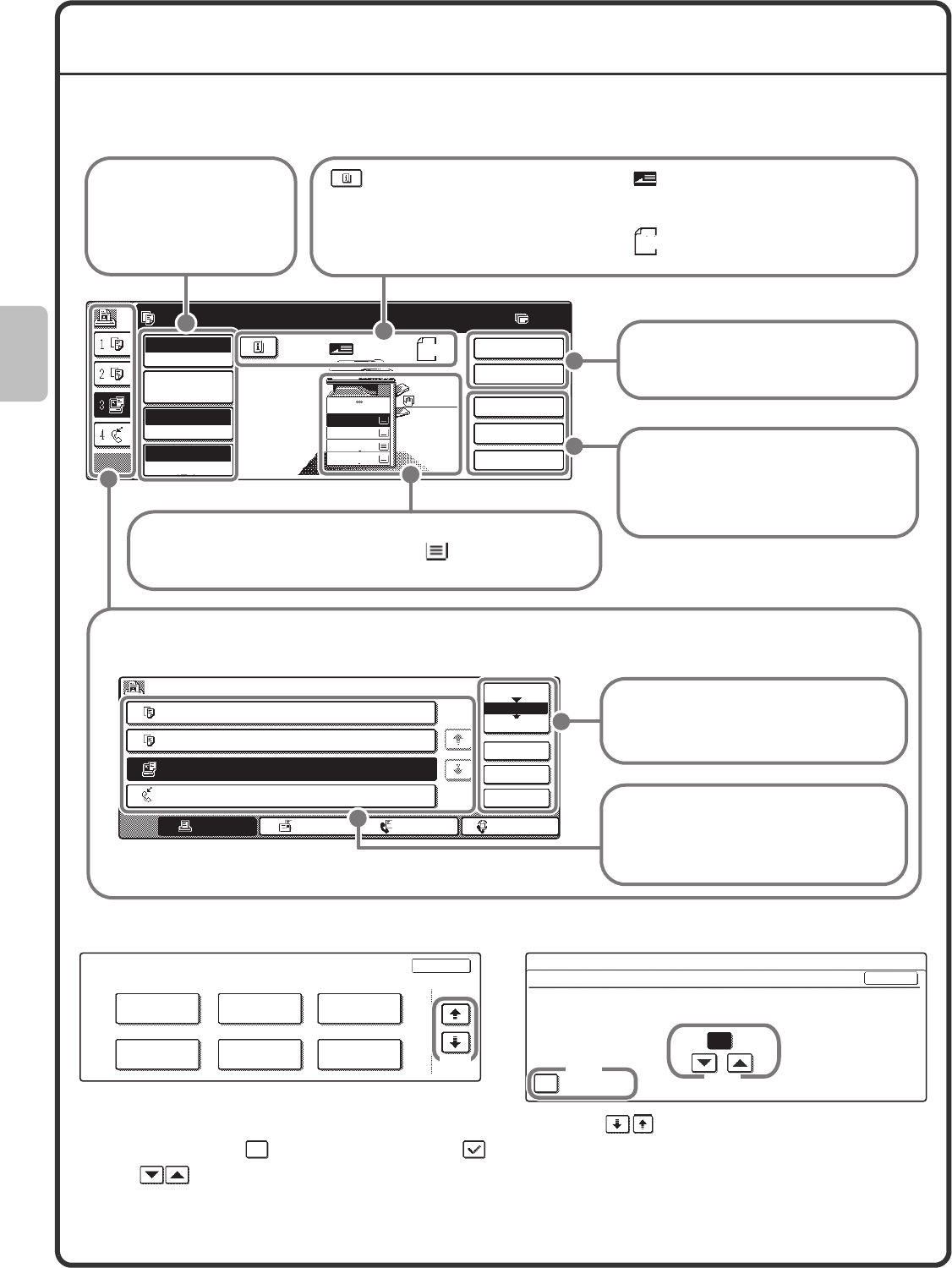
The touch keys that appear in the touch panel are grouped for easy operation. The layout and functions of the
touch keys are explained below.
Using general keys
(1) When the displayed screen is one of two or more screens, use the
keys to switch through the screens.
(2) When a checkbox
is touched, a checkmark
will appear to indicate that the setting is enabled.
(3) The
keys can be used to increase or decrease a value. To make a value change quickly, keep your
finger on the key. You can also directly touch a numeric value display key to change a number with the
numeric keys.
Ready to scan for copy.
Full Colour
Colour Mode
Auto
Exposure
100%
Copy Ratio
Job Detail
Settings
Job Queue
Sets / Progress
Status
Spool
Complete
Detail
Priority
Stop/Delete
Internet Fax
Fax Job
Scan
Print Job
Job Queue
Copy
020 / 001
Copying
Copy
020 / 000
Waiting
Computer01
020 / 000
Waiting
0312345678
1
2
3
4
002 / 000
Waiting
1/1
2-Sided Copy
Original
0
Output
Special Modes
File
Quick File
2.
3.
4.
1.
A3
A4
A4
A4
Plain
A4R
B4
Settings related to the
original are generally
grouped together on the
left side of the base
screen.
This indicates that an original has
been placed in the automatic
document feeder.
The size of the original appears
automatically.
This appears when one or more
special modes are selected.
Touch the icon to check what
modes are selected.
Advanced settings are grouped here.
You can have frequently used touch
keys displayed as shortcuts in this
position.
Settings related to output are generally
grouped together on the top right side
of the base screen.
A selected job can be given priority and
run ahead of other jobs, or a job
waiting in the queue can be cancelled.
Jobs are displayed as a list of touch
keys. The job keys appear in the order
that they will be run. A job key can be
touched to select it.
The job status screen normally appears behind the base screen of the currently selected mode. Only the left edge of
the job status screen appears, and this can be touched to bring the screen to the front.
A4
This shows the status of the paper trays on the machine.
You can
check the paper size, paper type and amount
of paper remaining.
The currently selected tray is highlighted.
Special Modes
OK
2/4
Covers/Inserts
Book Copy
Tab Copy
Card Shot
Transparency
Inserts
Multi Shot
(1)
System Settings
Auto Clear Setting
Set the time for auto clear.
60
OK
Cancel Timer
(10~240)
sec.
(2)
(3)
PDF-Datei · ·
Fragen zu Sharp MX-2301N
Zu diesem Handbuch gibt es noch keine Fragen. Stellen Sie die erste.
Verwandte Produkte und Handbücher für Multifunktionsgeräte Sharp MX-2301N
- Multifunktionsgeräte Sharp MX-4101N Spezifikationen
 (76 Seiten)
- Multifunktionsgeräte Sharp JW-20FLT Bedienungsanleitung
(197 Seiten)
- Multifunktionsgeräte Sharp MX-C381 Spezifikationen
(148 Seiten)
- Multifunktionsgeräte Sharp MX-M260 Bedienungsanleitung
 (160 Seiten)
- Multifunktionsgeräte Sharp MX-4101N Spezifikationen
(12 Seiten)
- Multifunktionsgeräte Sharp MX-M564N Bedienungsanleitung
(8 Seiten)
- Multifunktionsgeräte Sharp MX-M564N Bedienungsanleitung
(8 Seiten)
- Multifunktionsgeräte Sharp CPD-3830 Bedienungsanleitung
(1 Seiten)
- Multifunktionsgeräte Sharp MX-2010U Bedienungsanleitung
(12 Seiten)
- Multifunktionsgeräte Sharp MX-B381 Bedienungsanleitung
(12 Seiten)
- Multifunktionsgeräte Sharp MX-7500N Bedienungsanleitung
(30 Seiten)
- Multifunktionsgeräte Sharp AL-2021 Spezifikationen
(91 Seiten)
- Multifunktionsgeräte Sharp MX-B402 Bedienungsanleitung
(50 Seiten)
- Multifunktionsgeräte Sharp FO-155 Spezifikationen

 (165 Seiten)
- Multifunktionsgeräte Sharp MX-4140N Installationshandbuch
(19 Seiten)
- Multifunktionsgeräte Sharp JW-50FL Bedienungsanleitung
(201 Seiten)
- Multifunktionsgeräte Sharp MX-4140N Bedienungsanleitung
(12 Seiten)
- Multifunktionsgeräte Sharp CPD-3830 Bedienungsanleitung
(12 Seiten)
- Multifunktionsgeräte Sharp CD600 - B/W - Fax Bedienungsanleitung
(23 Seiten)
- Multifunktionsgeräte Sharp AR-810 Bedienerhandbuch
(178 Seiten)