Sharp AL-2021 Spezifikationen Seite 18: "Sharpdesk" button
 1
 2
 3
 4
 5
 6
 7
 8
 9
 10
 11
 12
 13
 14
 15
 16
 17
 18
 19
 20
 21
 22
 23
 24
 25
 26
 27
 28
 29
 30
 31
 32
 33
 34
 35
 36
 37
 38
 39
 40
 41
 42
 43
 44
 45
 46
 47
 48
 49
 50
 51
 52
 53
 54
 55
 56
 57
 58
 59
 60
 61
 62
 63
 64
 65
 66
 67
 68
 69
 70
 71
 72
 73
 74
 75
 76
 77
 78
 79
 80
 81
 82
 83
 84
 85
 86
 87
 88
 89
 90
 91
3
18
Installing the Utility Software
11
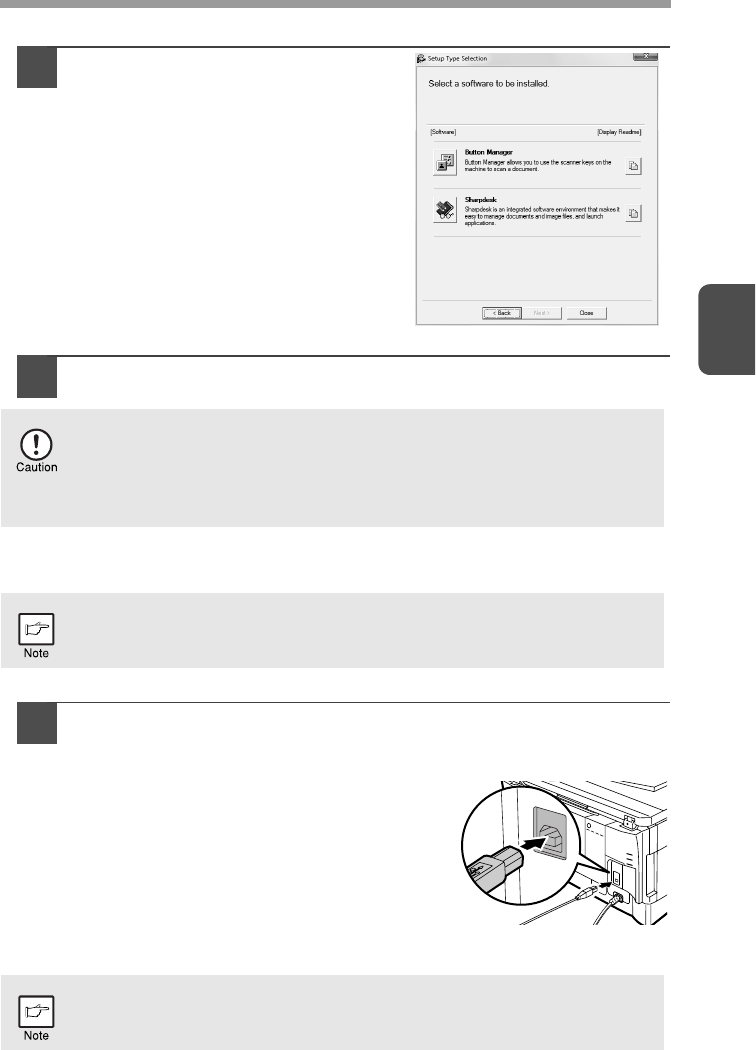
Click the "Button Manager" or the
"Sharpdesk" button.
Click the "Display Readme" button to
show information on packages that are
selected.
Follow the on-screen instructions.
* In Windows 2000, The "Sharpdesk"
button does not appear.
12
When installing is finished, click the "Close" button.
A message will appear instructing you to connect the machine to your
computer. Click the "OK" button.
13
Connect the machine to your computer with a USB cable.
1
Make sure that the machine is powered on.
2
Connect the cable to the USB
connector (B type) on the machine.
The USB interface on the machine
complies with the USB 2.0 (Hi-Speed)
standard. Please purchase a shielded
USB cable.
3
Connect the other end of the cable to
the USB connector (A type) on your
computer.
The machine is found and a Plug and Play window appears.
•
If you are using Windows Vista/7 and a security warning window
appears, be sure to click "Install this driver software anyway".
•
If you are running Windows 2000/XP and a warning message appears
regarding the Windows logo test or digital signature, be sure to click
"Continue Anyway" or "Yes".
After the installation, a message prompting you to restart your computer
may appear. In this case, click the "Yes" button to restart your computer.
If your computer is not compatible with USB 2.0 (Hi-Speed), the "USB
2.0 mode switching" setting in the machine's user program must be set
to "Full-Speed". For more information, see
"USER PROGRAMS" (p.66)
.
PDF-Datei · ·
Fragen zu Sharp AL-2021
Zu diesem Handbuch gibt es noch keine Fragen. Stellen Sie die erste.
Verwandte Produkte und Handbücher für Multifunktionsgeräte Sharp AL-2021
- Multifunktionsgeräte Sharp MX-B402 Bedienungsanleitung
 (50 Seiten)
- Multifunktionsgeräte Sharp FO-155 Spezifikationen

 (165 Seiten)
- Multifunktionsgeräte Sharp MX-4140N Installationshandbuch
(19 Seiten)
- Multifunktionsgeräte Sharp JW-50FL Bedienungsanleitung
(201 Seiten)
- Multifunktionsgeräte Sharp MX-4140N Bedienungsanleitung
(12 Seiten)
- Multifunktionsgeräte Sharp CPD-3830 Bedienungsanleitung
(12 Seiten)
- Multifunktionsgeräte Sharp CD600 - B/W - Fax Bedienungsanleitung
(23 Seiten)
- Multifunktionsgeräte Sharp AR-810 Bedienerhandbuch
(178 Seiten)
- Multifunktionsgeräte Sharp AL-1566 Spezifikationen
(116 Seiten)
- Multifunktionsgeräte Sharp AM-400 Spezifikationen
(162 Seiten)
- Multifunktionsgeräte Sharp AL-2051 Spezifikationen
(173 Seiten)
- Multifunktionsgeräte Sharp MX-5111N Bedienungsanleitung
(12 Seiten)
- Multifunktionsgeräte Sharp AL-2021 Bedienungsanleitung
(91 Seiten)
- Multifunktionsgeräte Sharp MX-C250 Installationshandbuch
(20 Seiten)
- Multifunktionsgeräte Sharp AM-300 Spezifikationen
(167 Seiten)
- Multifunktionsgeräte Sharp AL-2060 Spezifikationen
(112 Seiten)
- Multifunktionsgeräte Sharp AL-1555 Series Bedienungsanleitung
 (37 Seiten)
- Multifunktionsgeräte Sharp AL-2050 Spezifikationen
(116 Seiten)
- Multifunktionsgeräte Sharp AL-1552 Bedienungsanleitung
(81 Seiten)
- Multifunktionsgeräte Sharp AR-168N Bedienungsanleitung
 (108 Seiten)