Sharp AL-2021 Spezifikationen Seite 55: Button Manager settings
 1
 2
 3
 4
 5
 6
 7
 8
 9
 10
 11
 12
 13
 14
 15
 16
 17
 18
 19
 20
 21
 22
 23
 24
 25
 26
 27
 28
 29
 30
 31
 32
 33
 34
 35
 36
 37
 38
 39
 40
 41
 42
 43
 44
 45
 46
 47
 48
 49
 50
 51
 52
 53
 54
 55
 56
 57
 58
 59
 60
 61
 62
 63
 64
 65
 66
 67
 68
 69
 70
 71
 72
 73
 74
 75
 76
 77
 78
 79
 80
 81
 82
 83
 84
 85
 86
 87
 88
 89
 90
 91
6
55
Button Manager settings
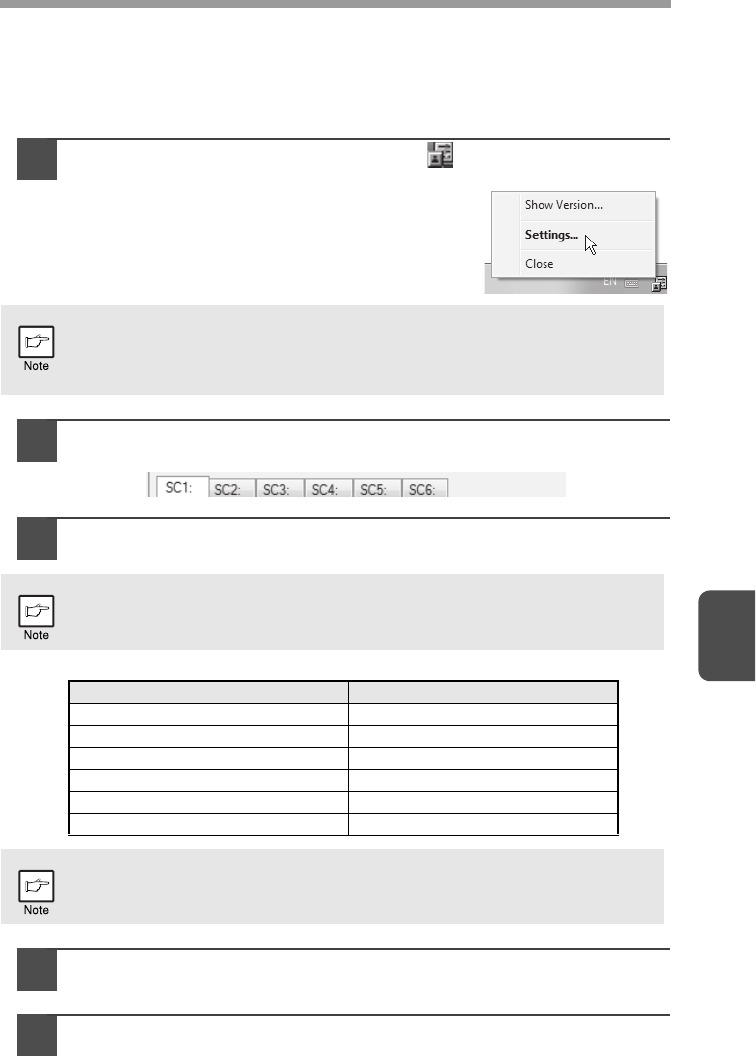
Once installed, Button Manager normally runs in the background in the Windows
operating system. If you need to change Button Manager settings, follow the steps below.
For details on Button Manager settings, see Button Manager Help.
"Outline of Button Manager" (p.56)
1
Right-click the Button Manager icon (
) on the task bar, and
select "Settings" from the pop-up menu.
The setting screen of Button Manager will open.
2
Click the tab of the scan menu that you want to set up.
3
Select the start-up application in the "Application Selection"
area.
Button Manager scan menu (factory default)
4
Set up the "Colour Mode", "Edge" and other scan settings in
the "Scan Setup" area.
5
Click the "OK" button.
This completes the settings.
If the Button Manager icon does not appear on the task bar, click the
"Start" button, select "All Programs" ("Programs" in Windows 2000),
select "Sharp Button Manager Y", and then click "Button Manager" to
start Button Manager.
When the "Show TWAIN setting screen when scanning" checkbox is
selected, the scan setting screen appears when scanning is executed to
let you adjust the scanning conditions.
Display/Button Manager menu
Application that starts
SC1:
Sharpdesk
SC2:
Email
SC3:
FAX
SC4:
OCR
SC5:
Microsoft Word
SC6:
Filing
The start-up application must be installed before using.
PDF-Datei · ·
Fragen zu Sharp AL-2021
Zu diesem Handbuch gibt es noch keine Fragen. Stellen Sie die erste.
Verwandte Produkte und Handbücher für Multifunktionsgeräte Sharp AL-2021
- Multifunktionsgeräte Sharp MX-B402 Bedienungsanleitung
 (50 Seiten)
- Multifunktionsgeräte Sharp FO-155 Spezifikationen

 (165 Seiten)
- Multifunktionsgeräte Sharp MX-4140N Installationshandbuch
(19 Seiten)
- Multifunktionsgeräte Sharp JW-50FL Bedienungsanleitung
(201 Seiten)
- Multifunktionsgeräte Sharp MX-4140N Bedienungsanleitung
(12 Seiten)
- Multifunktionsgeräte Sharp CPD-3830 Bedienungsanleitung
(12 Seiten)
- Multifunktionsgeräte Sharp CD600 - B/W - Fax Bedienungsanleitung
(23 Seiten)
- Multifunktionsgeräte Sharp AR-810 Bedienerhandbuch
(178 Seiten)
- Multifunktionsgeräte Sharp AL-1566 Spezifikationen
(116 Seiten)
- Multifunktionsgeräte Sharp AM-400 Spezifikationen
(162 Seiten)
- Multifunktionsgeräte Sharp AL-2051 Spezifikationen
(173 Seiten)
- Multifunktionsgeräte Sharp MX-5111N Bedienungsanleitung
(12 Seiten)
- Multifunktionsgeräte Sharp AL-2021 Bedienungsanleitung
(91 Seiten)
- Multifunktionsgeräte Sharp MX-C250 Installationshandbuch
(20 Seiten)
- Multifunktionsgeräte Sharp AM-300 Spezifikationen
(167 Seiten)
- Multifunktionsgeräte Sharp AL-2060 Spezifikationen
(112 Seiten)
- Multifunktionsgeräte Sharp AL-1555 Series Bedienungsanleitung
 (37 Seiten)
- Multifunktionsgeräte Sharp AL-2050 Spezifikationen
(116 Seiten)
- Multifunktionsgeräte Sharp AL-1552 Bedienungsanleitung
(81 Seiten)
- Multifunktionsgeräte Sharp AR-168N Bedienungsanleitung
 (108 Seiten)