Sharp AR-168N Spezifikationen Seite 27
- Seite / 177
- Inhaltsverzeichnis
- LESEZEICHEN

- DIGITAL MULTIFUNCTIONAL 1
- CAUTION 2
- CONTENTS 4
- [1] GENERAL 6
- [2] SPECIFICATIONS 7
- 3. Copy performance 8
- 4. SPLC printer 9
- 5. Scan function 9
- [3] CONSUMABLE PARTS 10
- 4. TD cartridge replacement 11
- 1. Appearance 12
- 2. Internal 12
- 18 19 20 21 13
- 4. Motors and solenoids 14
- 5. Sensors and switches 15
- 6. PWB unit 16
- 7. Cross sectional view 17
- 1. Copier installation 18
- 2. Cautions on handling 18
- Lock Unlock 19
- Grasp here and turn in 19
- CAUTION tape 19
- Protective pins 19
- Pressure plate lock 21
- [Custom installation] 23
- (1) Windows XP (USB/Parallel) 23
- (2) Windows 98/Me/2000 (USB) 24
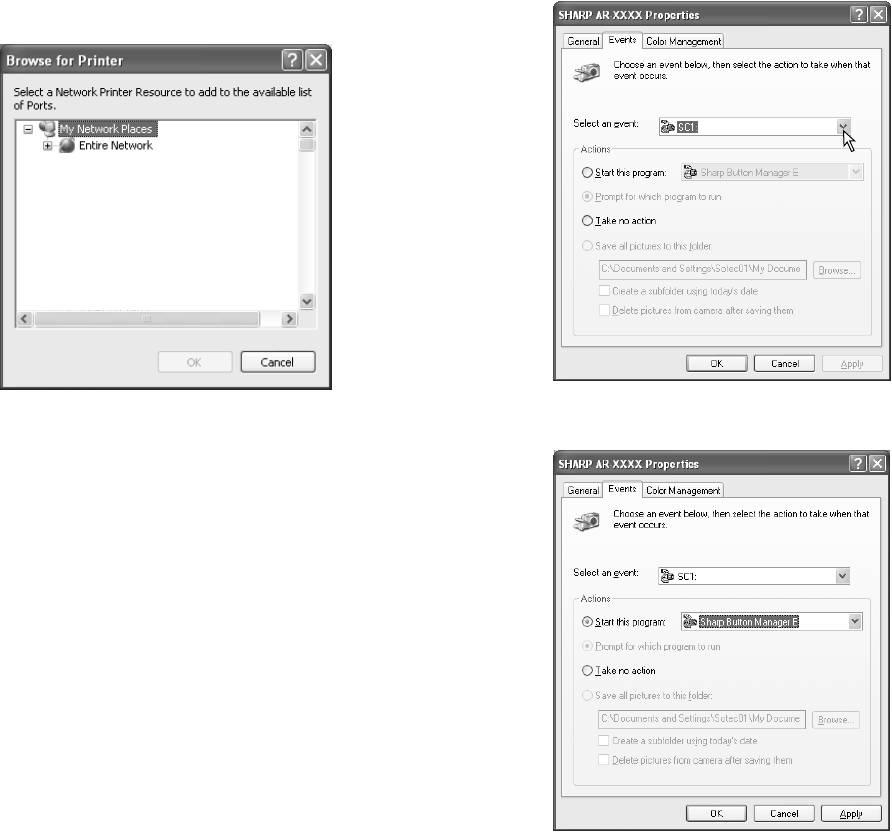
- C. Setting up button manager 27
- (1) Windows XP 27
- (2) Windows 98/Me/2000 27
- (1) Connecting a USB cable 28
- 11. Interface 29
- 12. Moving 29
- [6] COPY PROCESS 30
- 2. Outline of print process 31
- 3. Actual print process 31
- About DC 5.2kV 32
- Process controlling 33
- [7] OPERATIONAL DESCRIPTIONS 34
- 34 6 285 35
- 3. Laser unit 36
- 4. Fuser section 36
- (1) Heat roller 37
- (2) Separator pawl 37
- (3) Thermal control 37
- (4) Fusing resistor 37
- A. Initial state 41
- B. Front copy 41
- C. Back copy 41
- 8. Shifter 42
- [8] DISASSEMBLY AND ASSEMBLY 43
- Example of NG 44
- Charger wire 46
- Protrusion 46
- 3. Optical section 47
- CCD core 48
- 4. Fusing section 49
- Heat roller disassembly 50
- Heater lamp 50
- C. Assembly procedure 56
- Back Wire treatment 57
- 7. Rear frame section 59
- 8. Power section 60
- 9. Duplex motor section 60
- (1) Remove the rear cabinet 61
- (2) Remove the RSPF 61
- F. Sensor PWB 62
- G. Pickup solenoid 62
- H. Clutch 62
- (1) Remove the clutch unit 62
- (2) Remove the clutch 63
- (1) Remove the pickup unit 63
- (1) Remove the parts 65
- (2) Remove the parts 66
- T. Solenoid 67
- (1) Remove the reverse gate 67
- (2) Remove the solenoid 67
- [9] ADJUSTMENTS 68
- B. Image position adjustment 69
- (1) Lead edge adjustment 69
- B4 or 8 1/2″ × 14″ paper 70
- A4 size rear edge 70
- Scale image 70
- Paper rear edge 70
- White paper 71
- Test chart 71
- 3. High voltage adjustment 72
- 4. Duplex adjustment 72
- Document guide 73
- The trailing edge has a scale 73
- Table glass 73
- Scale (D-D mode) 73
- 6cm or more is required 74
- 2. Key rule 76
- 3. List of test commands 76
- Image loss, R = 4mm 101
- Chart back surface 105
- 5. Trouble codes 114
- [11] MAINTENANCE 117
- [12] USER PROGRAM 118
- B. Print mode 119
- [13] ELECTRICAL SECTION 121
- 2. Circuit descriptions 122
- (4) Reset circuit 127
- ASIC/CPU 128
- Tonner Motor Driver 129
- TD62064AF 130
- (10) OPE PWB 131
- (11) Carriage Unit 131
- (1) Noise filter circuit 131
- Voltage waveform 132
- [14]CIRCUIT DIAGRAM 134
- Serial EE-PROM 135
- MCU PWB (ASIC section) 136
- MCU PWB (Memory section) 138
- MCU PWB (Driver section 1) 140
- MCU PWB (Driver section 2) 142
- MCU PWB (Driver section 3) 144
- MCU PWB (IMC2 section 1/2) 148
- MCU PWB (Connector section 1) 152
- To Operational PWB 153
- To Mirror motor 153
- MCU PWB (Connector section 3) 154
- To 2nd. cassette 155
- MCU PWB (Modem I/F Connector) 157
- MCU PWB (Scanner I/F section) 158
- 2. OPERATION PWB 159
- To MCU PWB 161
- To Drum Initial Detector 161
- To FAX Key PWB 161
- POWER SUPPLY (120V/127V) 162
- (1) MCU SECTION (1/3) 164
- [15] FIRMWARE DOWNLOAD 167
- PROCEDURES 167
- 5. Installing procedures 171
- LEAD-FREE SOLDER 175
- CAUTION FOR BATTERY DISPOSAL 176
- COPYRIGHT 177
- 2005 BY SHARP CORPORATION 177
Verwandte Produkte und Handbücher für Multifunktionsgeräte Sharp AR-168N
 (2 Seiten)
 (12 Seiten)
 (216 Seiten)
 (12 Seiten)
 (2 Seiten)
Hunter-fan 40120 manuels
Manuels d'utilisation et guides de l'utilisateur pour Panneau de contrôle Hunter-fan 40120.
Nous fournissons des manuels en pdf 1 Hunter-fan 40120 à télécharger gratuitement par type de document : Manuel de l'utilisateur

Hunter fan 40120 Manuel de l'utilisateur (28 pages)
marque: Hunter-fan | Catégorie: Control panel | Taille: 1.11 MB |
Table des matières
Plus de produits et de manuels pour Panneau de contrôle Hunter-fan
| Modèles | Type de document |
|---|---|
| 47550 |
Manuel de l'utilisateur
Hunter Fan 47550 User Manual,
38 pages
|
| 43168 |
Manuel de l'utilisateur
Hunter Fan 43168 User Manual,
21 pages
|
| 44372 |
Manuel de l'utilisateur
Hunter Fan 44372 User Manual,
45 pages
|
| 44665 |
Manuel de l'utilisateur
Hunter Fan 44665 User Manual,
2 pages
|
| 44033-01 44277 |
Manuel de l'utilisateur
Hunter Fan 44033-01 44277 User Manual,
37 pages
|
| 44760 |
Manuel de l'utilisateur
Hunter Fan 44760 User Manual,
28 pages
|
| 44905 |
Manuel de l'utilisateur
Hunter Fan 44905 User Manual,
54 pages
|
| 44127 |
Manuel de l'utilisateur
Hunter Fan 44127 User Manual,
37 pages
|
| 43255 |
Manuel de l'utilisateur
Hunter Fan 43255 User Manual,
7 pages
|
| 44110 |
Manuel de l'utilisateur
Hunter Fan 44110 User Manual,
52 pages
|
| 43154 |
Manuel de l'utilisateur
Hunter Fan 43154 User Manual [en] ,
7 pages
|
| 43153 |
Manuel de l'utilisateur
Hunter Fan 43153 User Manual,
2 pages
|
| 44050 |
Manuel de l'utilisateur
Hunter Fan 44050 User Manual,
24 pages
|
| 43355 |
Manuel de l'utilisateur
Hunter Fan 43355 User Manual,
43 pages
|
| 47300A |
Manuel de l'utilisateur
Hunter Fan 47300A User Manual,
44 pages
|
| 40135 |
Manuel de l'utilisateur
Hunter Fan 40135 User Manual,
30 pages
|
| 47350A |
Manuel de l'utilisateur
Hunter Fan 47350A User Manual,
23 pages
|
| 44260 |
Manuel de l'utilisateur
 Hunter Fan 44260 User Manual,
104 pages
Hunter Fan 44260 User Manual,
104 pages
|
| 44377W |
Manuel de l'utilisateur
Hunter Fan 44377W User Manual,
64 pages
|
| PH20-30A |
Manuel de l'utilisateur
Hunter Fan PH20-30A User Manual,
26 pages
|
© 2020, manymanuals.de. Alle Rechte vorbehalten. | 0.037 s |
 Manymanuals.com
 Manymanuals.de
 Manymanuals.fr
 Manymanuals.it
 Manymanuals.pl
 Manymanuals.cz
 Manymanuals.es
 Manymanuals-pt.com
Kommentare zu diesen Handbüchern