Sharp MX-M260 Spezifikationen Seite 46: DUAL PAGE COPY
 1
 2
 3
 4
 5
 6
 7
 8
 9
 10
 11
 12
 13
 14
 15
 16
 17
 18
 19
 20
 21
 22
 23
 24
 25
 26
 27
 28
 29
 30
 31
 32
 33
 34
 35
 36
 37
 38
 39
 40
 41
 42
 43
 44
 45
 46
 47
 48
 49
 50
 51
 52
 53
 54
 55
 56
 57
 58
 59
 60
 61
 62
 63
 64
 65
 66
 67
 68
 69
 70
 71
 72
 73
 74
 75
 76
 77
 78
 79
 80
 81
 82
 83
 84
 85
 86
 87
 88
 89
 90
 91
 92
 93
 94
 95
 96
 97
 98
 99
 100
 101
 102
 103
 104
 105
 106
 107
 108
 109
 110
 111
 112
 113
 114
 115
 116
 117
 118
 119
 120
 121
 122
 123
 124
 125
 126
 127
 128
 129
 130
 131
 132
 133
 134
 135
 136
 137
 138
 139
 140
 141
 142
 143
 144
 145
 146
 147
 148
 149
 150
 151
 152
 153
 154
 155
 156
 157
 158
 159
 160
44
CONVENIENT COPY FUNCTIONS
DUAL PAGE COPY
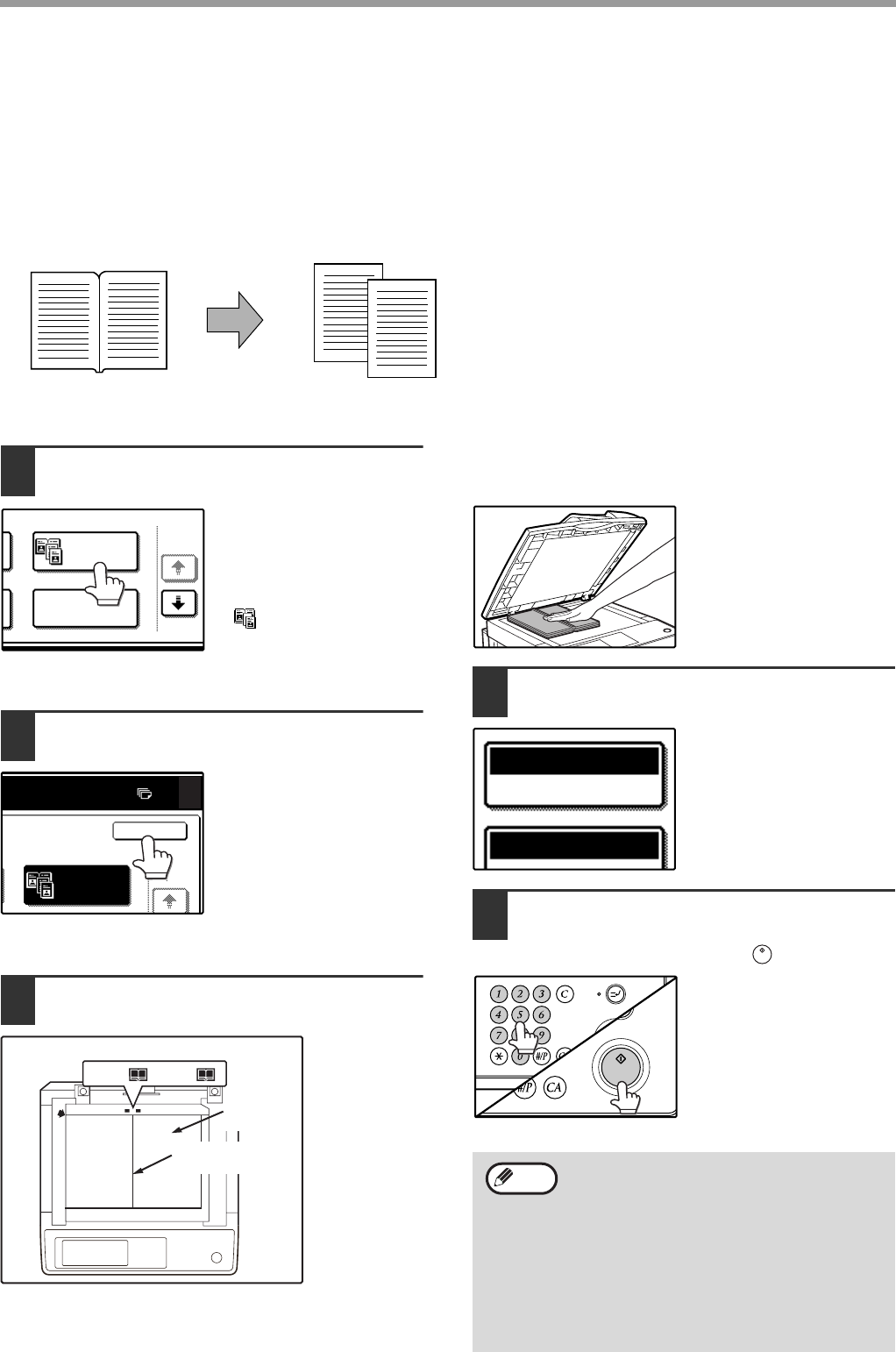
The dual page copy function produces separate copies of two adjoining pages on the document glass. It is
especially useful when copying books and other bound documents.
[Example] Copying the right and left pages of a book
1
Touch the [DUAL PAGE COPY] key in
the special modes screen.
The [DUAL PAGE
COPY] key is highlighted
to indicate that the
function is enabled, and
the dual page copy icon
(
) will appear in the
screen.
2
Touch the [OK] key in the special
modes screen.
You will return to the
main screen of copy
mode.
3
Place the originals on the document
glass. (p.23)
When copying book originals:
When copying a thick book, press down gently on the
book to flatten it against the document glass.
4
Make sure that B5 or A4 (8-1/2" x 11")
size paper is selected.
If B5 or A4 (8-1/2" x 11")
paper is not selected,
touch the [PAPER
SELECT] key to select
B5 or A4 (8-1/2" x 11")
paper.
5
Select the number of copies and any
other desired copy settings, and then
press the [START] key (
).
• A reduction setting can be selected when using
the dual page copy function, however, an
enlargement setting cannot be selected.
• The dual page copy function can only be used
when copying from the document glass. The
RSPF cannot be used.
• B5 or A4 (8-1/2" x 11") paper can be used.
Book original
Dual page copy
MULTI SHOT
1/2
DUAL PAGE
COPY
0
1/2
OK
DUAL PAGE
COPY
Centre line of
original
This page
is copied
first.
Index
B5, A4
(8
1
/
2
x11
)
• To cancel the dual page copy function,
touch the [DUAL PAGE COPY] key in the
special modes screen. (The key will no
longer be highlighted.) (See the screen of
step 1.)
• To erase shadows caused by the document
binding, use the edge erase function (p.43).
(Centre Erase and Edge + Centre Erase
cannot be used with the dual page copy
function.)
PAPER SELECT
AUTO
A4
100%
COPY RATIO
UT
LOGOUT
Note
PDF-Datei · ·
Fragen zu Sharp MX-M260
Zu diesem Handbuch gibt es noch keine Fragen. Stellen Sie die erste.
Verwandte Produkte und Handbücher für Multifunktionsgeräte Sharp MX-M260
- Multifunktionsgeräte Sharp MX-M362N Spezifikationen
 (56 Seiten)
- Multifunktionsgeräte Sharp MX-LCX3 Spezifikationen
(76 Seiten)
- Multifunktionsgeräte Sharp AR-FR11 Bedienungsanleitung
(6 Seiten)
- Multifunktionsgeräte Sharp MX-M363U Einstellungsanleitung
(112 Seiten)
- Multifunktionsgeräte Sharp DX-C401FX Bedienungsanleitung
(12 Seiten)
- Multifunktionsgeräte Sharp MX-5000N Bedienungsanleitung
(2 Seiten)
- Multifunktionsgeräte Sharp AL-2040CS Bedienungsanleitung
 (82 Seiten)
- Multifunktionsgeräte Sharp AR-C250 Spezifikationen
(161 Seiten)
- Multifunktionsgeräte Sharp MX-2301N Spezifikationen
(116 Seiten)
- Multifunktionsgeräte Sharp MX-4101N Spezifikationen
(76 Seiten)
- Multifunktionsgeräte Sharp JW-20FLT Bedienungsanleitung
(197 Seiten)
- Multifunktionsgeräte Sharp MX-C381 Spezifikationen
(148 Seiten)
- Multifunktionsgeräte Sharp MX-M260 Bedienungsanleitung
(160 Seiten)
- Multifunktionsgeräte Sharp MX-4101N Spezifikationen
(12 Seiten)
- Multifunktionsgeräte Sharp MX-M564N Bedienungsanleitung
(8 Seiten)
- Multifunktionsgeräte Sharp MX-M564N Bedienungsanleitung
(8 Seiten)
- Multifunktionsgeräte Sharp CPD-3830 Bedienungsanleitung
(1 Seiten)
- Multifunktionsgeräte Sharp MX-2010U Bedienungsanleitung
(12 Seiten)
- Multifunktionsgeräte Sharp MX-B381 Bedienungsanleitung
(12 Seiten)
- Multifunktionsgeräte Sharp MX-7500N Bedienungsanleitung
(30 Seiten)