Sharp MX-M260 Spezifikationen Seite 60: BASIC SETTINGS FOR NETWORK SCANNING
 1
 2
 3
 4
 5
 6
 7
 8
 9
 10
 11
 12
 13
 14
 15
 16
 17
 18
 19
 20
 21
 22
 23
 24
 25
 26
 27
 28
 29
 30
 31
 32
 33
 34
 35
 36
 37
 38
 39
 40
 41
 42
 43
 44
 45
 46
 47
 48
 49
 50
 51
 52
 53
 54
 55
 56
 57
 58
 59
 60
 61
 62
 63
 64
 65
 66
 67
 68
 69
 70
 71
 72
 73
 74
 75
 76
 77
 78
 79
 80
 81
 82
 83
 84
 85
 86
 87
 88
 89
 90
 91
 92
 93
 94
 95
 96
 97
 98
 99
 100
 101
 102
 103
 104
 105
 106
 107
 108
 109
 110
 111
 112
 113
 114
 115
 116
 117
 118
 119
 120
 121
 122
 123
 124
 125
 126
 127
 128
 129
 130
 131
 132
 133
 134
 135
 136
 137
 138
 139
 140
 141
 142
 143
 144
 145
 146
 147
 148
 149
 150
 151
 152
 153
 154
 155
 156
 157
 158
 159
 160
58
NETWORK SCANNER FUNCTION
BASIC SETTINGS FOR NETWORK SCANNING
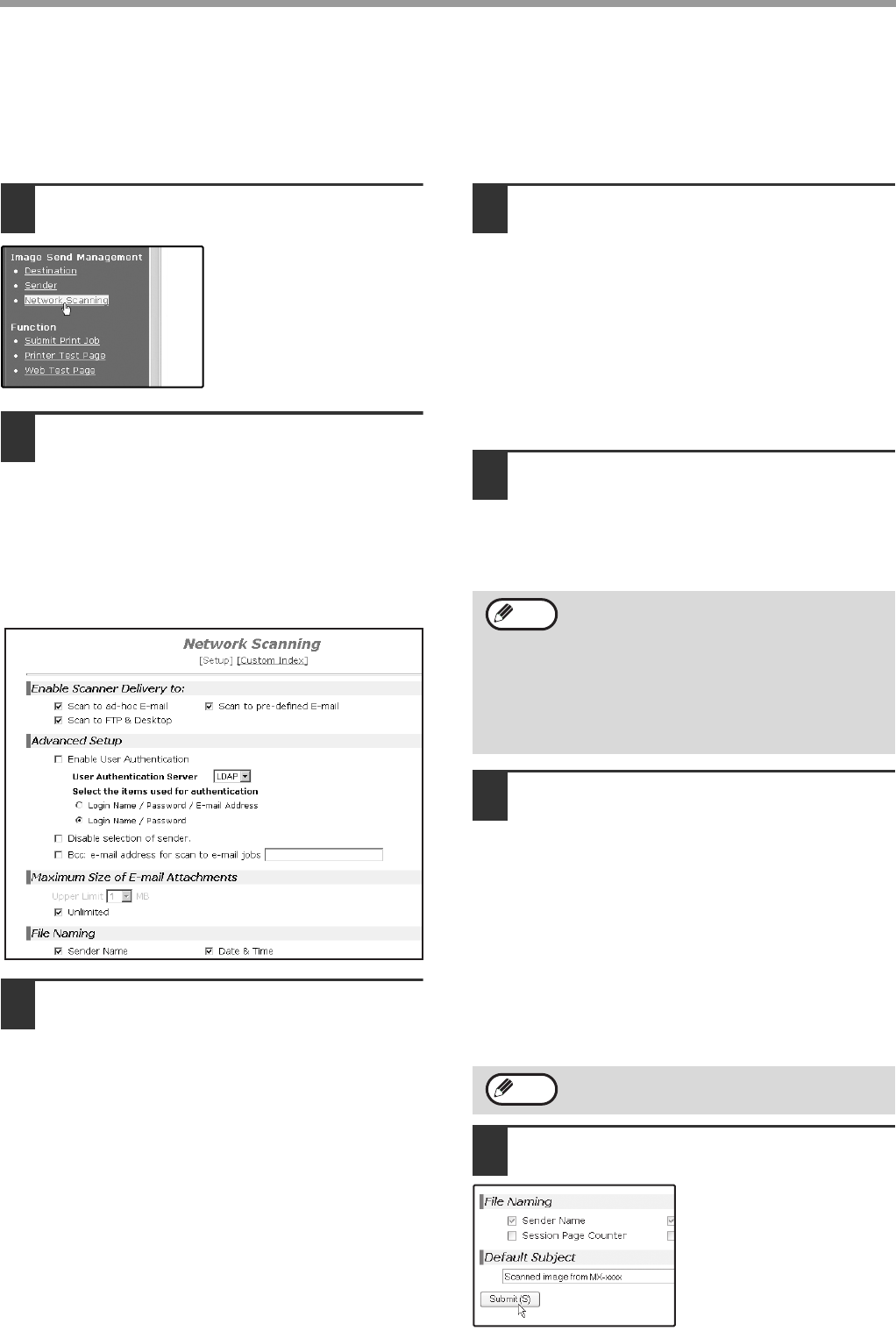
Click "Network Scanning" in the menu frame, and then establish the required settings. These settings should only be
established by the network administrator.
For detailed explanations of the procedures for establishing settings, click "Help" in the menu frame.
1
Click "Network Scanning" in the menu
frame.
The Network Scanning
Setup page appears.
2
Select the transmission methods that
you wish to use.
Select the scanner delivery methods that you
want to use. In the "Enable Scanner Delivery to:"
field, click the checkbox next to each method that
you want to use so that a checkmark appears in
the checkbox.
All transmission methods are initially selected
(factory default settings).
3
Configure the Advanced Setup settings.
Select advanced functions that can be used for
Scan to E-mail.
Select the checkboxes of the functions that you
wish to use.
• The "Enable User Authentication" checkbox
can be selected to restrict use of the network
scanner function to authorised users. (p.69)
• To allow a sender to be selected when sending
an image by Scan to E-mail, make sure that
"Disable selection of sender from Sender List"
is not selected. (p.82)
• If you wish to Bcc a copy of a Scan to E-mail
transmission to an e-mail address, select the
"Bcc:" checkbox and enter the e-mail address.
4
Set a limit for the size of image files.
A limit can be set for the size of image files sent
by Scan to E-mail to prevent excessively large
files from being sent.
If the image file created from the scanned image
is larger than the set limit, the image file is
discarded. The limit can be set from 1 MB to 10
MB in increments of 1 MB.
The factory default setting is "Unlimited". If you wish to
set a limit, remove the checkmark from the "Unlimited"
checkbox and enter the desired limit in "Upper Limit".
5
Select the method for assigning a file
name to a scanned image.
Select the method for assigning a file name to a
scanned image. In "File Naming", click the items
that you wish to use in the file name. "Destination
Name" and "Date & Time" are initially selected.
6
Selecting an e-mail subject (only used
for Scan to E-mail).
The setting is used to enter the subject that
appears in the recipient's e-mail program when
you perform Scan to E-mail. (This setting is not
necessary if you will not be using Scan to E-mail.)
The subject can be up to 80 characters long. Only
one subject can be entered. If nothing is entered,
"Scanned image from <Device Name>" will appear.
* The name that appears in <Device Name> is
the name stored in "Name" in the screen that
appears when you click "System Information" in
the menu frame. If a name has not been stored,
the product name will appear.
7
Click "Submit".
After entering the
settings, be sure to click
"Submit" to store them.
•
If you are going to send images to the same
recipient more than once, we recommend that
you also select "Session Page Counter" or
"Unique Identifier" to prevent sending multiple
files with the same name, which would result in
each successive file overwriting the previous file.
• If a file name is entered at the time of
transmission, the file name entered here
will be disregarded.
If a subject is entered at the time of transmission,
the subject entered here will be disregarded.
Note
Note
PDF-Datei · ·
Fragen zu Sharp MX-M260
Zu diesem Handbuch gibt es noch keine Fragen. Stellen Sie die erste.
Verwandte Produkte und Handbücher für Multifunktionsgeräte Sharp MX-M260
- Multifunktionsgeräte Sharp MX-M362N Spezifikationen
 (56 Seiten)
- Multifunktionsgeräte Sharp MX-LCX3 Spezifikationen
(76 Seiten)
- Multifunktionsgeräte Sharp AR-FR11 Bedienungsanleitung
(6 Seiten)
- Multifunktionsgeräte Sharp MX-M363U Einstellungsanleitung
(112 Seiten)
- Multifunktionsgeräte Sharp DX-C401FX Bedienungsanleitung
(12 Seiten)
- Multifunktionsgeräte Sharp MX-5000N Bedienungsanleitung
(2 Seiten)
- Multifunktionsgeräte Sharp AL-2040CS Bedienungsanleitung
 (82 Seiten)
- Multifunktionsgeräte Sharp AR-C250 Spezifikationen
(161 Seiten)
- Multifunktionsgeräte Sharp MX-2301N Spezifikationen
(116 Seiten)
- Multifunktionsgeräte Sharp MX-4101N Spezifikationen
(76 Seiten)
- Multifunktionsgeräte Sharp JW-20FLT Bedienungsanleitung
(197 Seiten)
- Multifunktionsgeräte Sharp MX-C381 Spezifikationen
(148 Seiten)
- Multifunktionsgeräte Sharp MX-M260 Bedienungsanleitung
(160 Seiten)
- Multifunktionsgeräte Sharp MX-4101N Spezifikationen
(12 Seiten)
- Multifunktionsgeräte Sharp MX-M564N Bedienungsanleitung
(8 Seiten)
- Multifunktionsgeräte Sharp MX-M564N Bedienungsanleitung
(8 Seiten)
- Multifunktionsgeräte Sharp CPD-3830 Bedienungsanleitung
(1 Seiten)
- Multifunktionsgeräte Sharp MX-2010U Bedienungsanleitung
(12 Seiten)
- Multifunktionsgeräte Sharp MX-B381 Bedienungsanleitung
(12 Seiten)
- Multifunktionsgeräte Sharp MX-7500N Bedienungsanleitung
(30 Seiten)